Slack App
Last updated: October 29, 2024
How Does Aleph’s Slack App Work?
The Aleph app for Slack can send Aleph alerts into Slack based on the channels and frequencies you configure in the Slack alert settings.
In the current release, you can send Slack alerts whenever data abnormalities or discrepancies are identified through Checks.
We've got a number of updates and improvements planned for more ways to interact with Aleph from within Slack.
How Do I Enable the Connection?
Log in to the Aleph web app and click on "Settings" in the sidebar menu then select "Aleph for Slack".
Here you can see if the app has already been connected. If it hasn’t, click on "Connect" to begin the set up process.
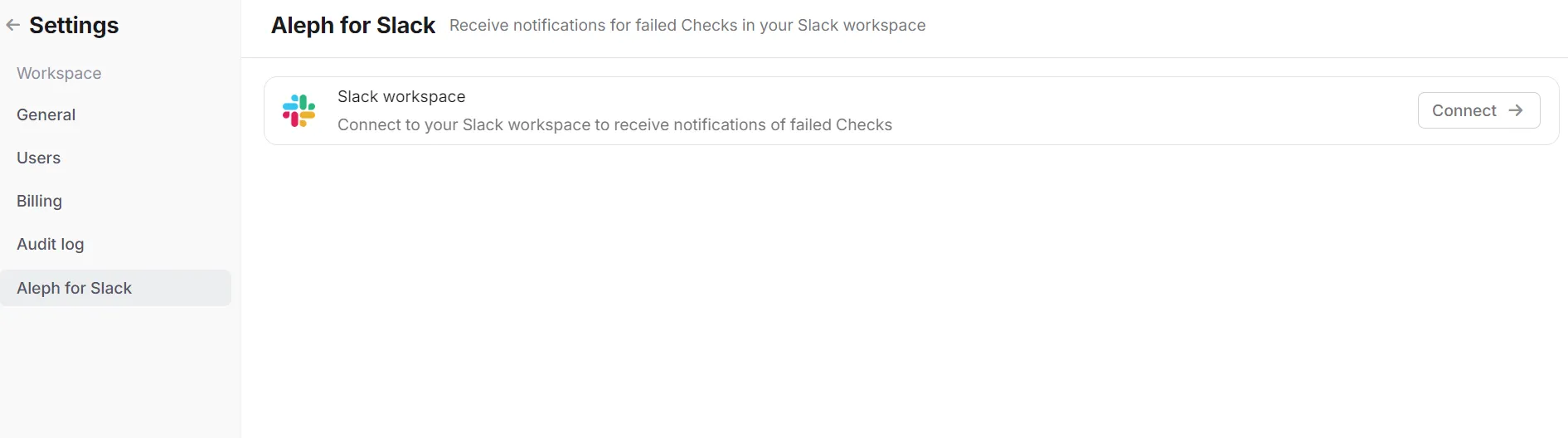
You will be redirected to a Slack installation page where you need to select "Allow" to continue. If you are a member of multiple Slack workspaces, make sure to select the desired workspace in the dropdown.

If you receive an error message, there are two possible issues:
Depending on your Slack workspace configuration, a Slack admin might need to approve the connection (Slack documentation).
If you are a Slack Enterprise customer, a Slack owner might need to do the installation
Contact us if you run into any of these issues and need assistance.
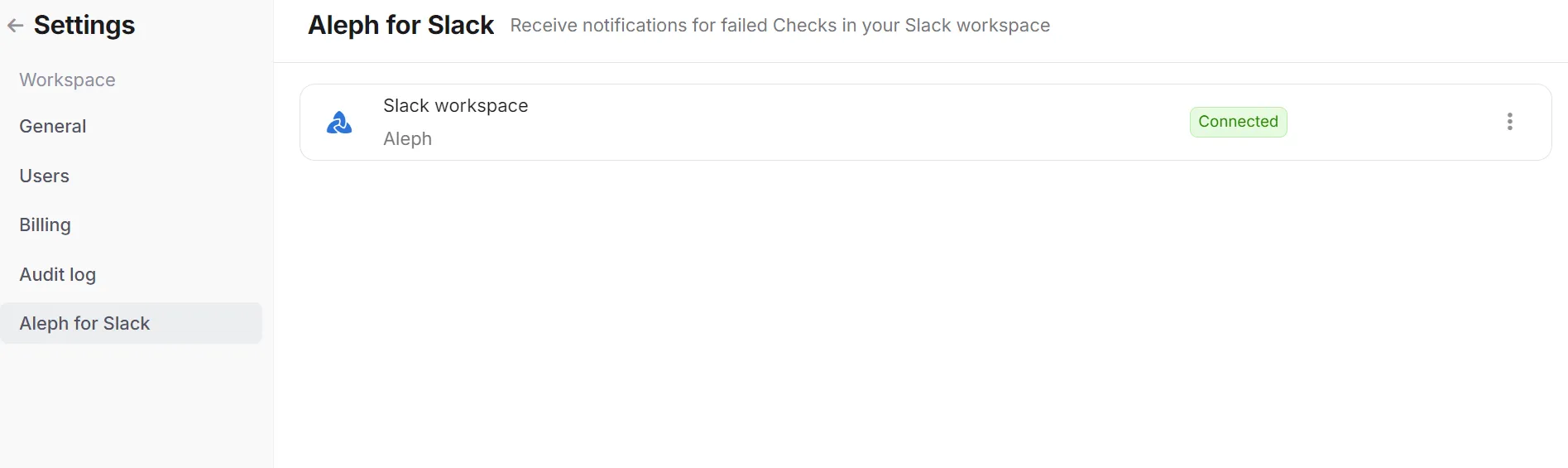
You will know the app has successfully been installed when the "Aleph for Slack" page has a green "Connected" tag
How Do I Configure Alerts?
Currently, Slack alerts are available for Checks that monitor and flag your data for discrepancies and abnormalities.
Go to the Checks page in the Aleph web app and create or click on an existing Check.
When the Slack integration has been enabled from the prior step, you can now click on the Slack icon on the top right of the page.
The setup modal is where you can configure the desired Slack channel and frequency of the alerts for that Check.


Click "Update" and your Check’s Slack alerts are all set.
Aleph will automatically run a Check whenever new data is introduced to that data source. If results are identified, a Slack message will be sent based on the frequency you have configured.

Inside of the alert, you have two buttons:
"View check" will link you to the web app to view the results table
"Download failed records" will download the results in a CSV file
Can the Slack App Send Alerts in Private Channels?
Yes, by default the app can only see public channels in your workspace but you can invite the app to the private channel and the channel will show up in the setup alert modal.
To invite the app simply type in the channel chat and select Add apps to this channel and then add the Aleph app.
How Do I Disconnect the App?
Log in to the Aleph web app and click on "Settings" in the sidebar menu then select "Aleph for Slack".
If the integration is "Connected" then click on the three dots and select "Remove connection".

Confirm that you want to delete the app by clicking "Delete".
