User permissions and sharing
Last updated: November 6, 2024
To fully leverage the dashboards, Aleph allows you to share and manage who has access. With a few clicks you will be able to manage the access for your dashboard.
Default Permissions
By default, only Admin users will have access to your dashboards. Find below the default permissions by user type:
User type | Default permission |
Admin | Full access - Edit and view |
Editor | No access |
Viewer | No access |
Only Aleph users can access dashboards. Visit📄 Users, Permissions, and Groupsto learn how to add a new user.
Dashboards Permissions
Each permission allows users to perform different actions on the dashboards. Find below the access rights based on each permission level:
Action | View | Edit | Admin |
View a dashboard | Yes | Yes | Yes |
Do a drilldown on a chart | No | Yes | Yes |
Add filters | No | Yes | Yes |
Edit filters | No | Yes | Yes |
Add variables | No | Yes | Yes |
Edit variables | No | Yes | Yes |
Add a chart | No | Yes | Yes |
Edit a chart | No | Yes | Yes |
Re-organize charts | No | Yes | Yes |
Delete a chart | No | Yes | Yes |
Copy as image | Yes | Yes | Yes |
Change permissions | No | Yes | Yes |
Granting Access and Setting Permissions
Permissions are set inside each dashboard. Go to your dashboard and click on on the top right corner.

Click on the ellipsis and select "Manage access".

Click on "Edit" to change the users permissions and click on "Apply" to save them.
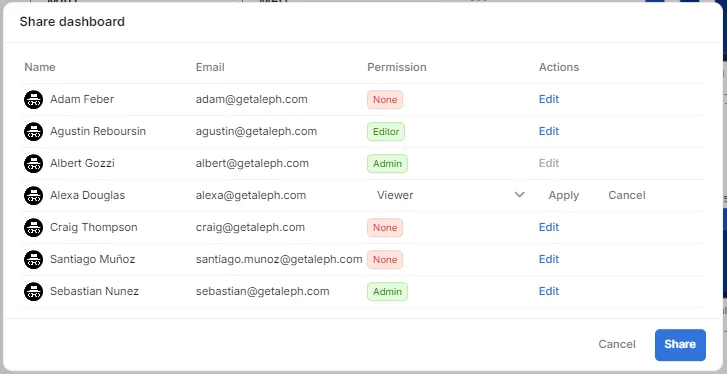
You will not be able to change admin user's permissions