Understanding Review Cycles in IMPACT
Last updated: September 20, 2024
Gain insights into the intricacies of review cycles, empowering you to navigate them effectively within IMPACT for streamlined performance management.
📽 Check out our video tutorial on exporting OKRs in IMPACT
📝 Here is a step-by-step guide on understanding how to create review cycles in IMPACT
1. Navigate to https://app.plai.team/
2. Click "Manage" to create a new review cycle
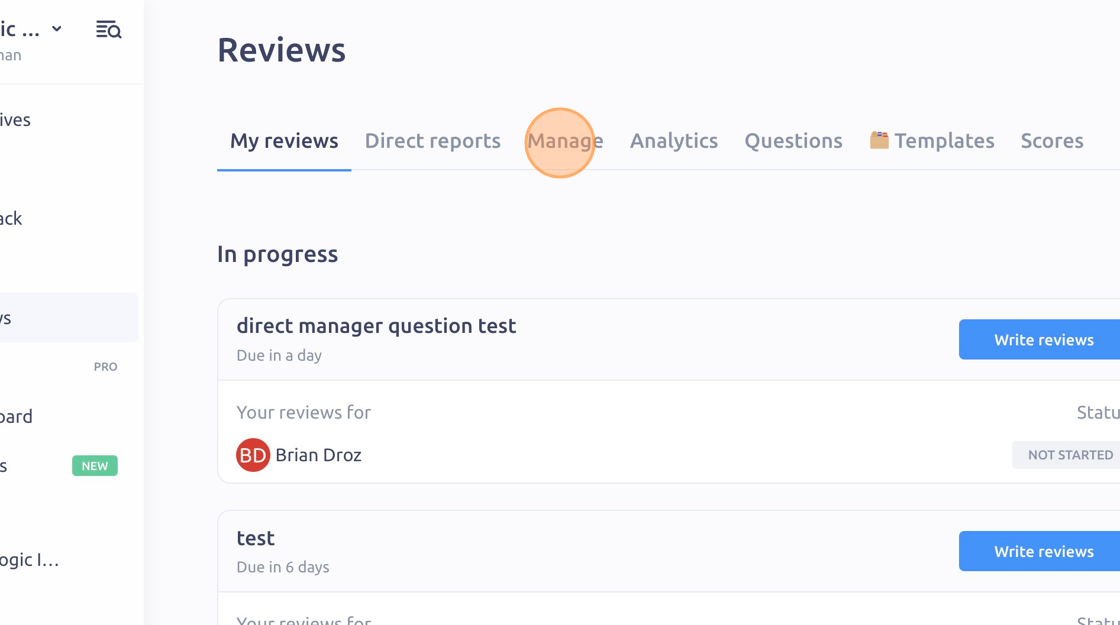
3. Click "New review cycle"
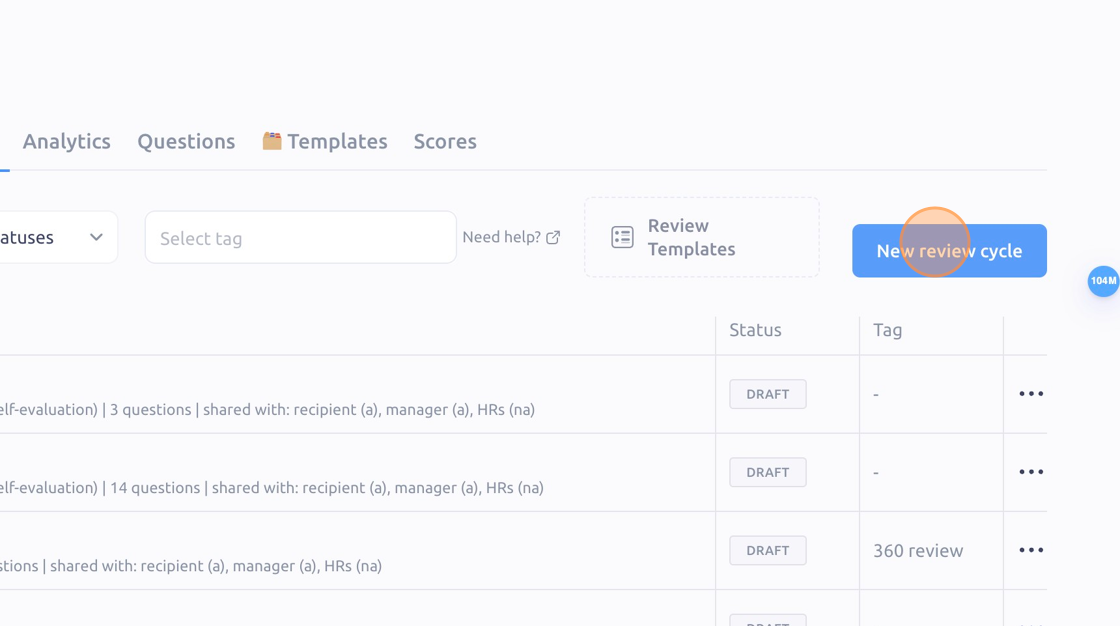
4. Enter a name for the review under the "Name" field
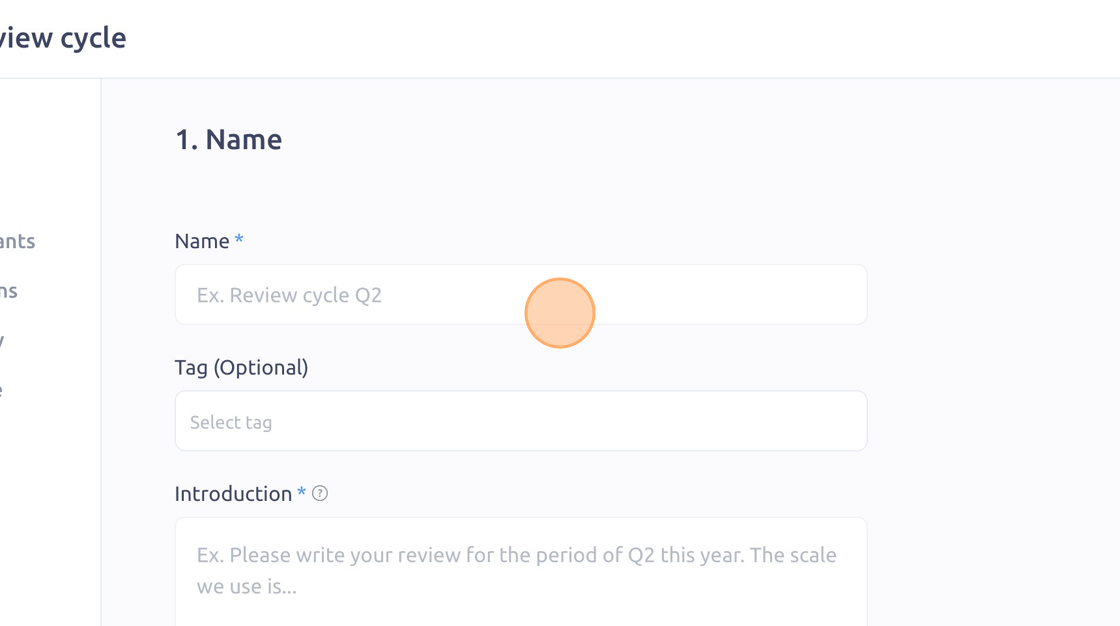
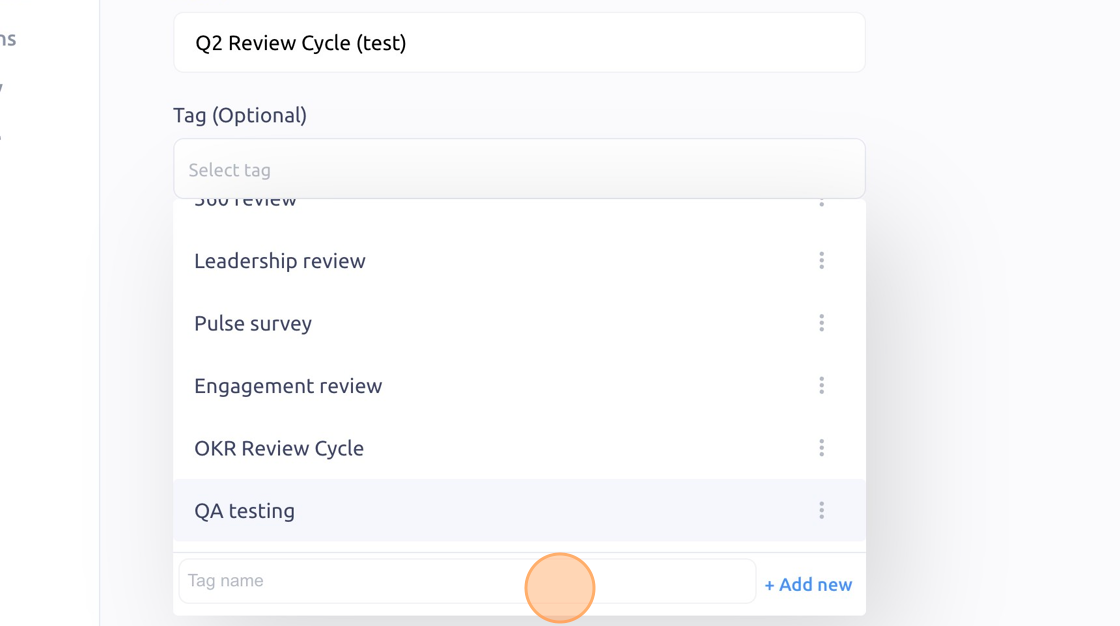
5. Click the "Select tag" field to add a tag from predesignated categories
6. Click the "Introduction " field to write a personalized intro
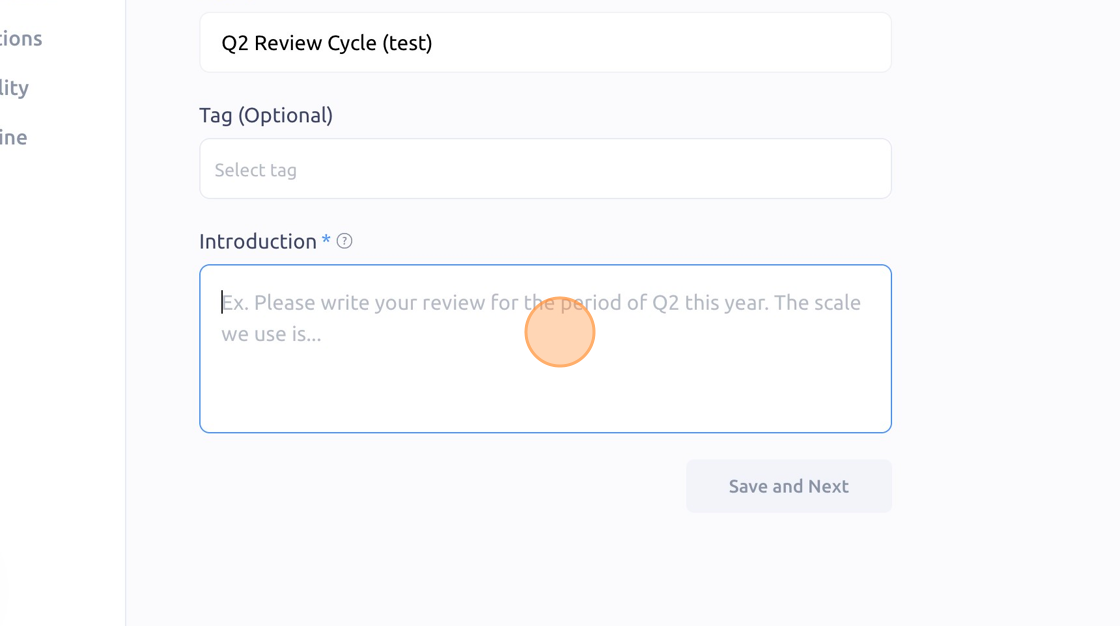
7. Click here to select the Review Recipient (the person being reviewed)
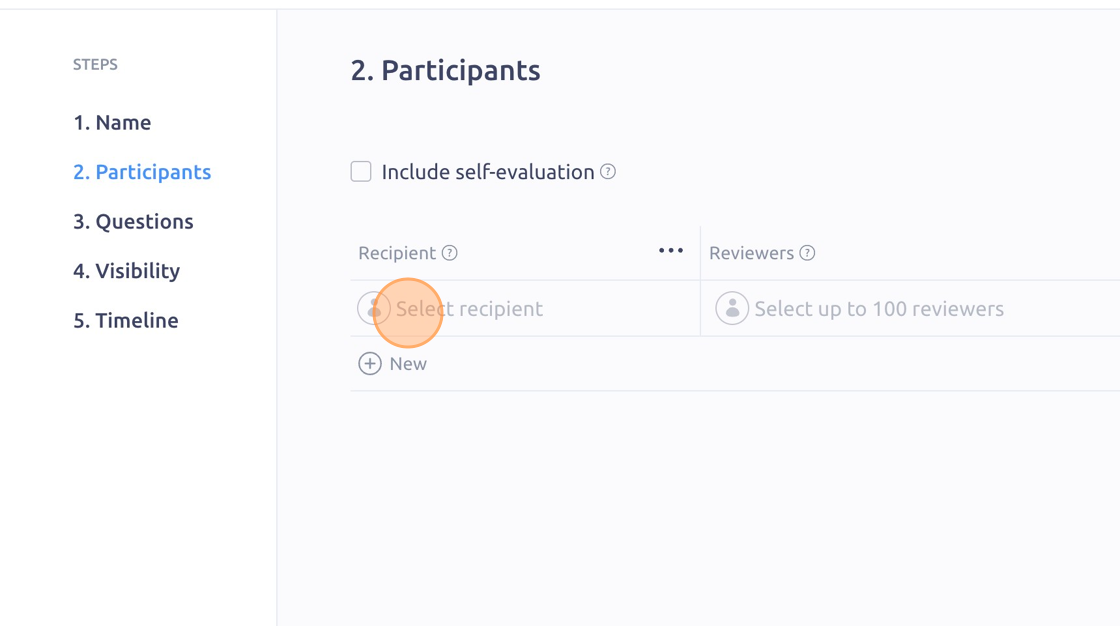
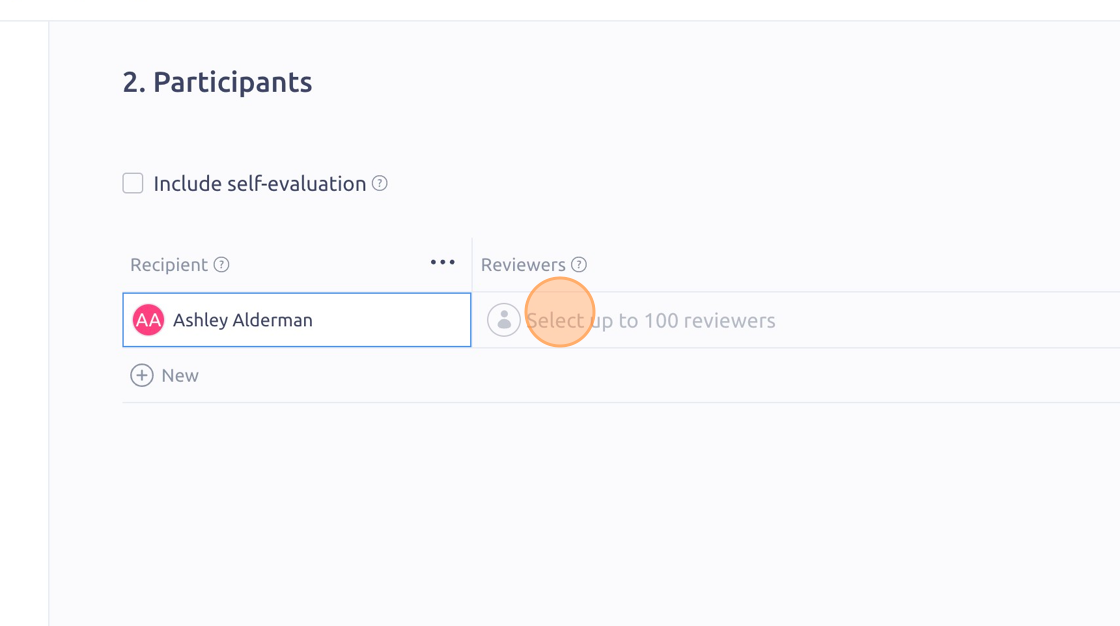
8. Click here to add the Reviewers
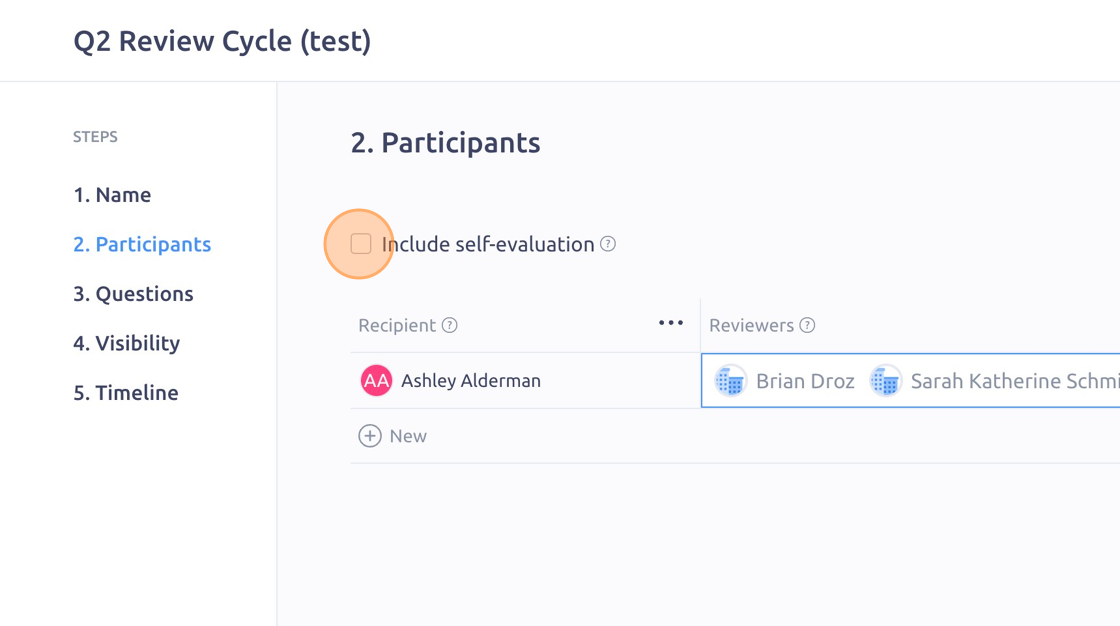
9. Click here to include a self-evaluation for the recipient
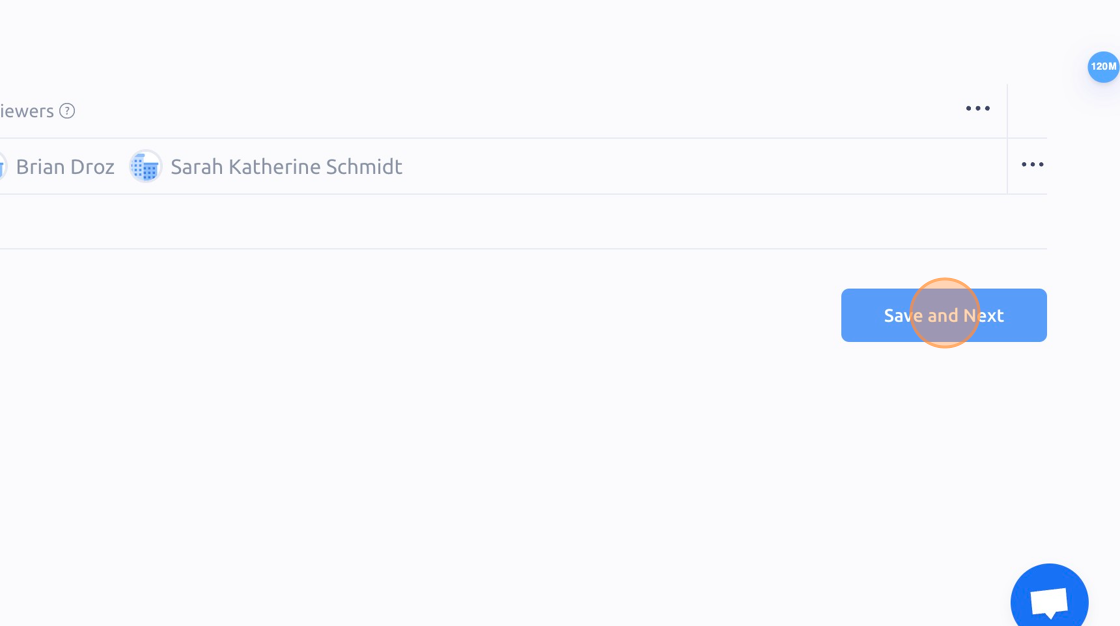
10. Click "Save and Next"
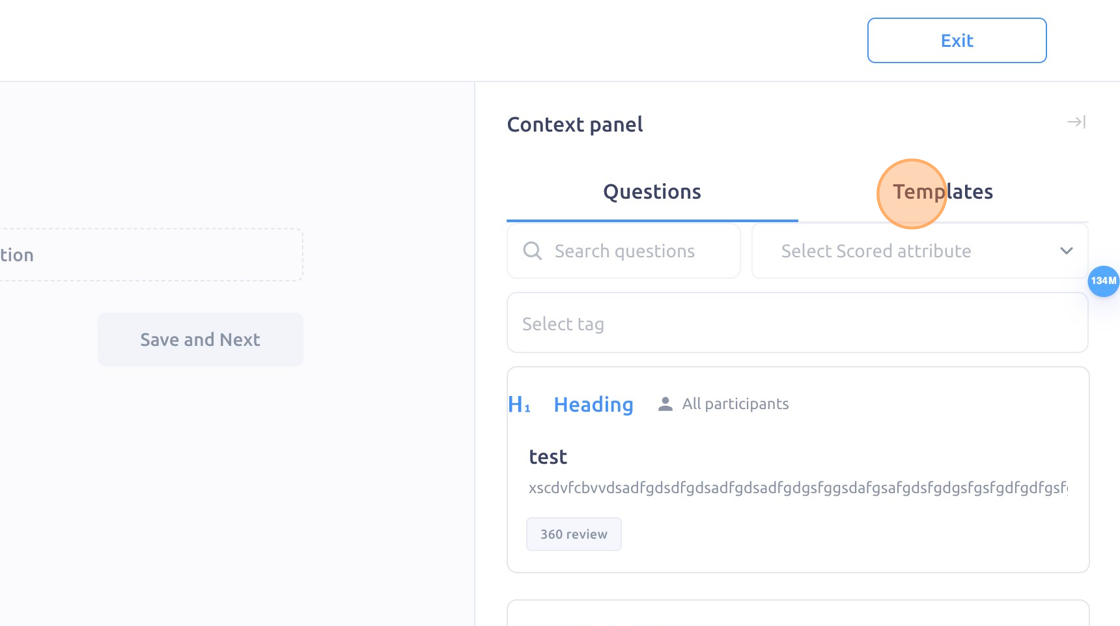
11. Click "Templates" to apply predesignated questions, or choose questions from the context panel
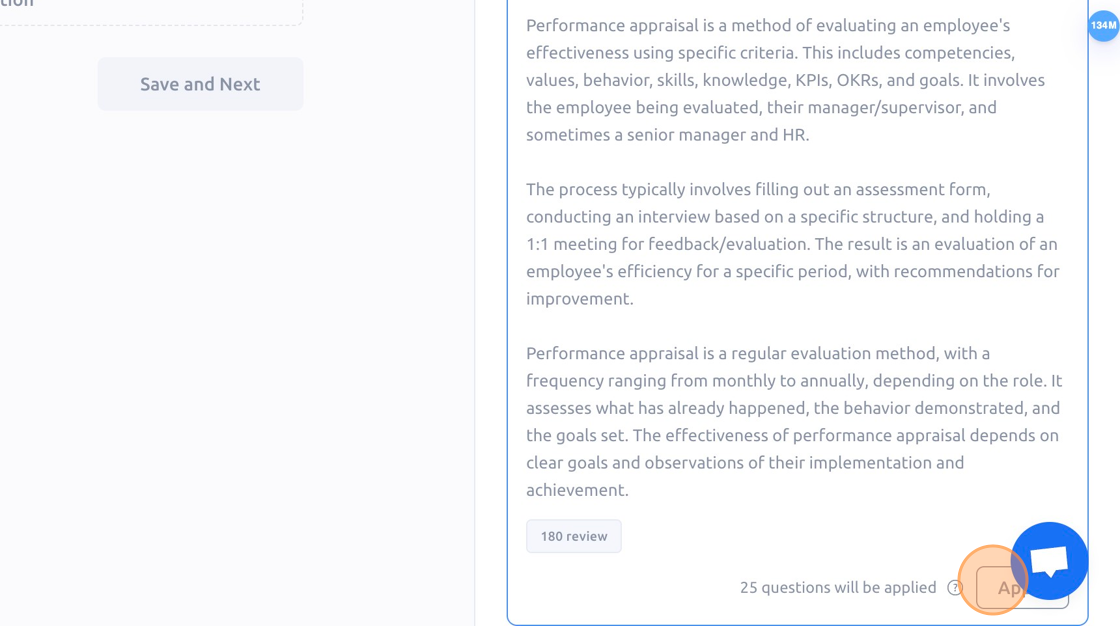
12. Click "Apply" one you've selected your template
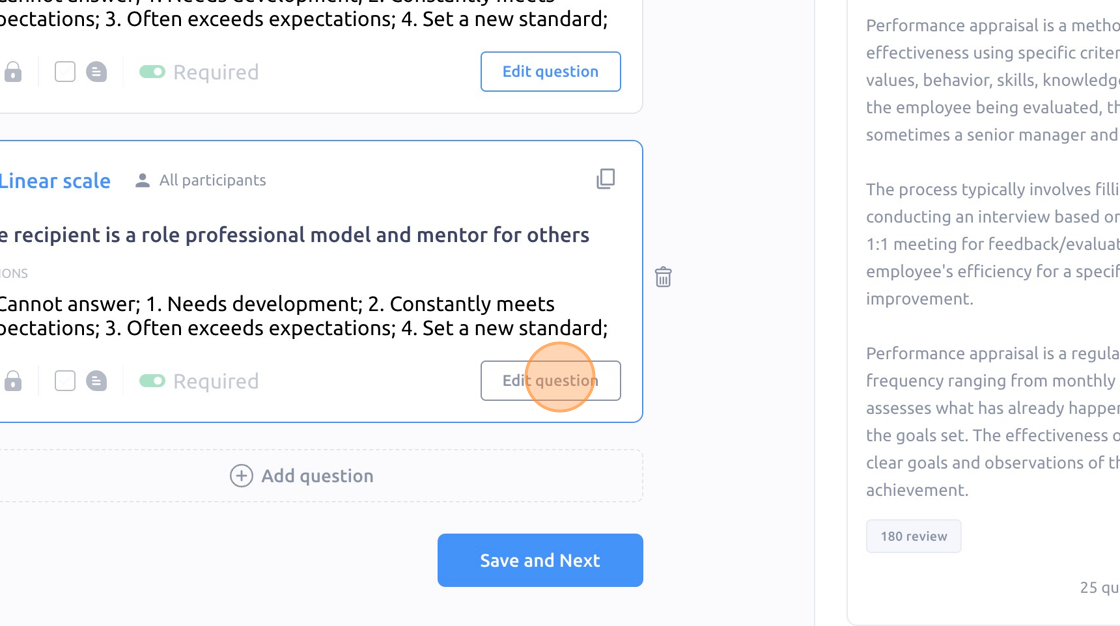
13. You can customize any question by clicking "Edit question"
14. You can also add question descriptions
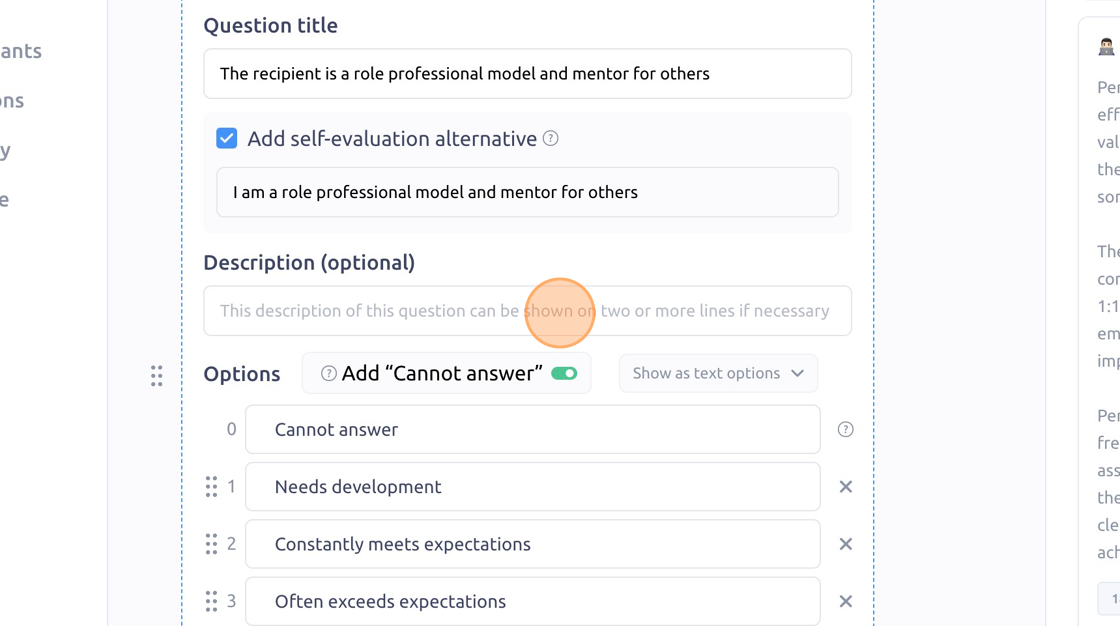
15. Click here to make the question required (green)
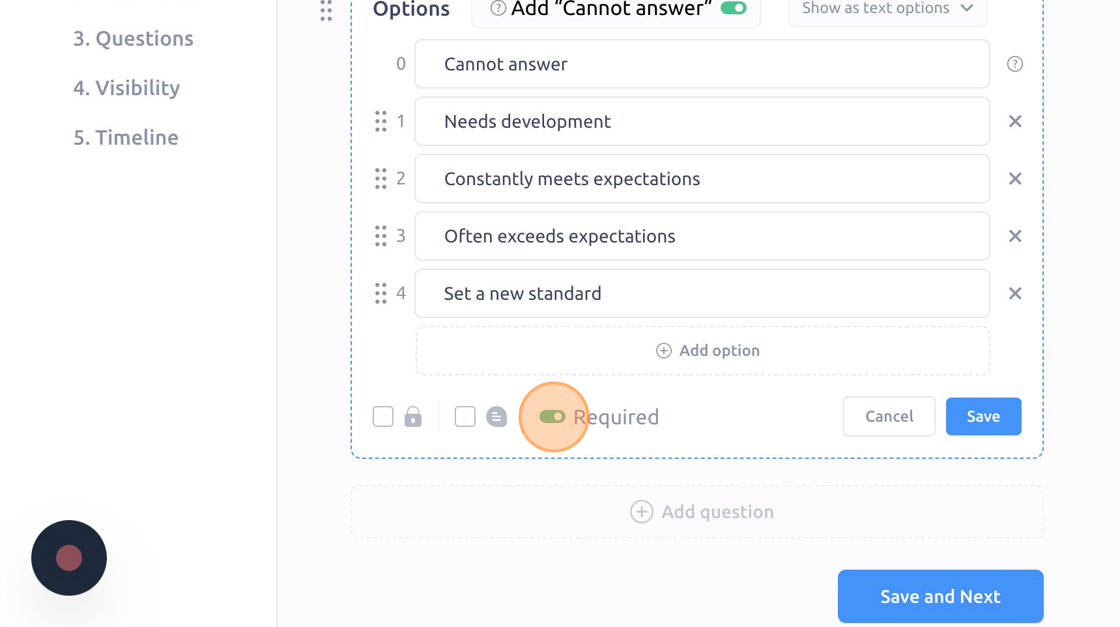
16. You can also not require questions (gray) by unselecting this box
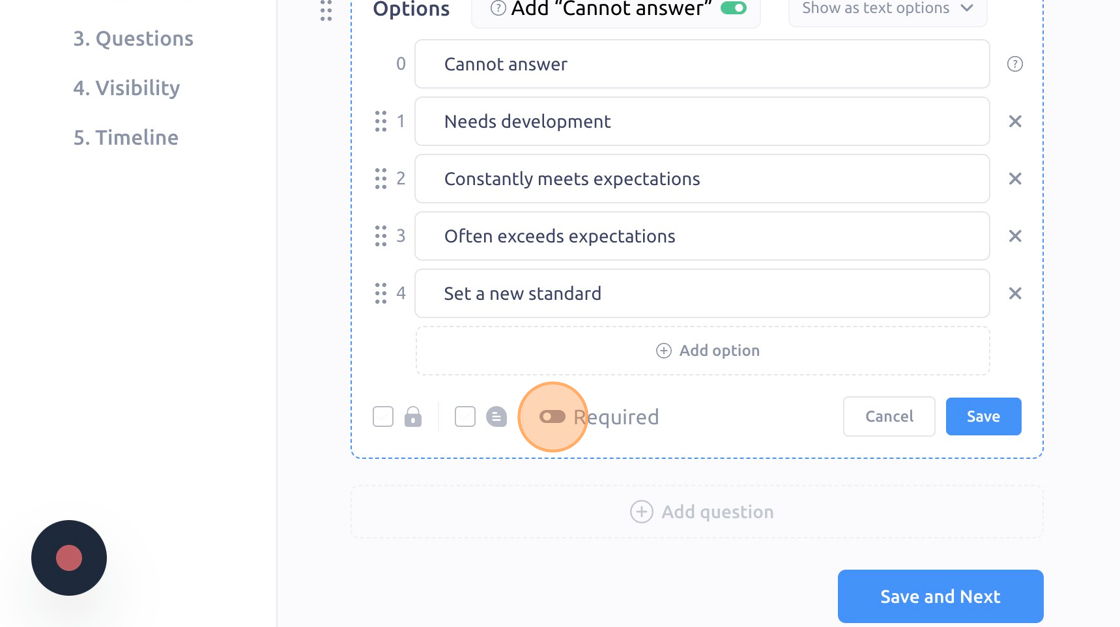
17. Click this icon to allow comments
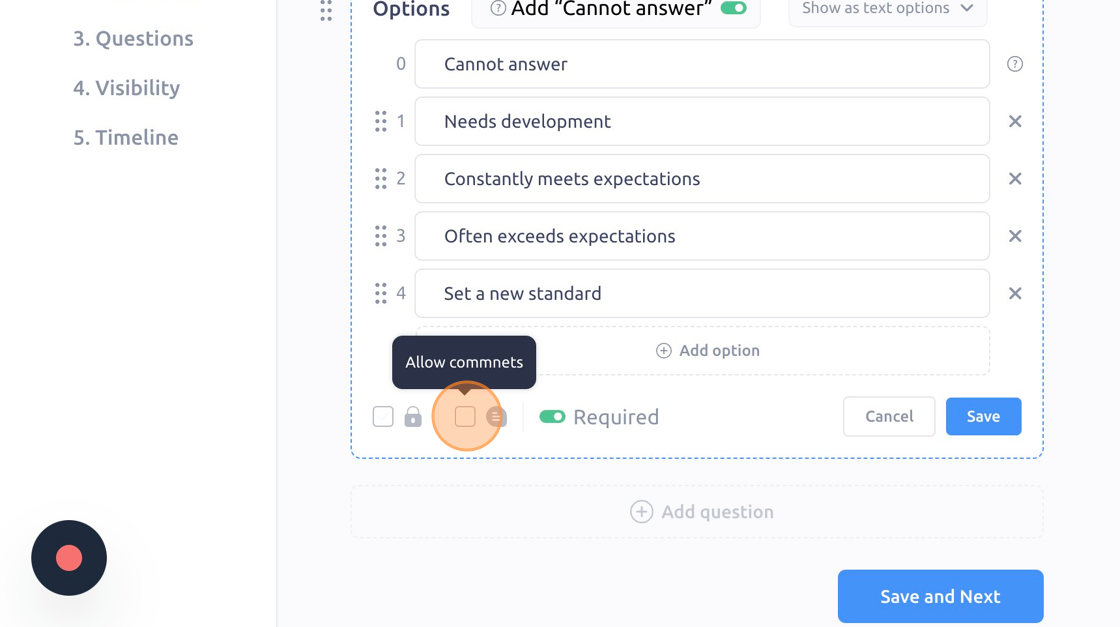
18. Click "Save" once you've edited the question
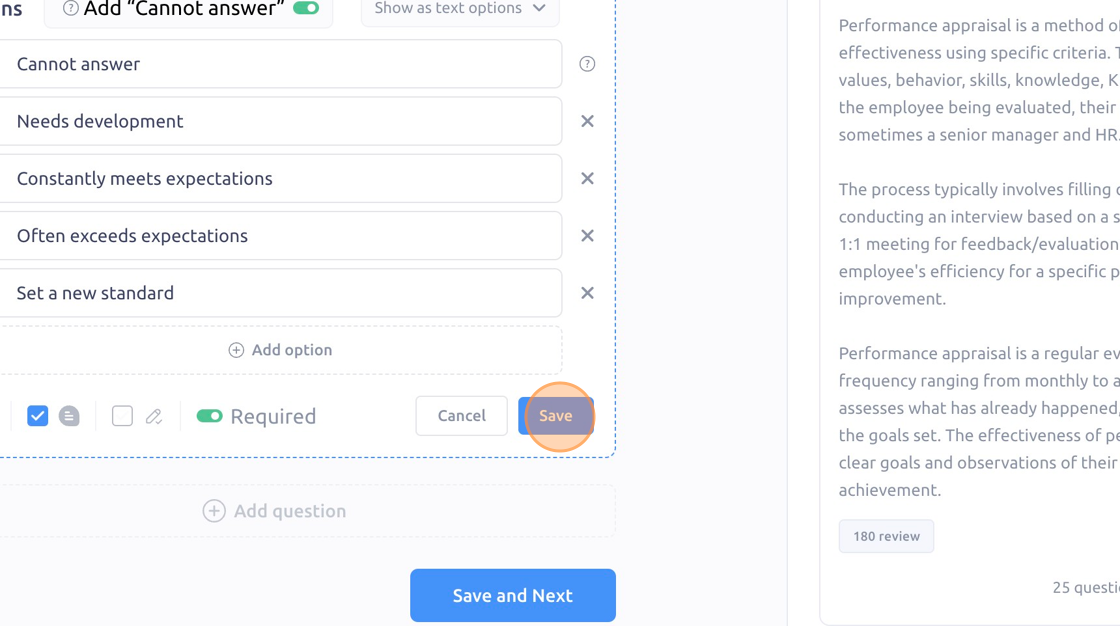
19. Click "Save and Next"
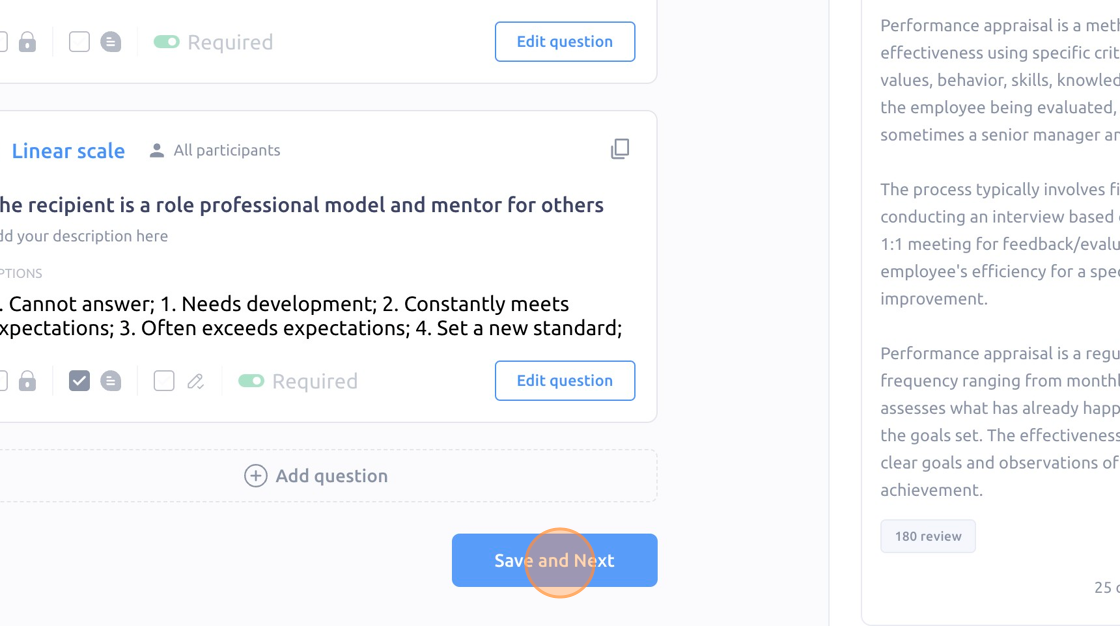
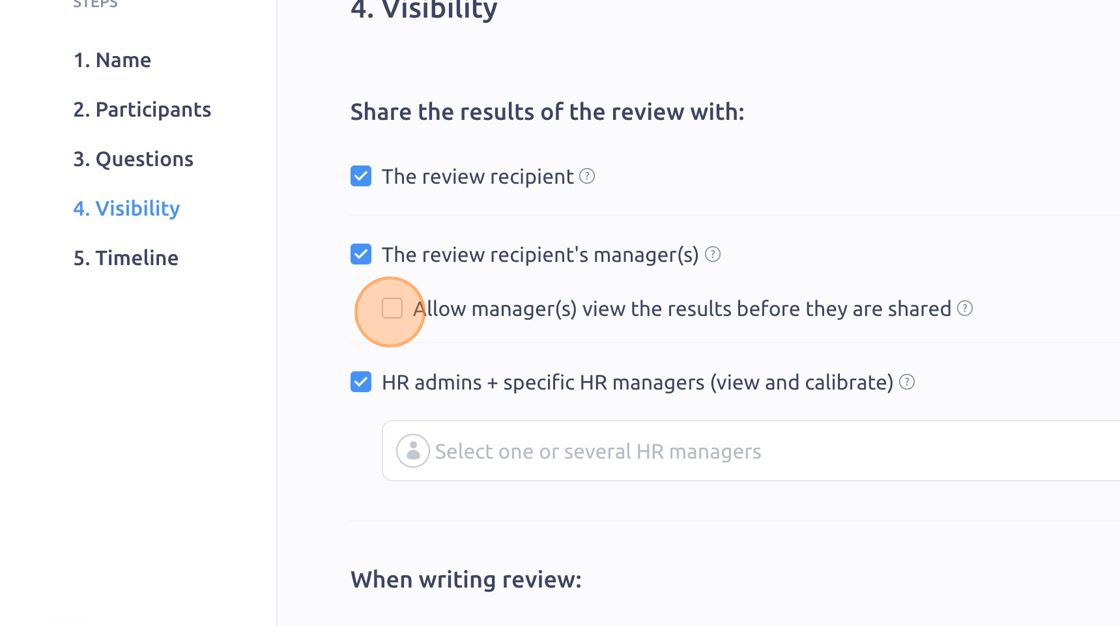
20. Customize the review visibility here
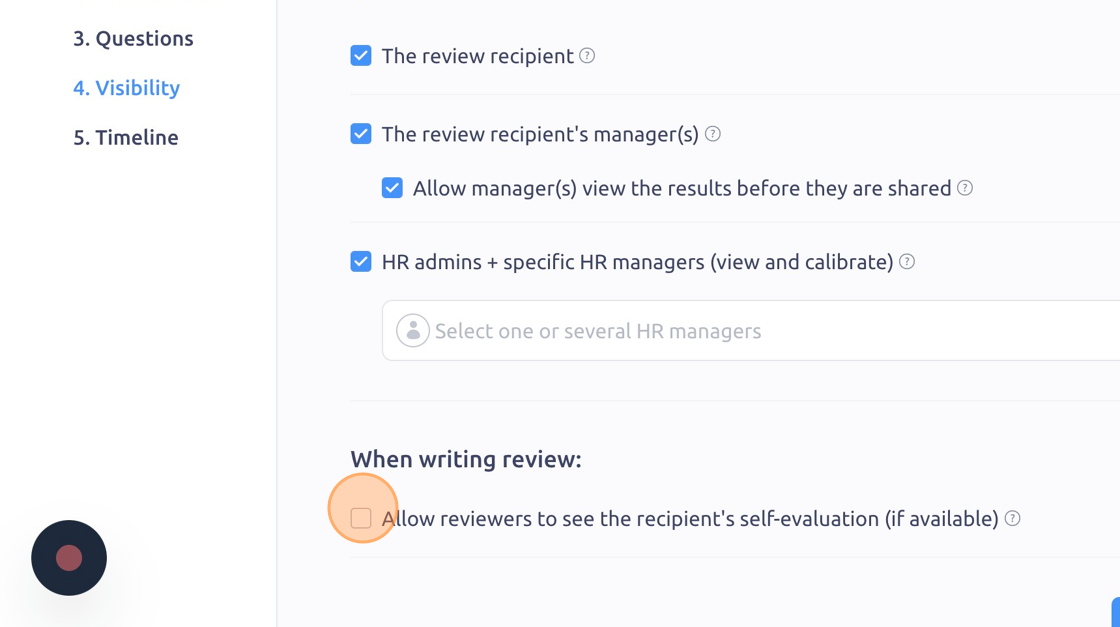
21. You can also allow reviewers to see self-evaluations by selecting this check box
22. Click "Save and Next"
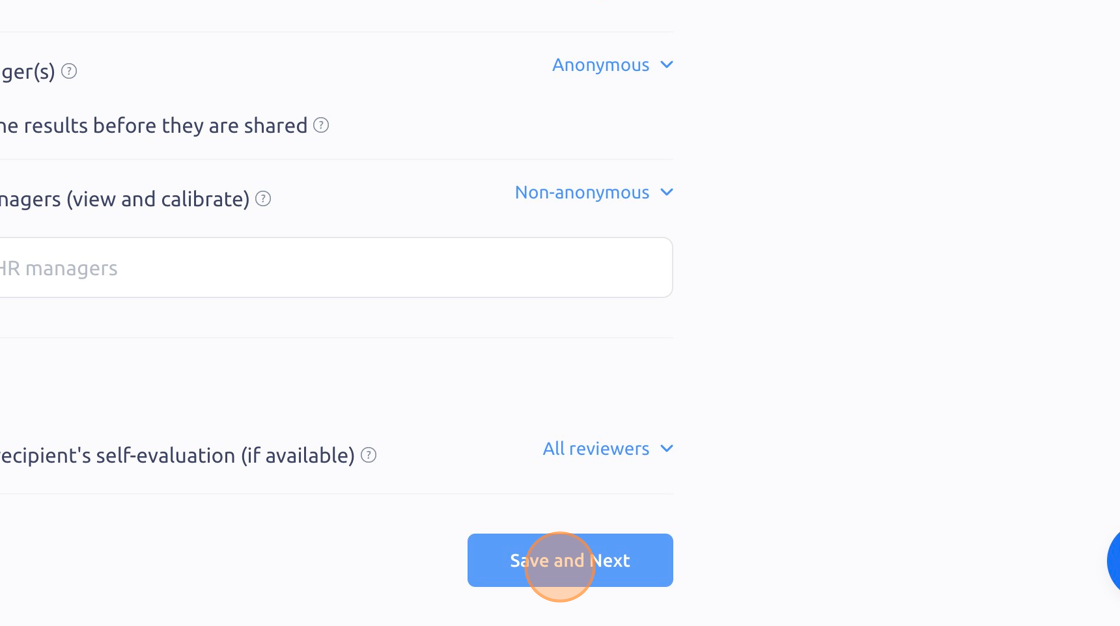
23. Click the "Date" field to set the review timeline
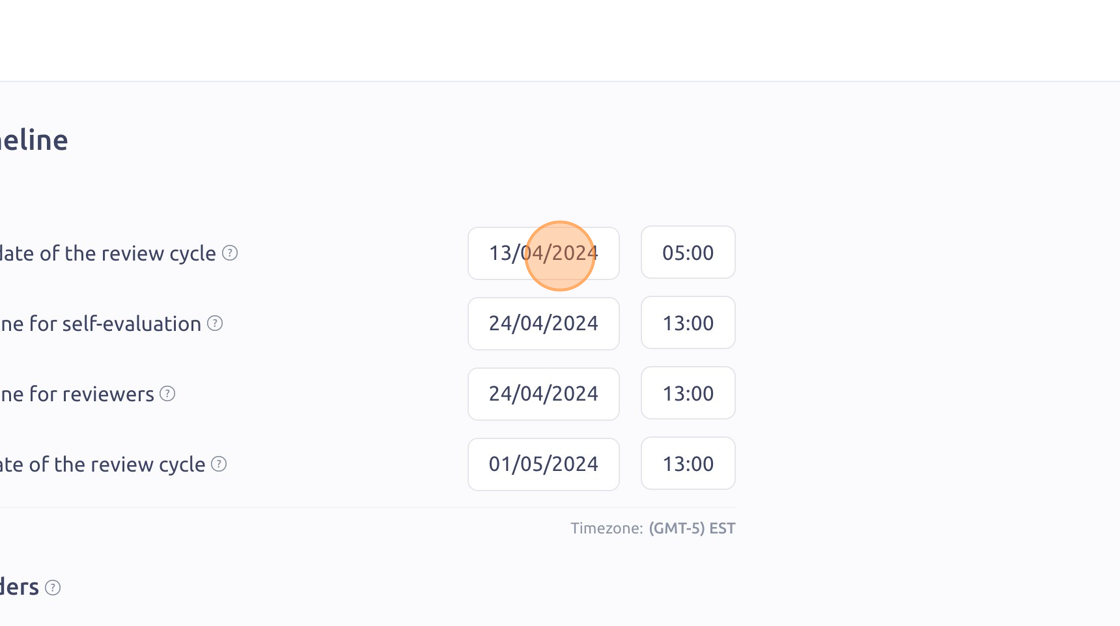
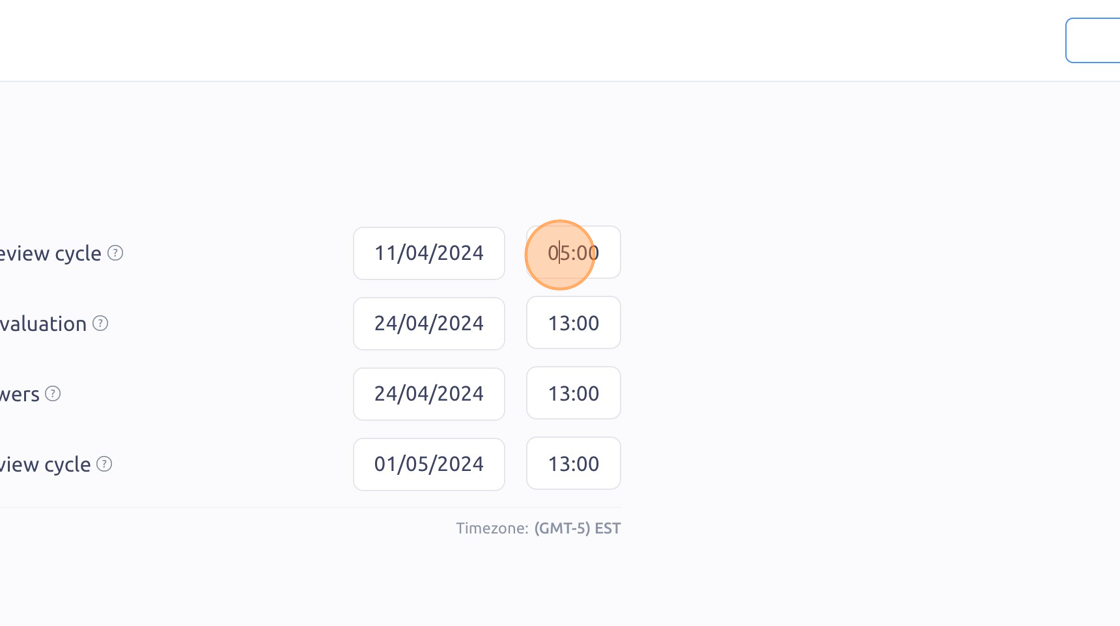
24. Click this text field to change the time for the review to start
25. Select the type and frequency of review reminders (which are sent via email and Slack)
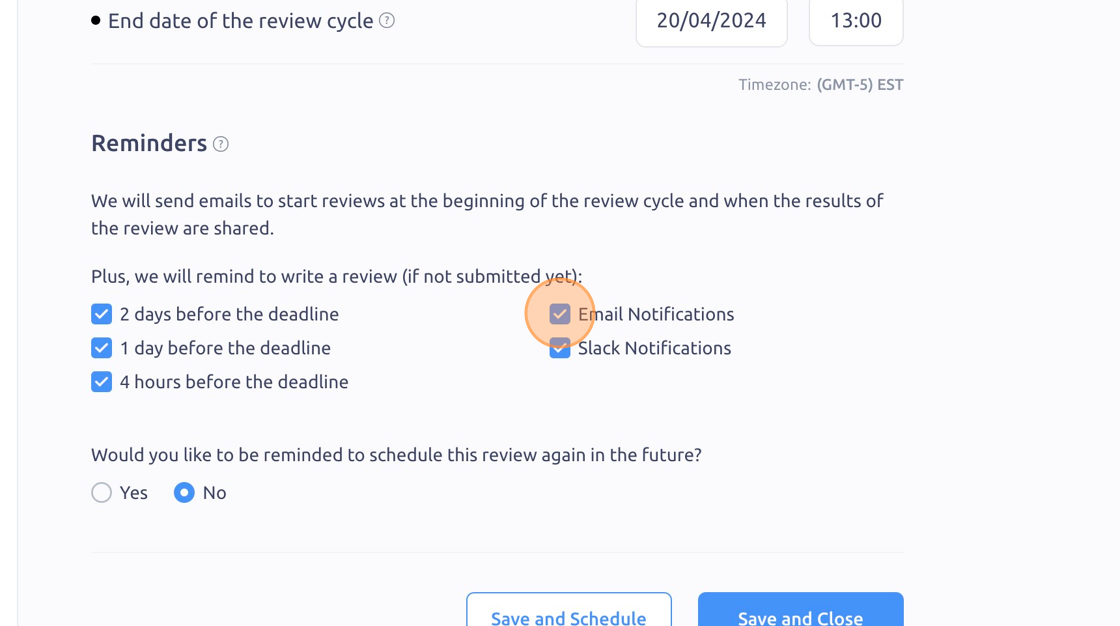
26. You also have the option to be reminded to schedule this review again in the future
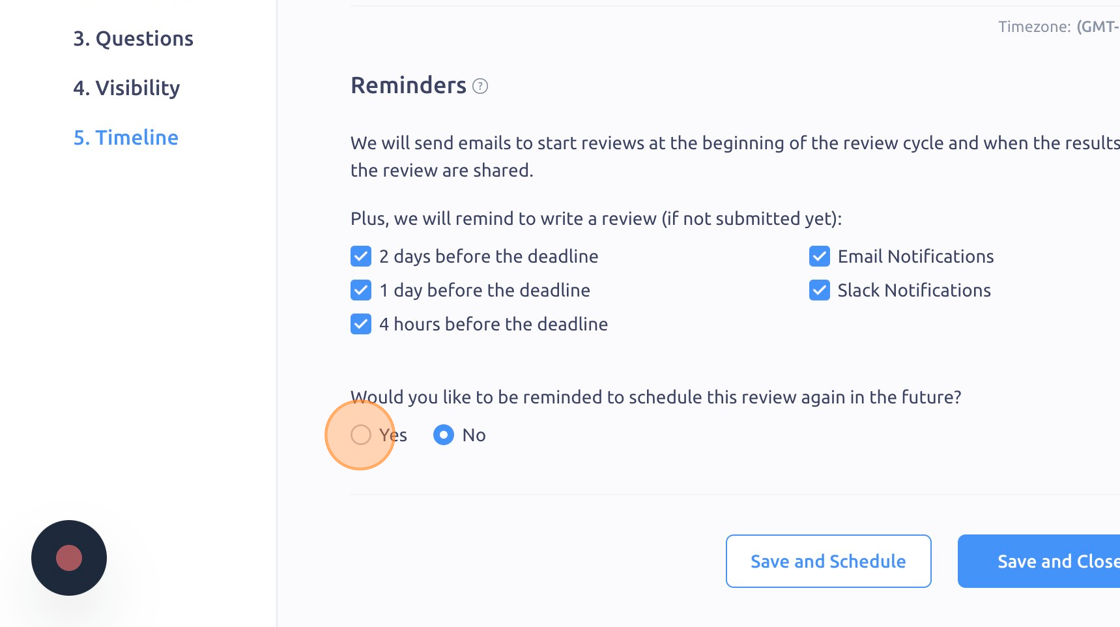
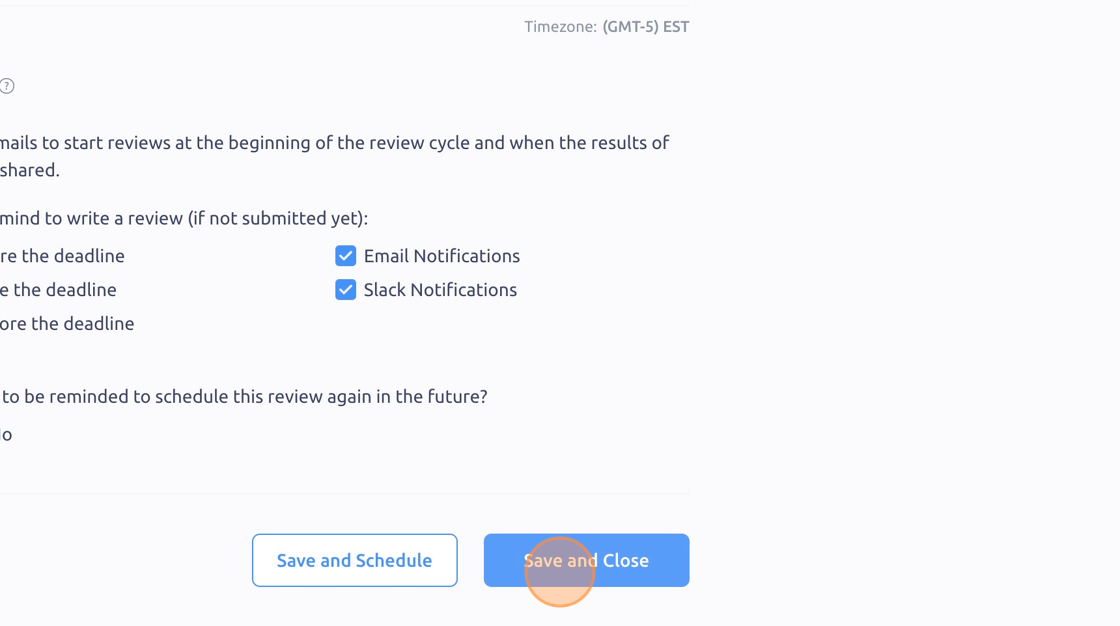
27. Click "Save and Close" (or "Save and Schedule" if you're ready to begin the review cycle)
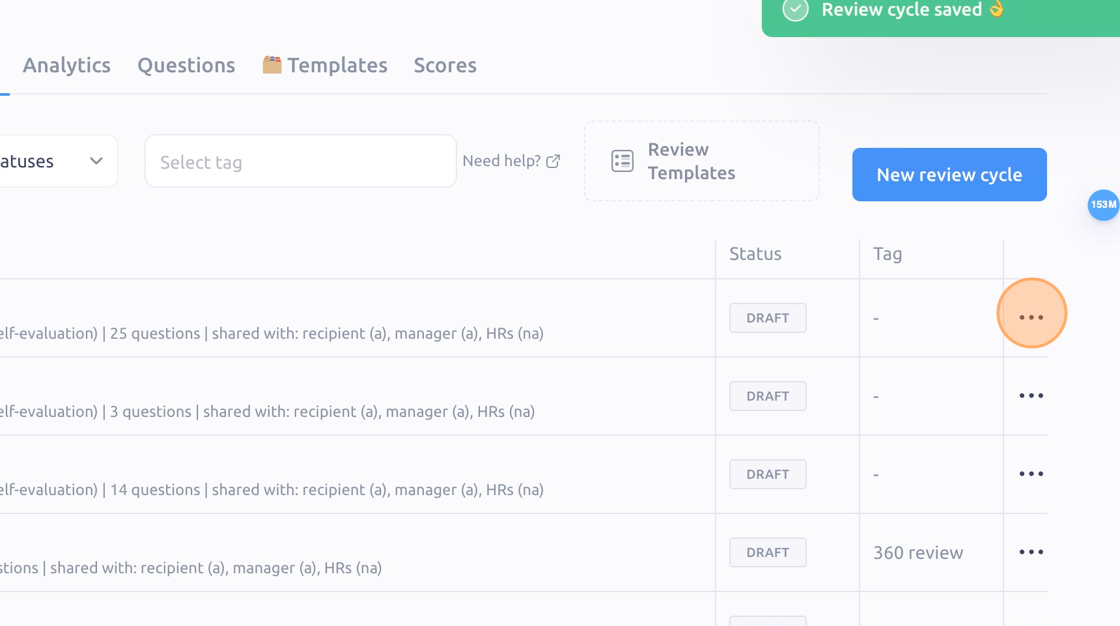
28. Click the "3 dots" icon
29. Click "Schedule cycle"
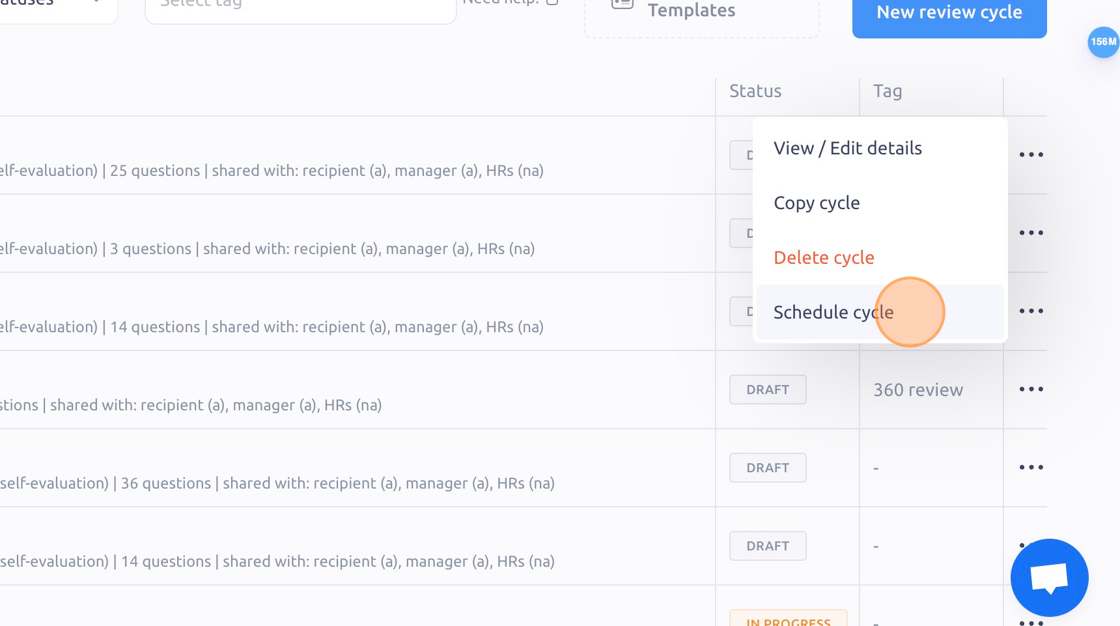
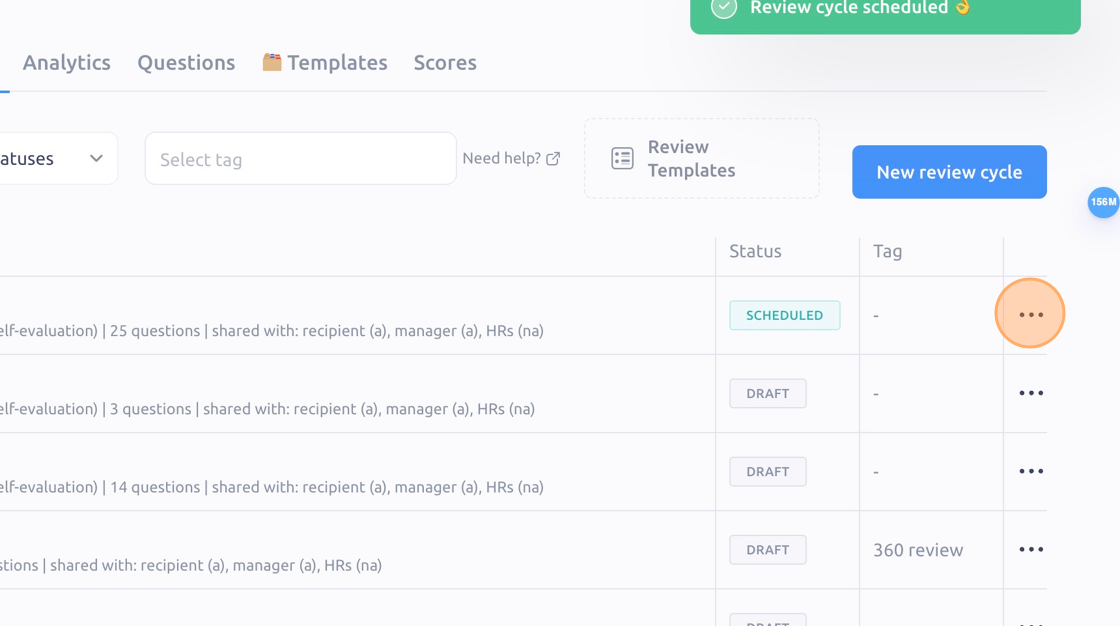
30. Click the "3 dots" icon
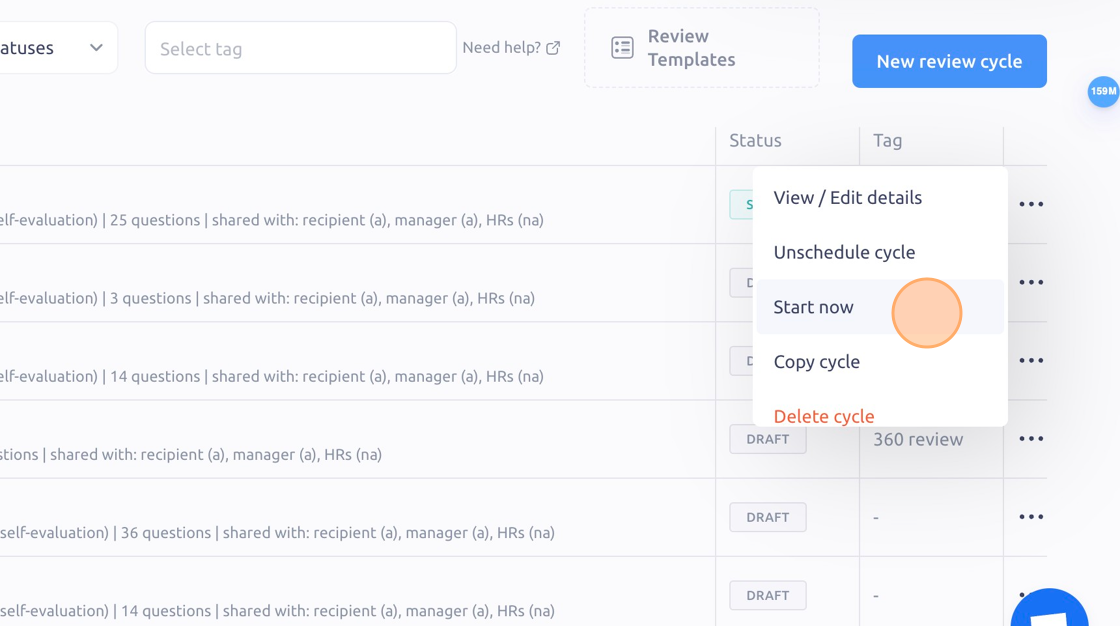
31. Click "Start now"
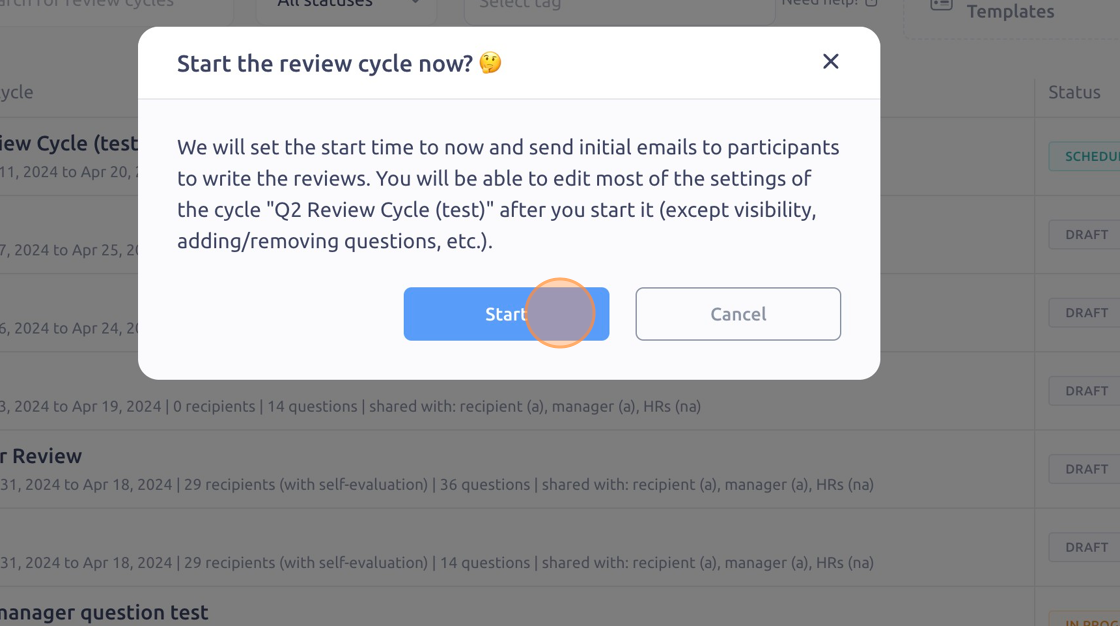
32. Click "Start"
To see it in action, please visit Peoplelogic Learn.