✍️ IMPACT: How to create and manage Review Cycles?
Last updated: September 20, 2024
Master the process of creating and managing review cycles in IMPACT, ensuring structured and effective performance evaluations for your team.
📽 Check out our video tutorial on creating review cycles in IMPACT
📝 Here is a step-by-step guide on creating review cycles in IMPACT
Navigate to https://app.plai.team/
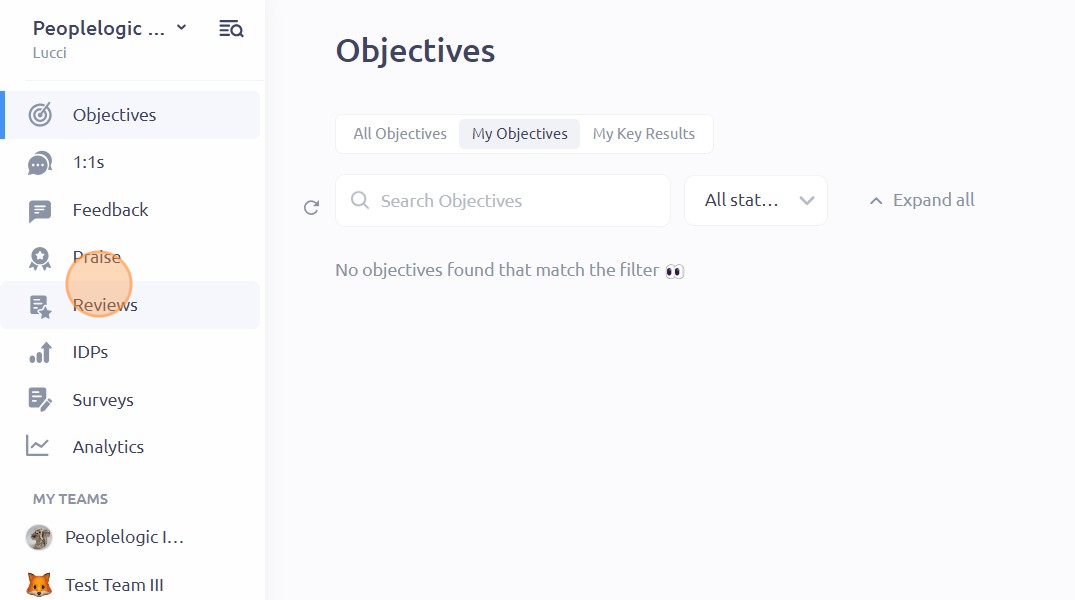
On the left-side panel, click "Reviews"
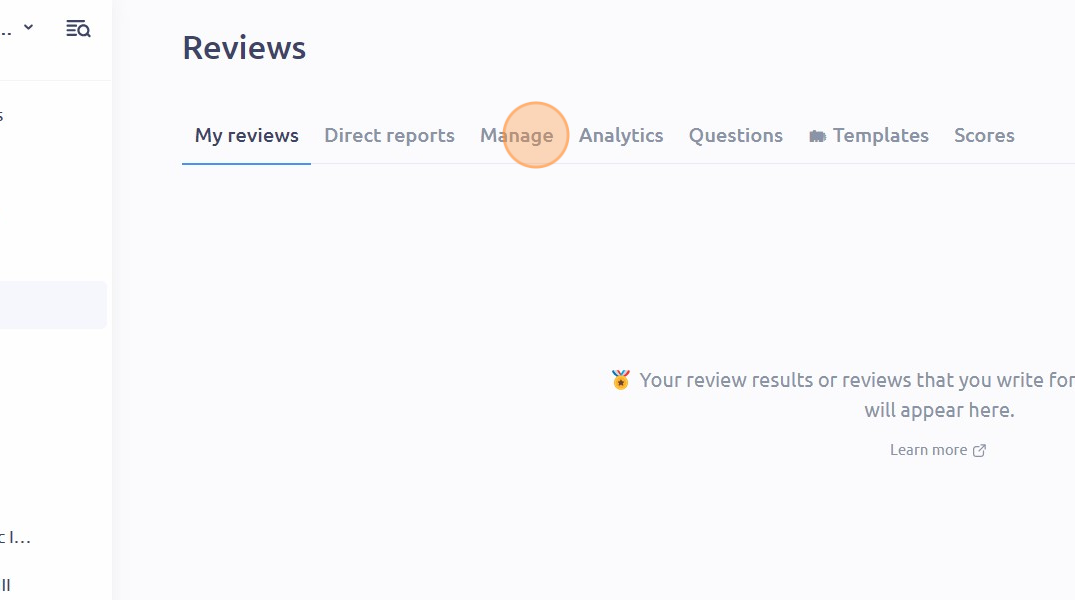
Click "Manage"
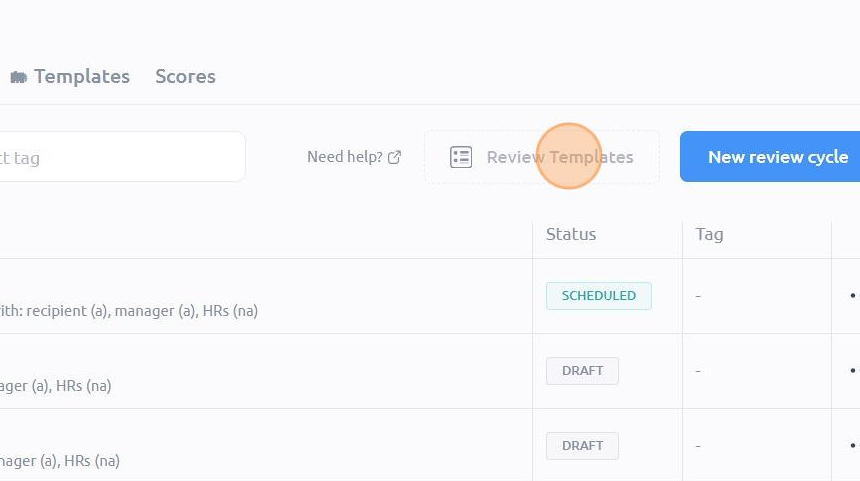
If you want to choose from available templates, click on "Review Templates"
Navigate the window until you find the template that you want to use
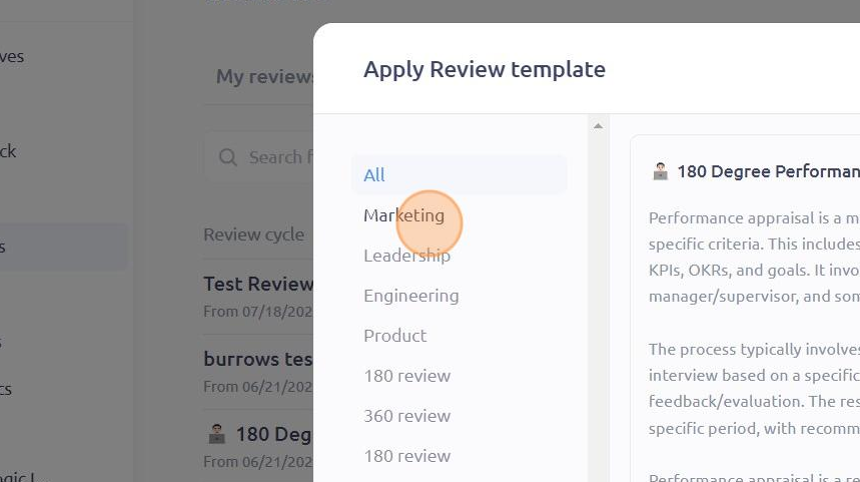
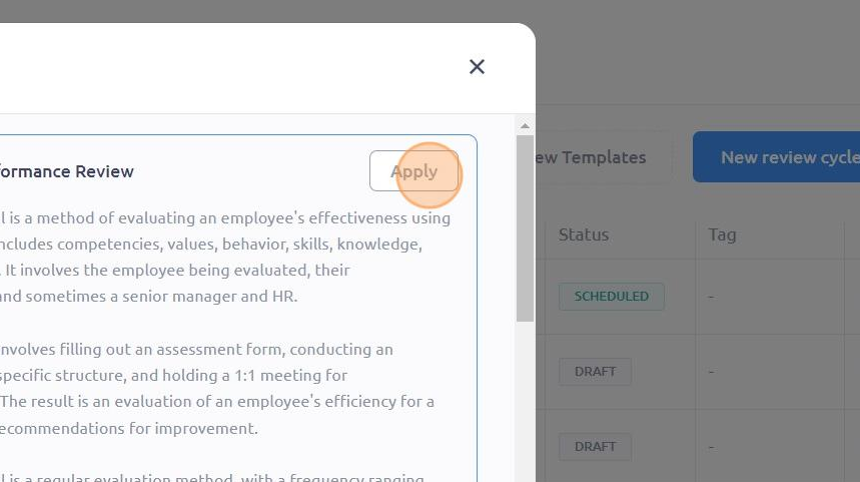
Click "Apply"
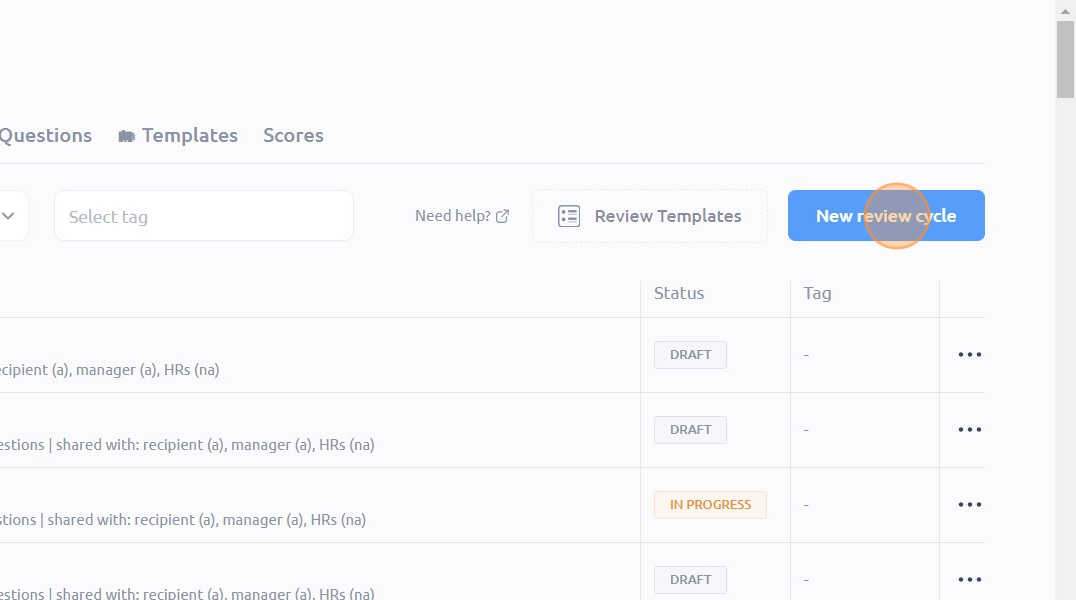
To start from scratch, click "New review cycle"
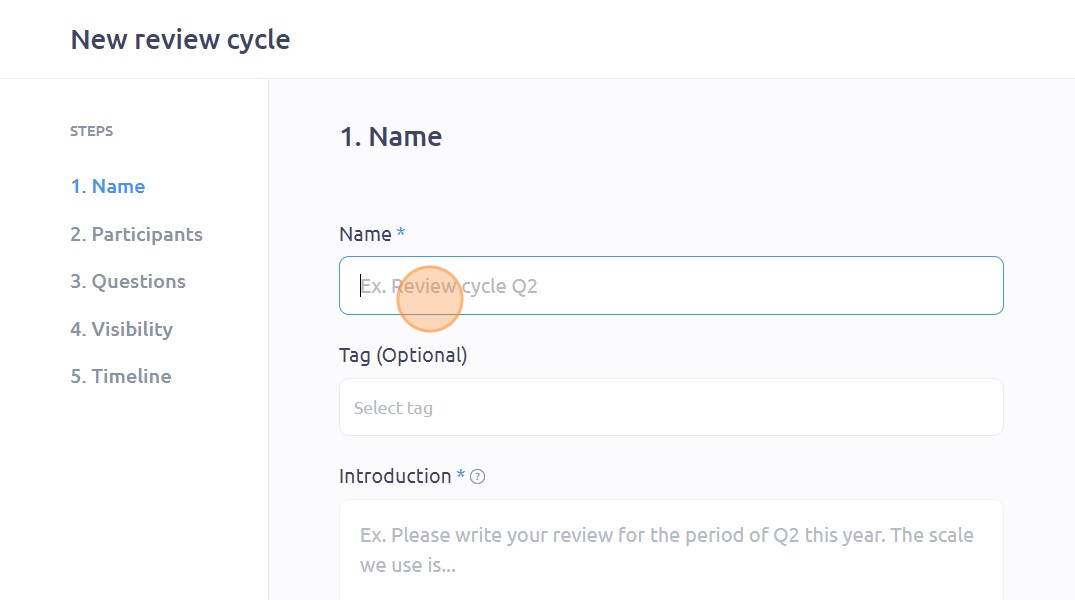
Type in the name of your review cycle in the Name field
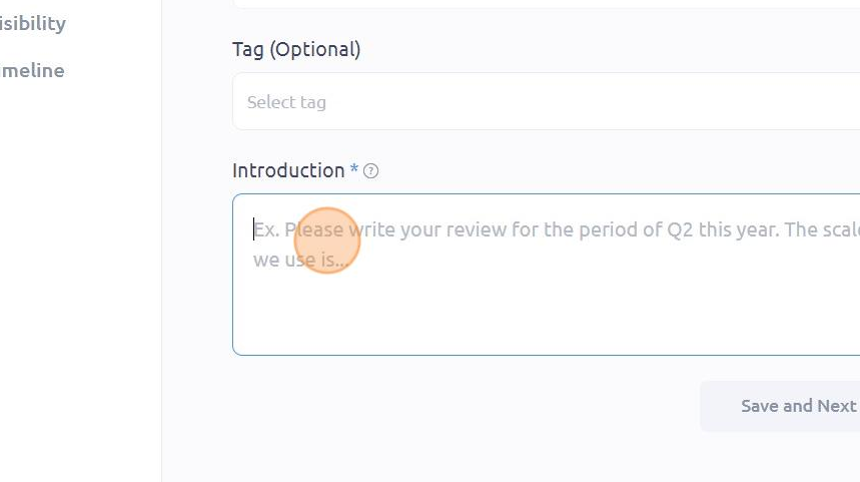
Put an overview of your review cycle in the Introduction field
In the Recipient field, type the name of the team member you wish to review. Alternatively, you can select the team member's name from the drop-down menu.
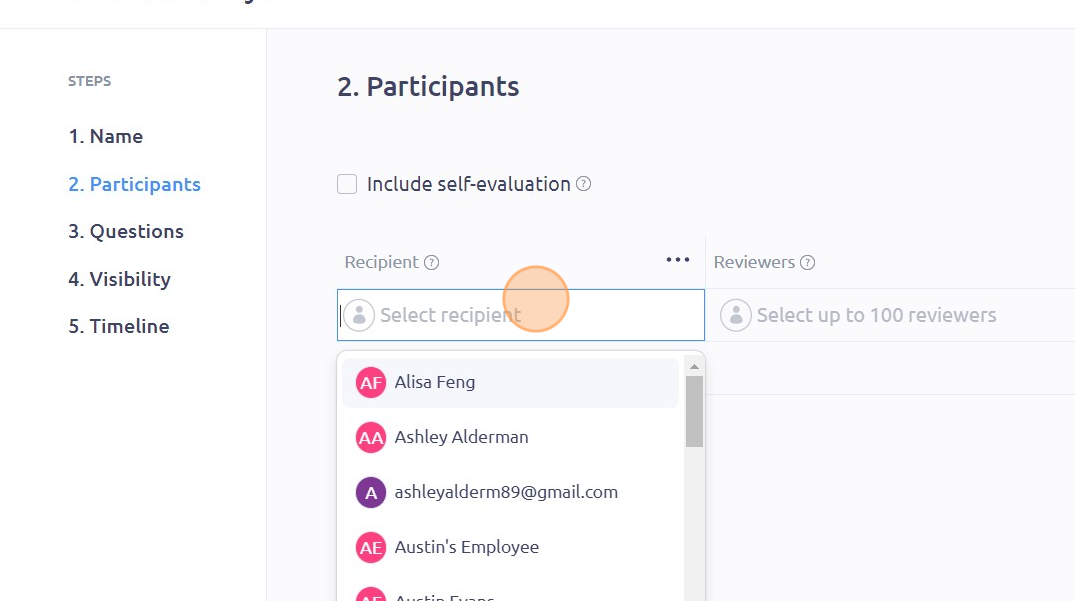
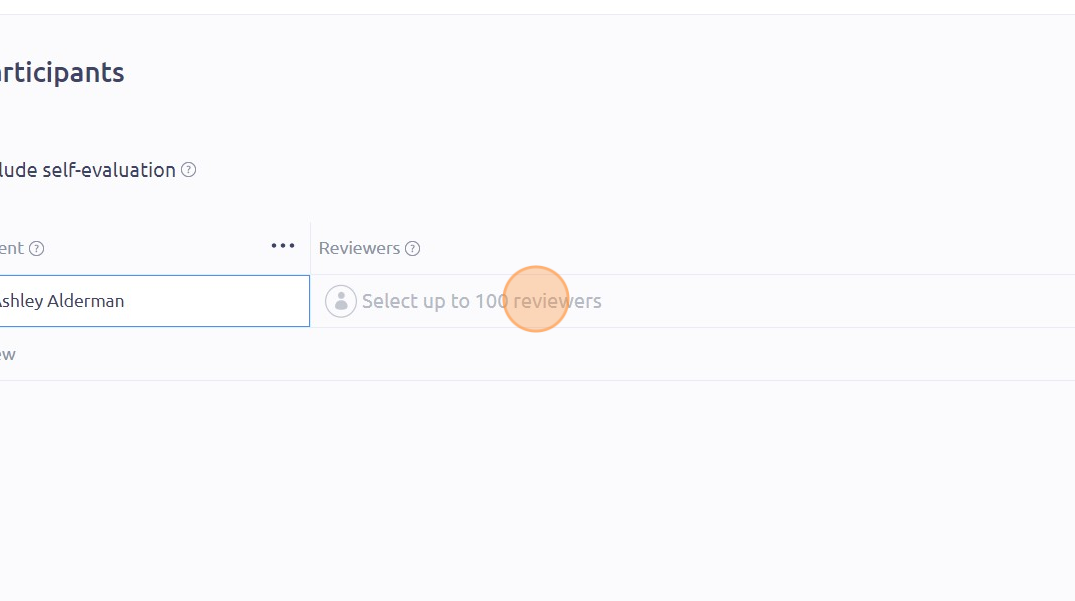
To add the reviewers or team members who will be asked to write a review about the recipient, type their names in the Reviewers field and select from the drop-down menu.
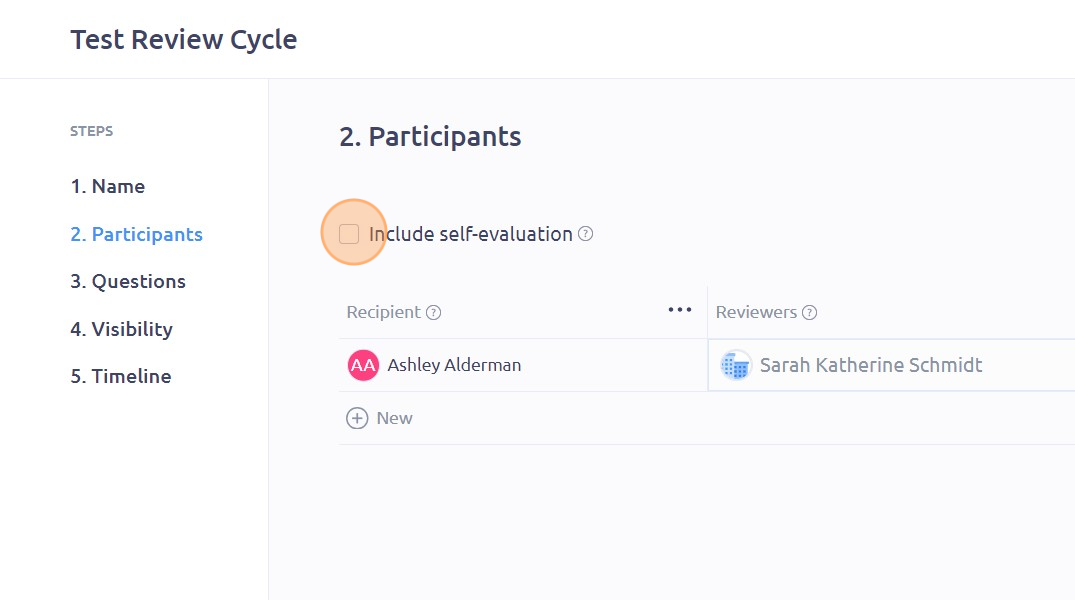
By checking the "Include self-evaluation" box, the recipient will also be able to write a review about themselves.
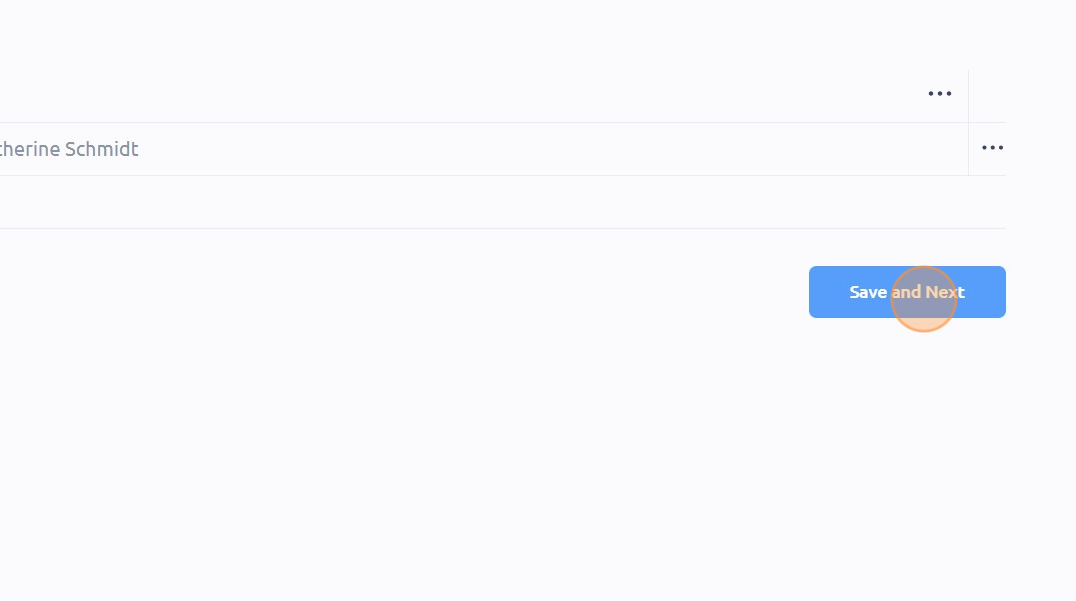
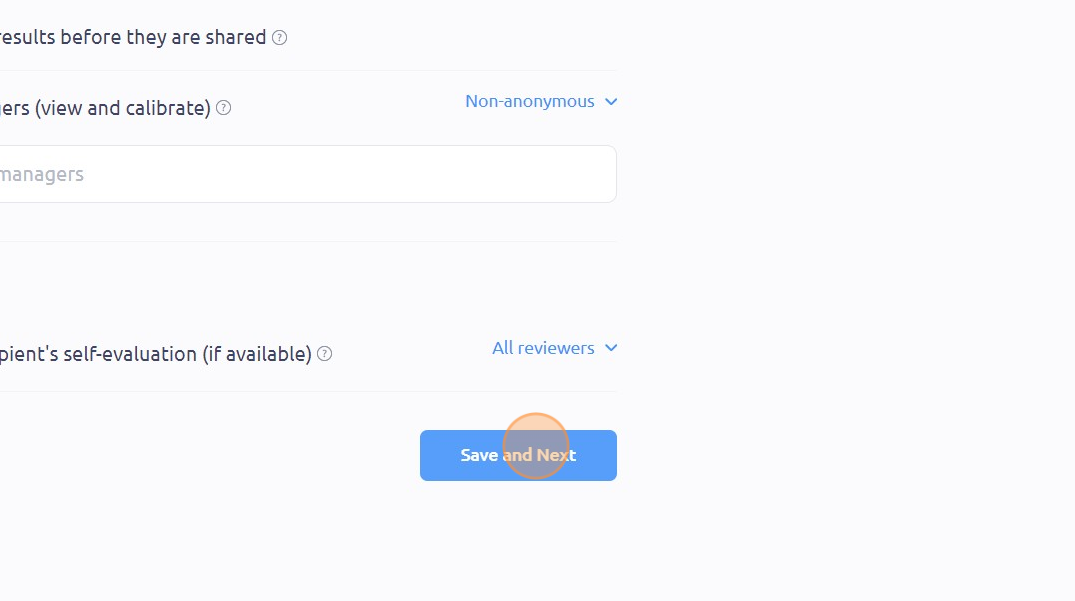
Click "Save and Next"
To add questions, click "Add question"
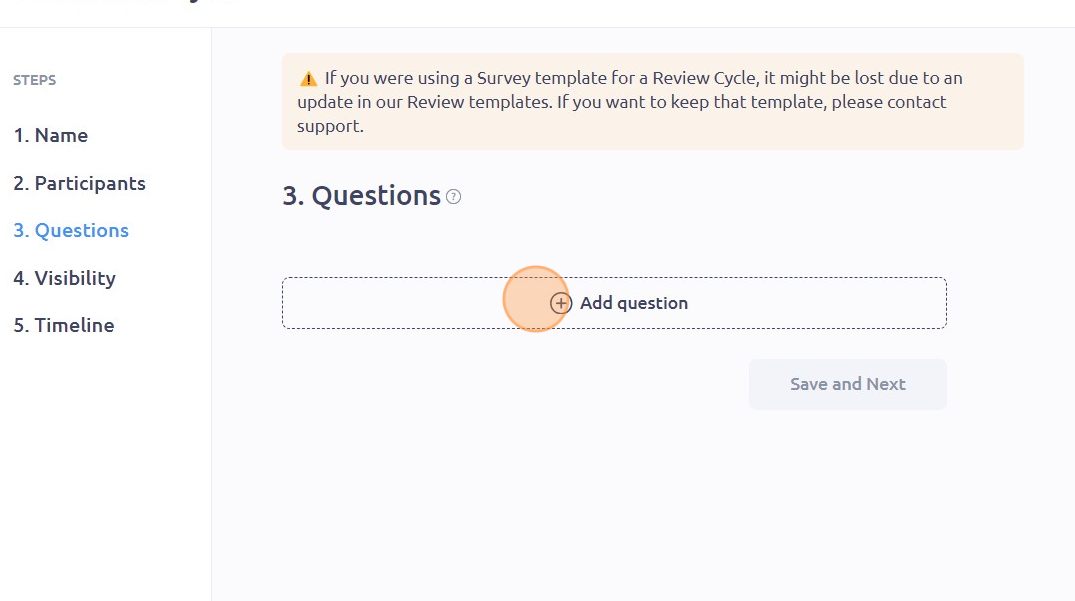
You can choose from the four types of questions available: Open-ended, Linear scale, Multiple choice and Checkboxes. Simply click on the type of question that you want to add
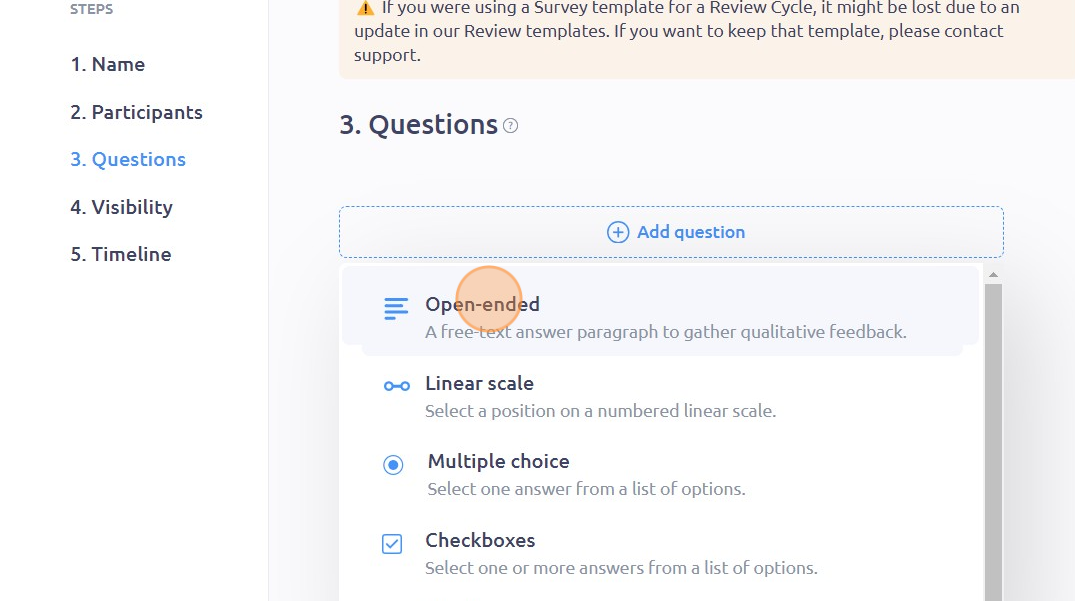
Type in your question in the "Question Title" field
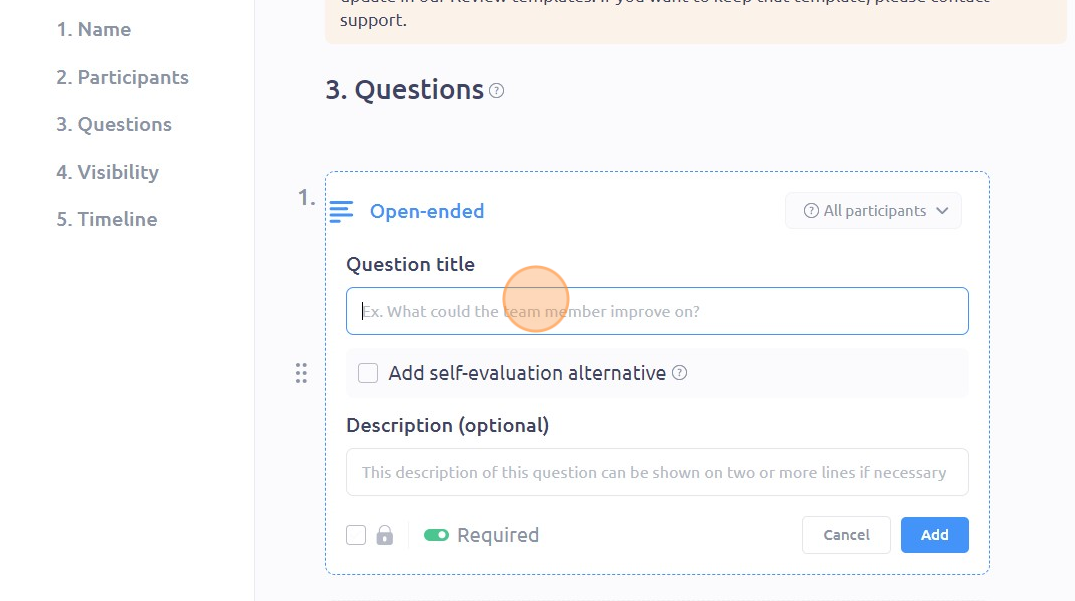
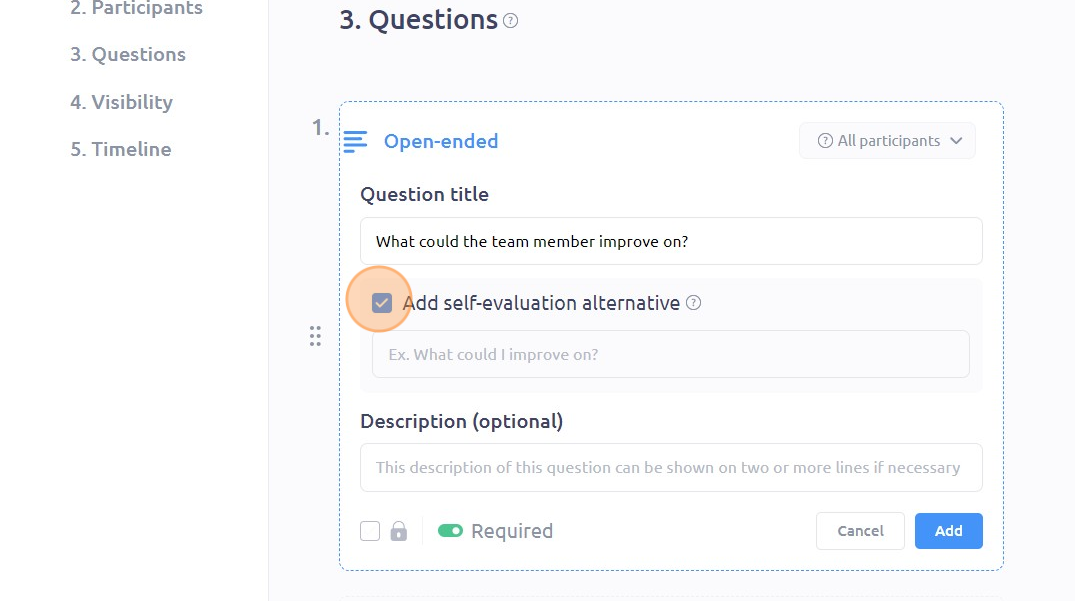
By checking the "Add self-evaluation alternative" box, reviewers will see the original question while the recipient will be seeing the alternative question below during self-evaluation.
You can also choose if you want to require an answer to the question or not by simply toggling the button beside "Required"
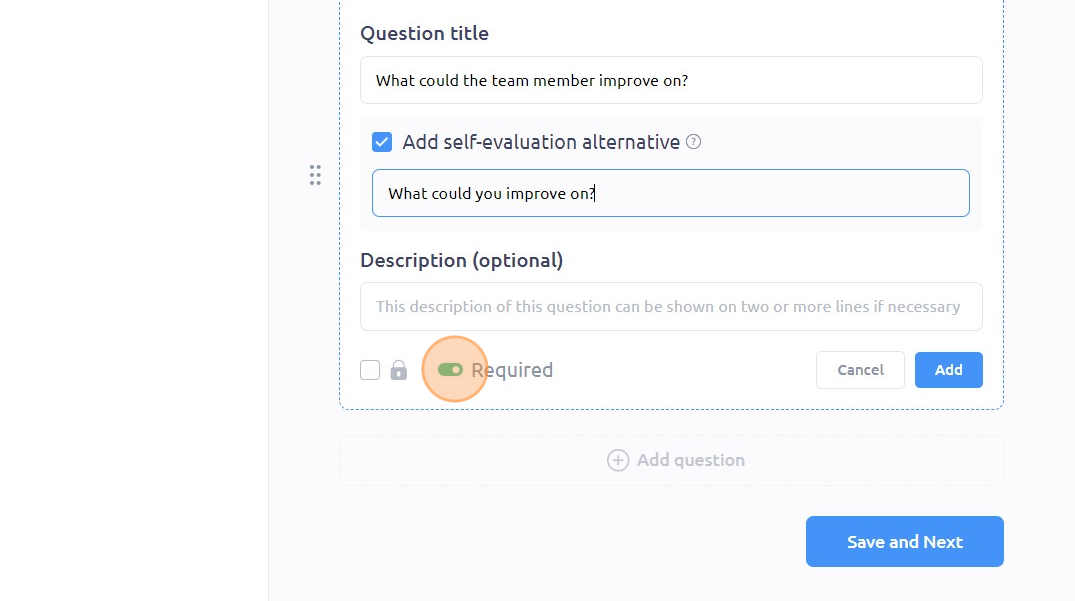
Click "Add"
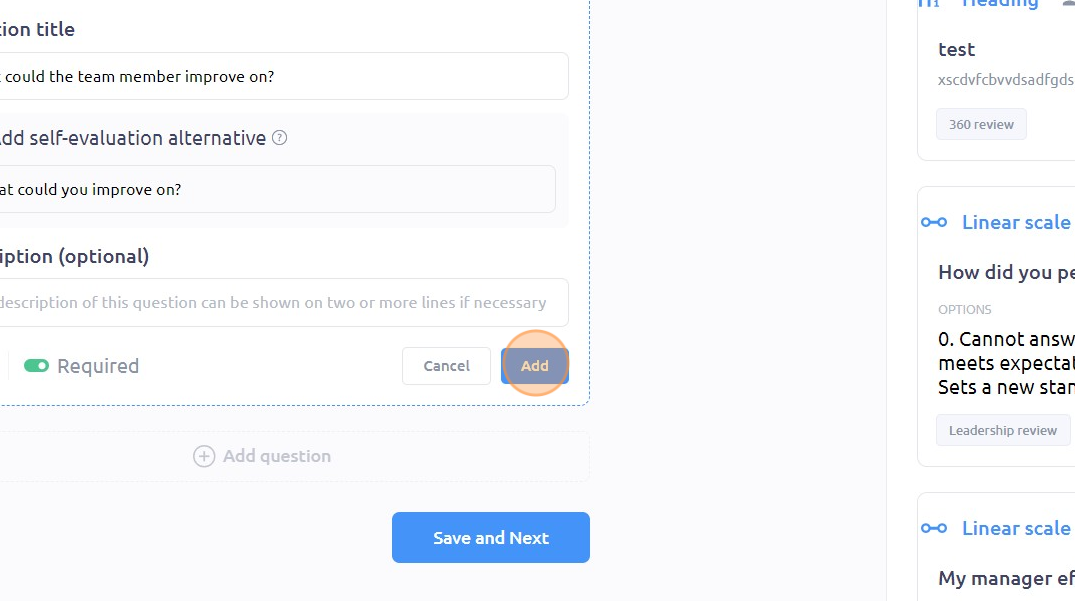
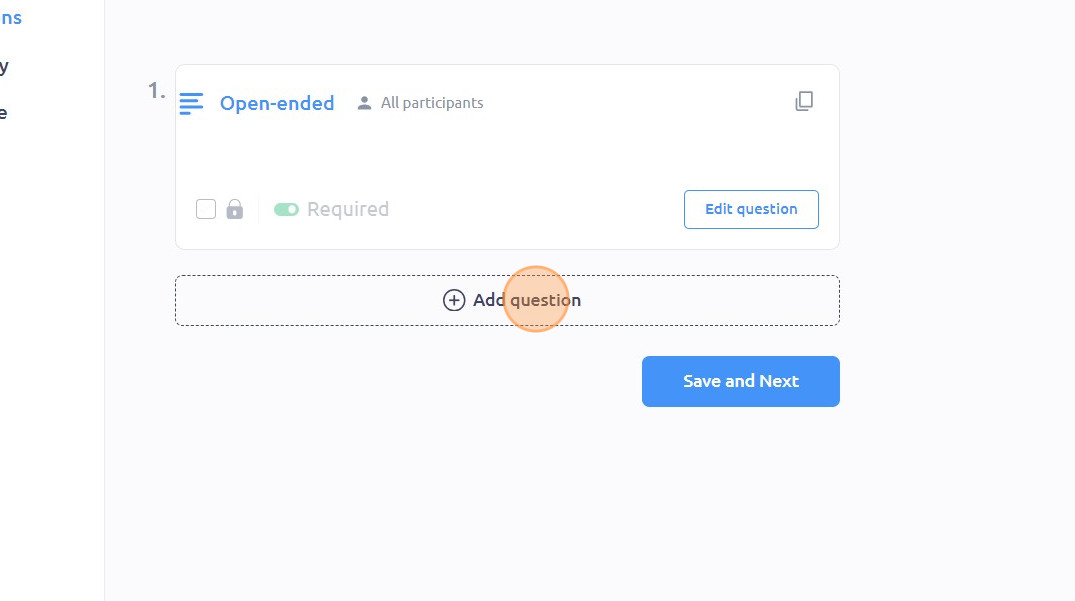
To add more questions, click "Add question" and choose the type of question you want
For the linear scale type, you can add a "Cannot Answer" option by toggling the button beside "Add Cannot Answer" The "Cannot Answer" votes won't be included in the question's average
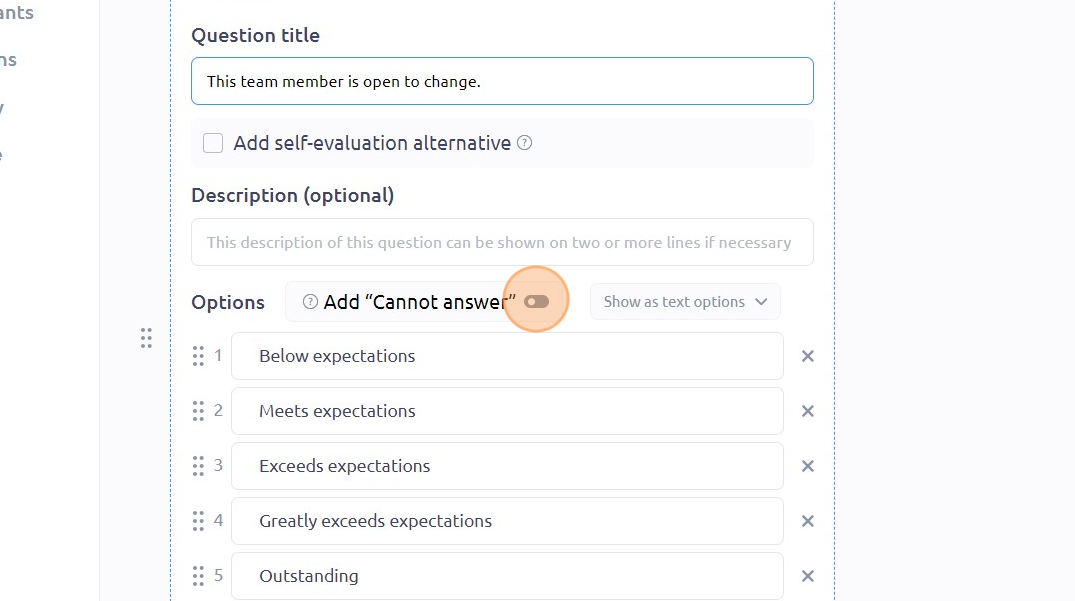
You can also modify the options to show as text or numbers by selecting your choice from the drop-down menu
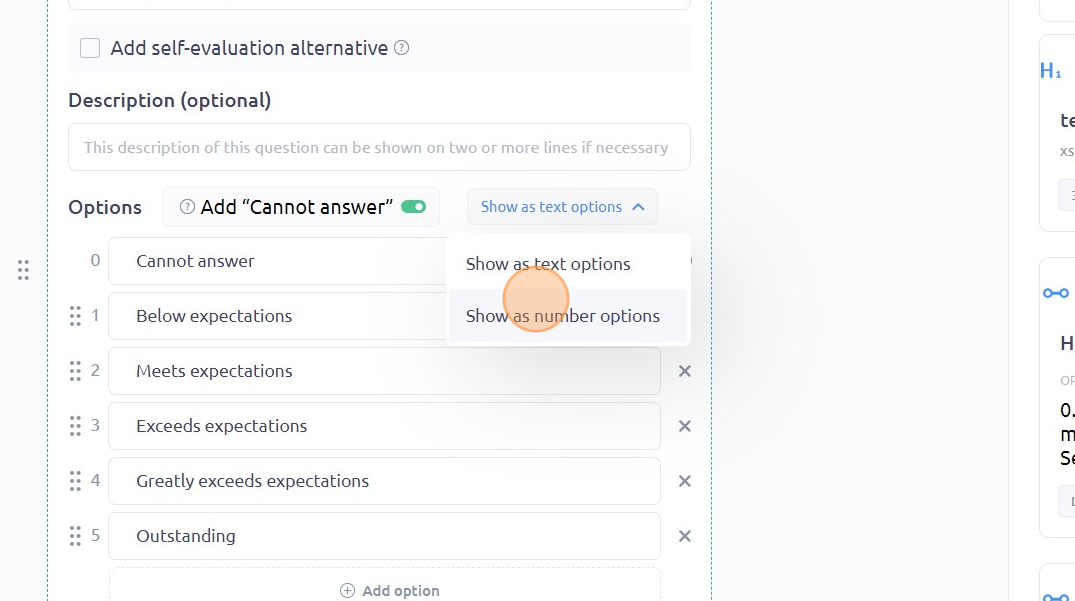
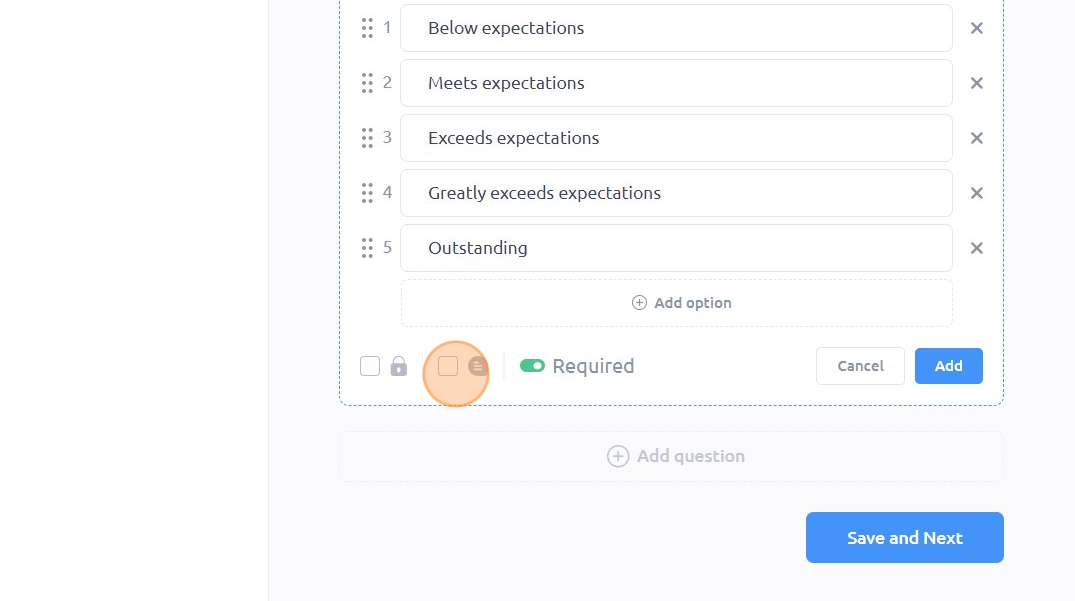
Click here to allow comments
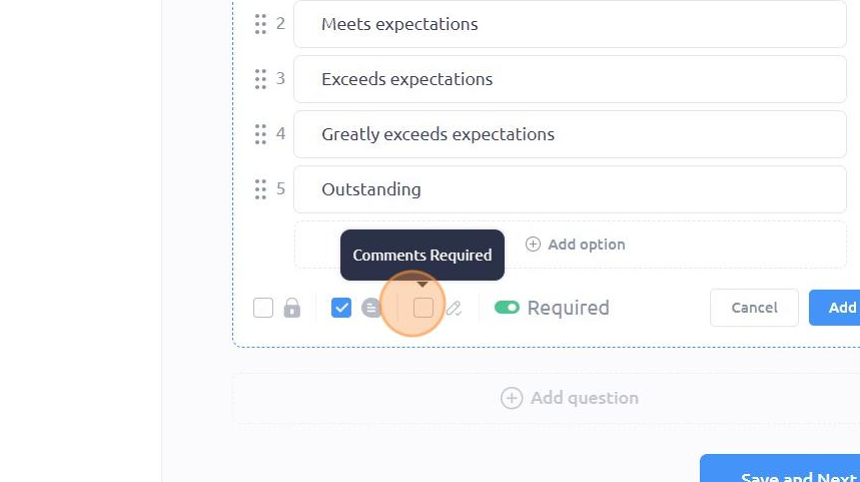
Click here to require comments
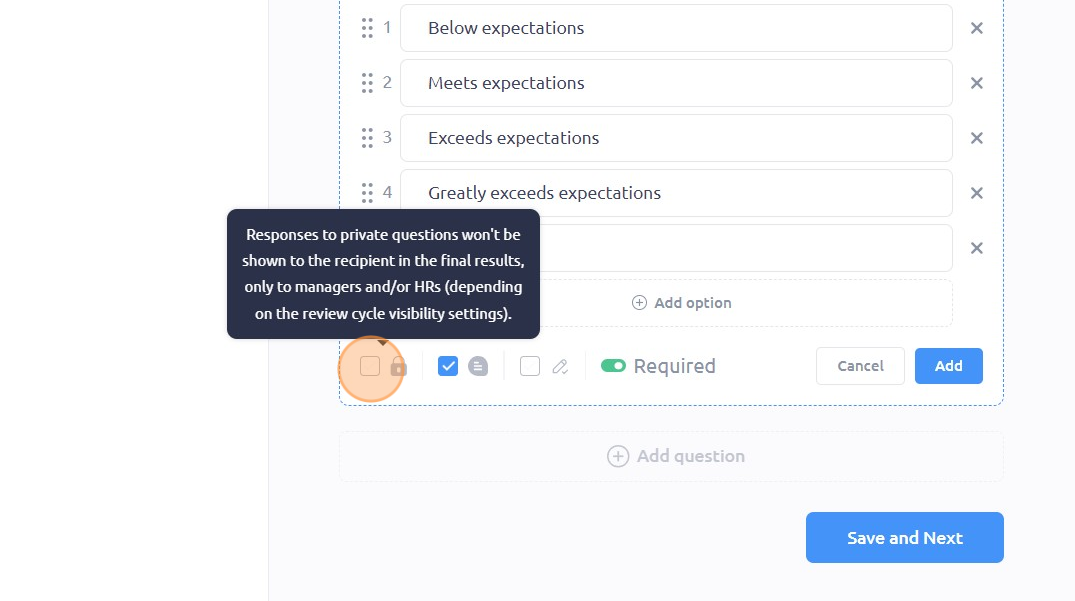
Click here to make the question private
In adding options for Checkboxes, simply click on "Add option" and type the option you want in the Option Field
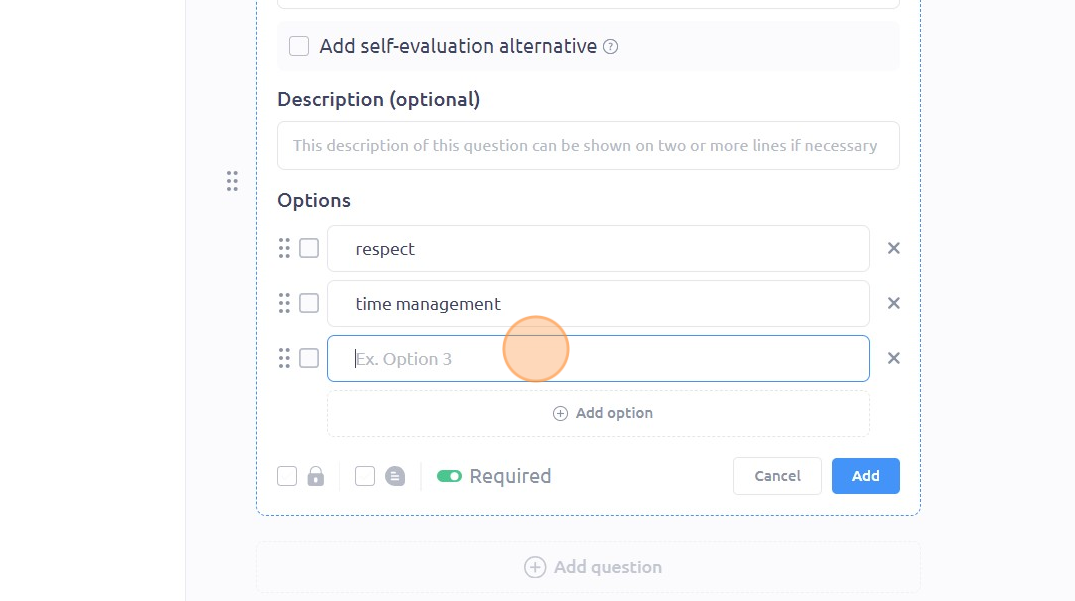
Click "Add"
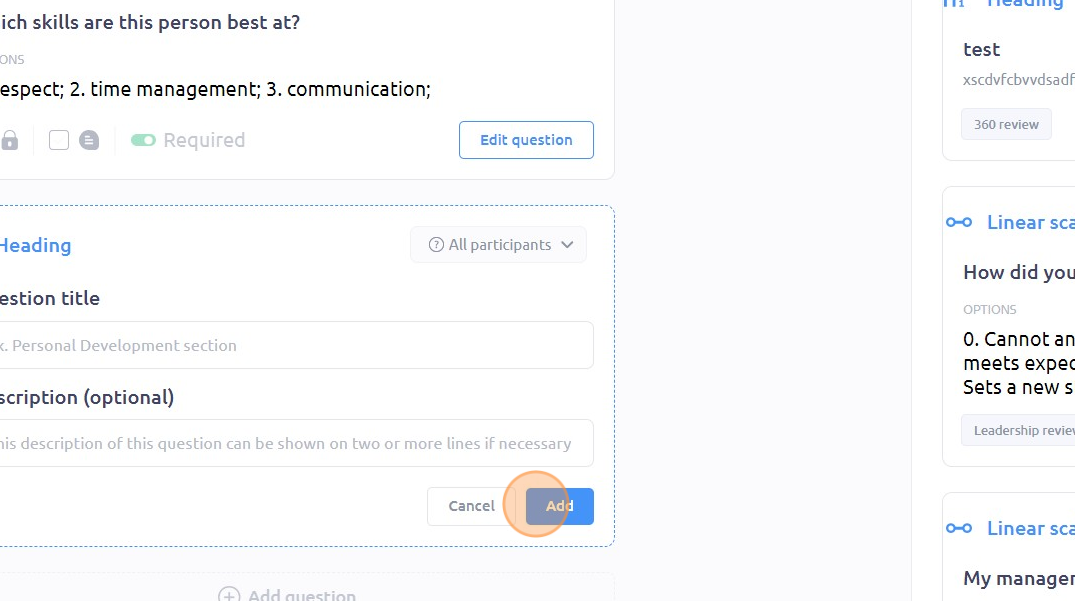
You can also add a heading. Simply type the title of your heading in the "Question title" field
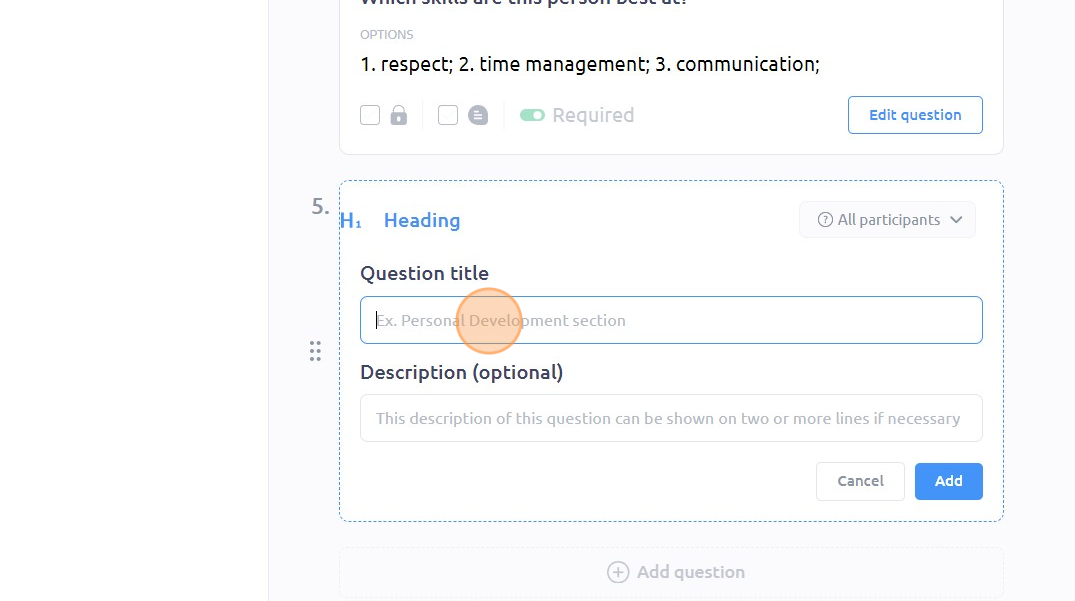
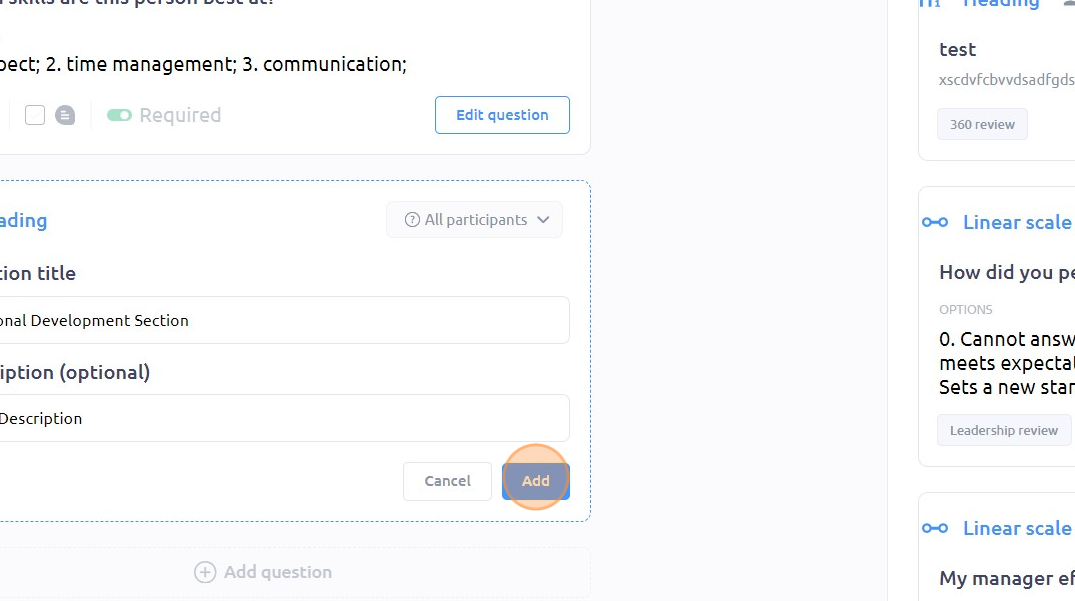
Once done, click "Add"
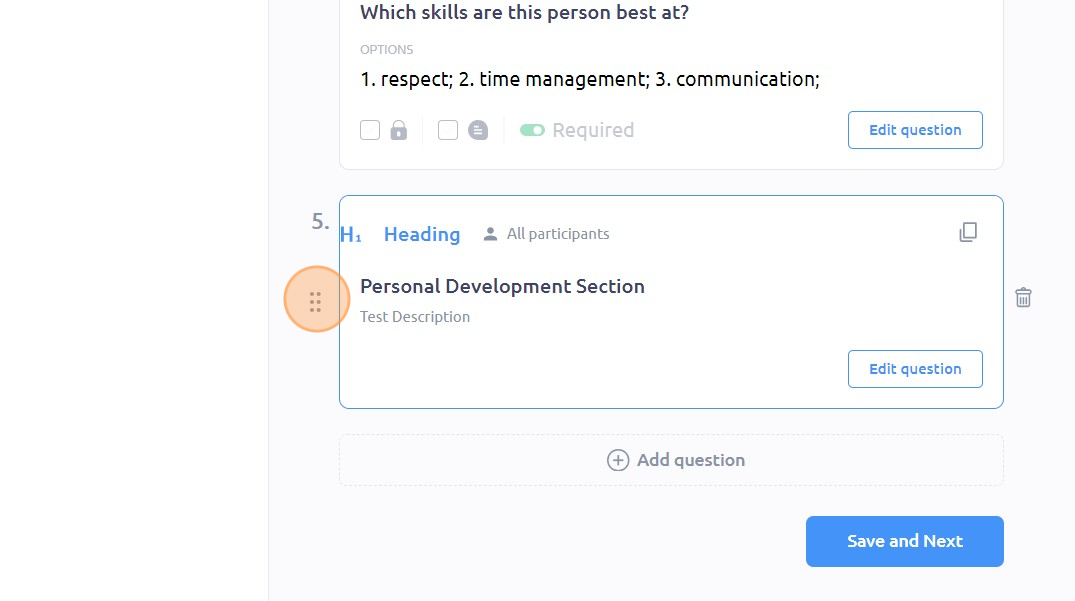
You can rearrange the order of your questions by dragging the drag handles or six dots at the side of each question box
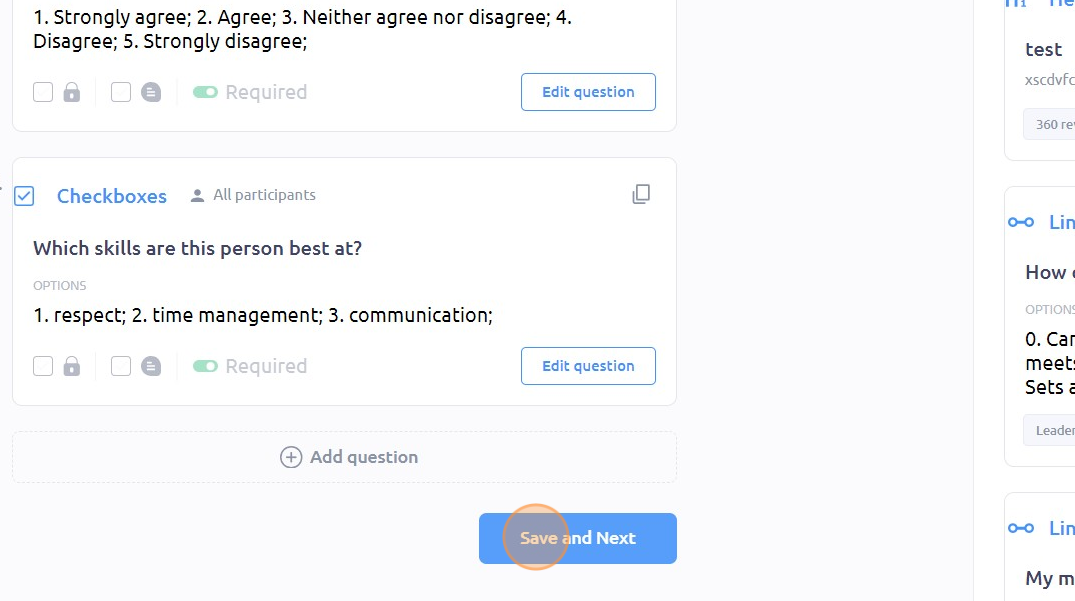
Once you're done, click "Save and Next"
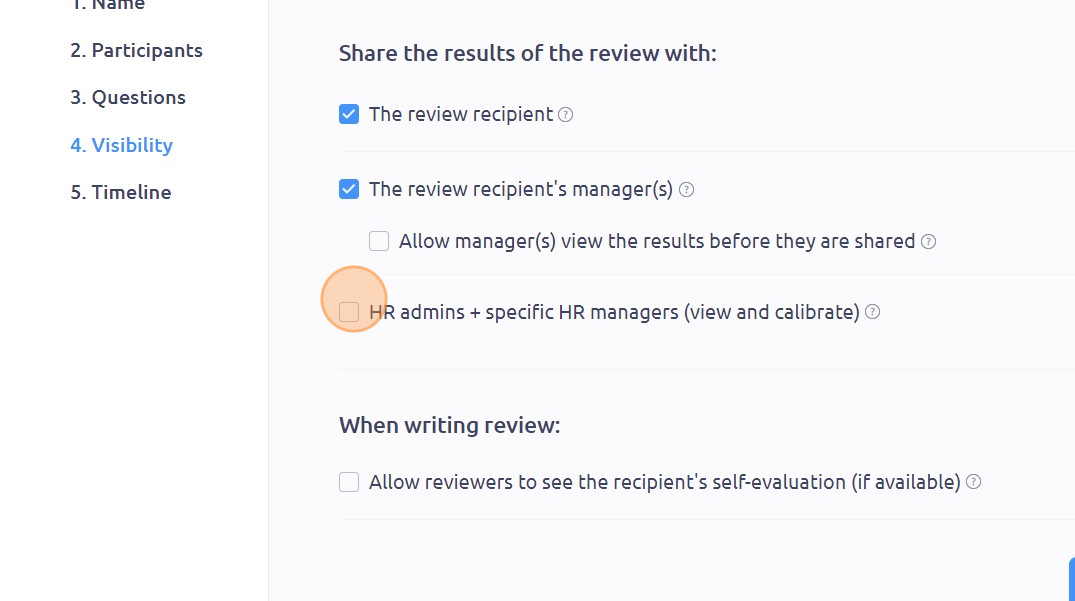
In the Visibility section, select the people you want to share the review results with. Do this by checking the appropriate checkboxes accordingly.
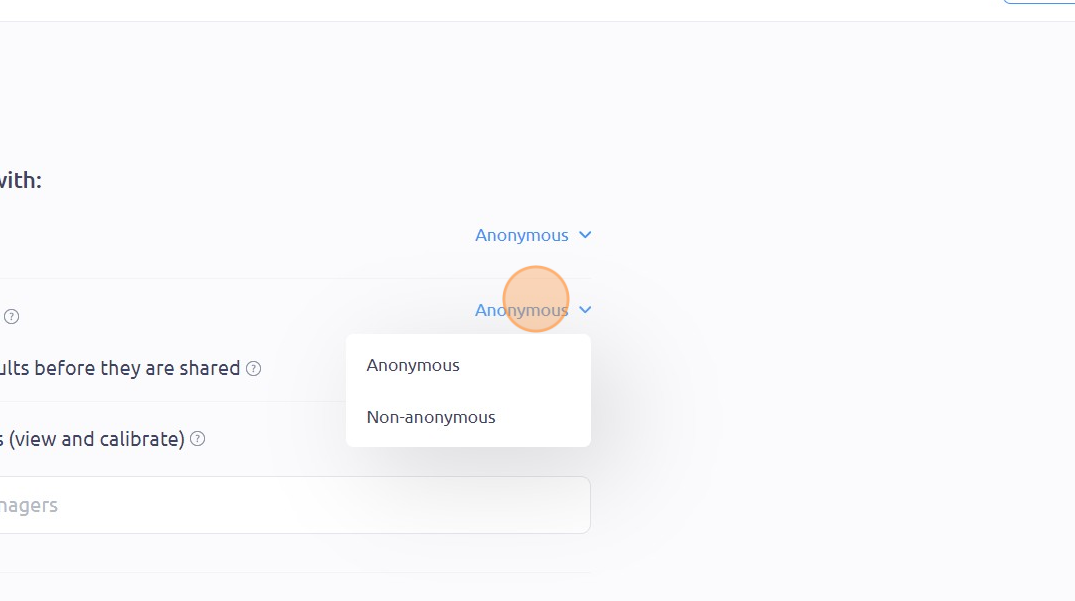
You can also modify the anonymity of the results by clicking "Anonymous" or "Non-anonymous"
Click "Save and Next"
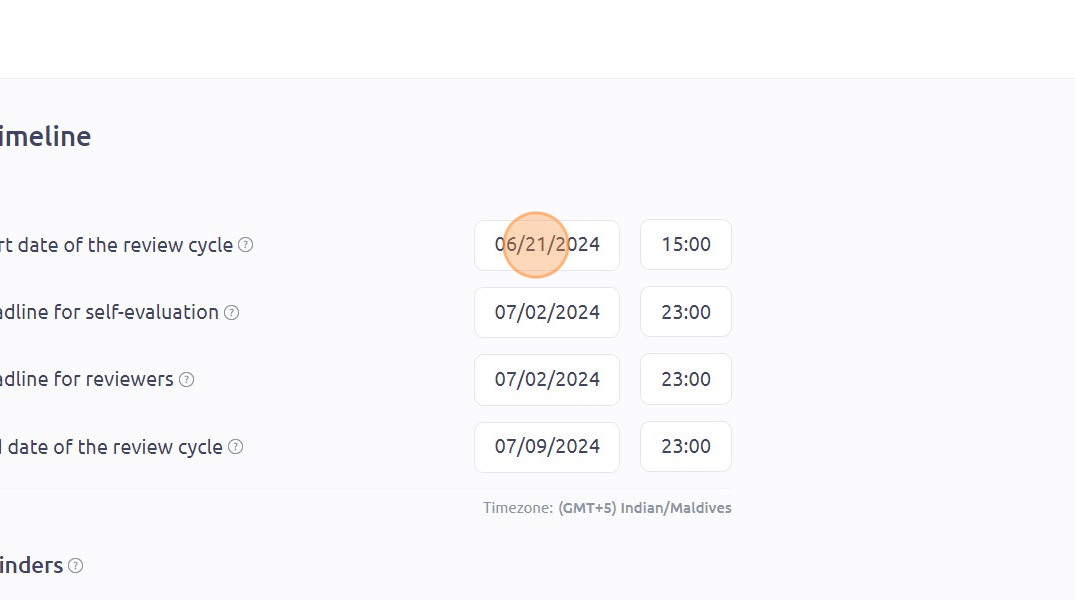
In the Timeline section, you can modify the start and end dates of the review cycle and set deadlines. To do this, click on the "Date" field
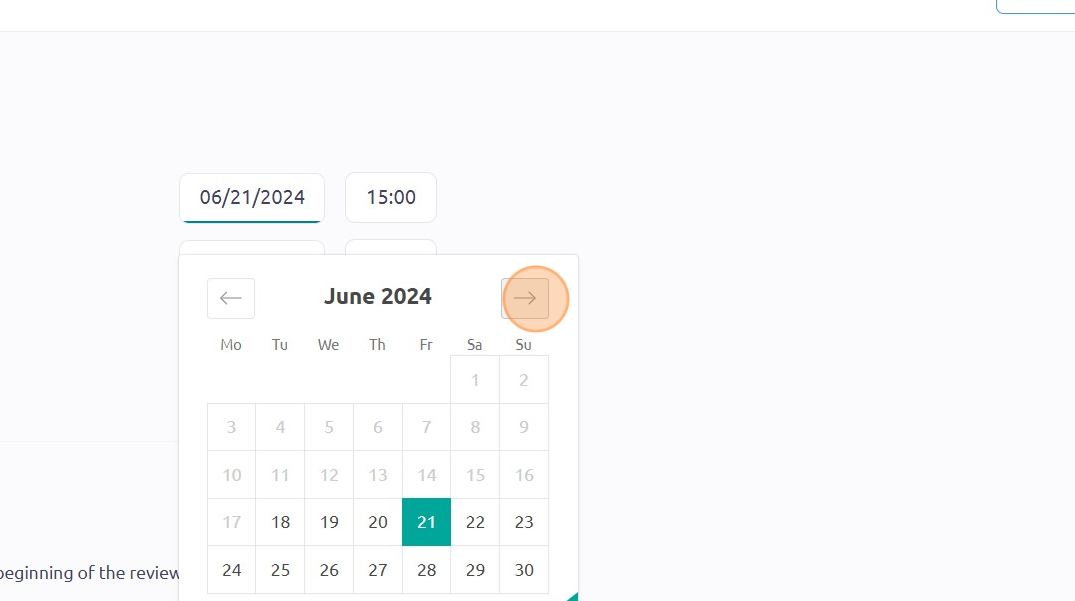
Navigate the calendar and choose the desired date and time.
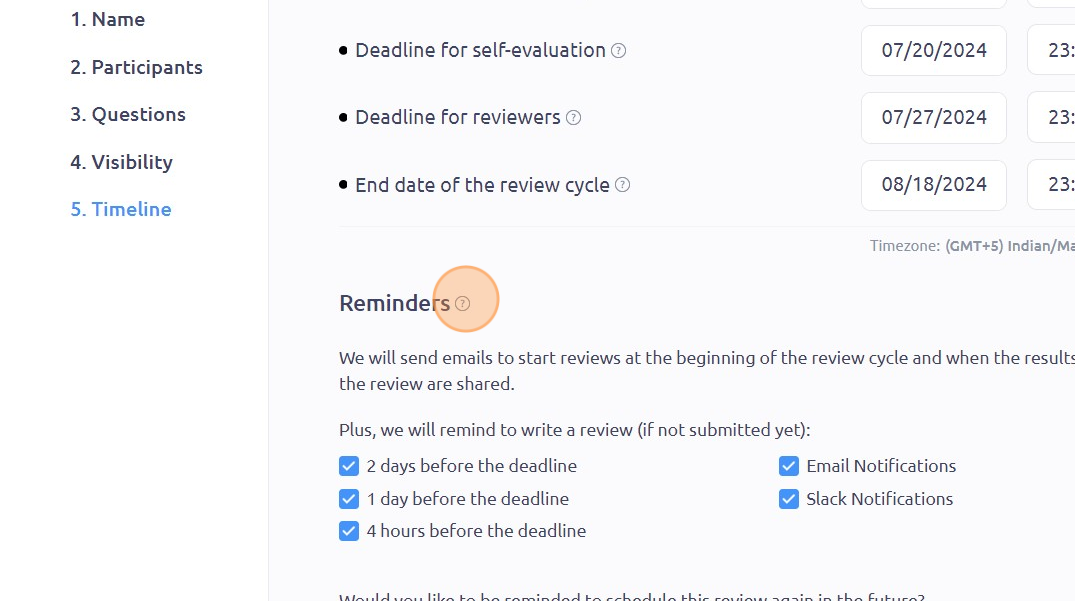
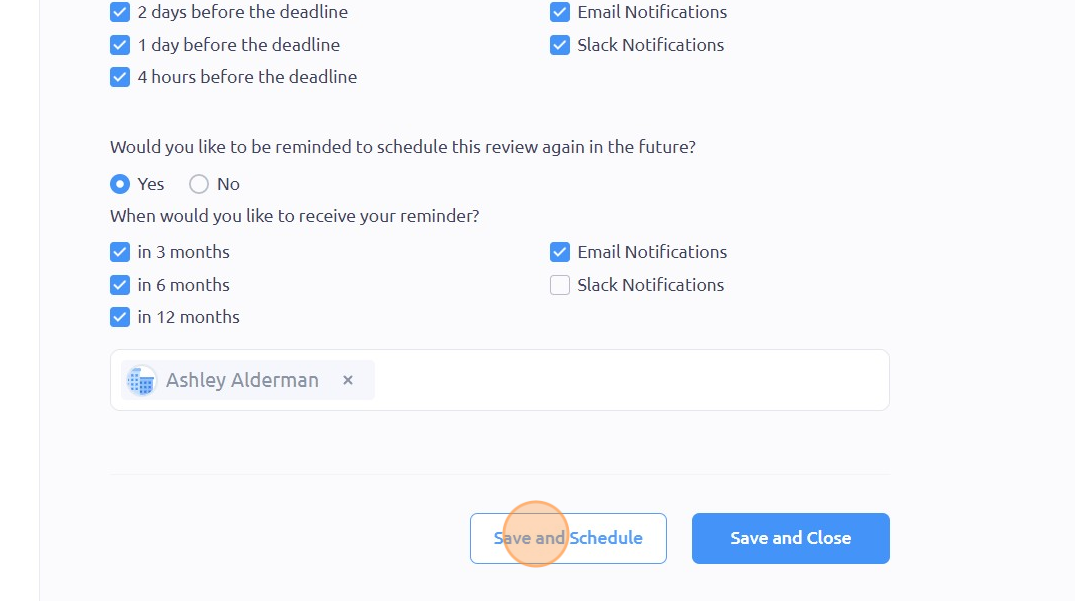
You can also modify how often and where you want to receive reminders by checking the appropriate checkboxes
To save this as a draft, click "Save and Close". To save and schedule, click "Save and Schedule"
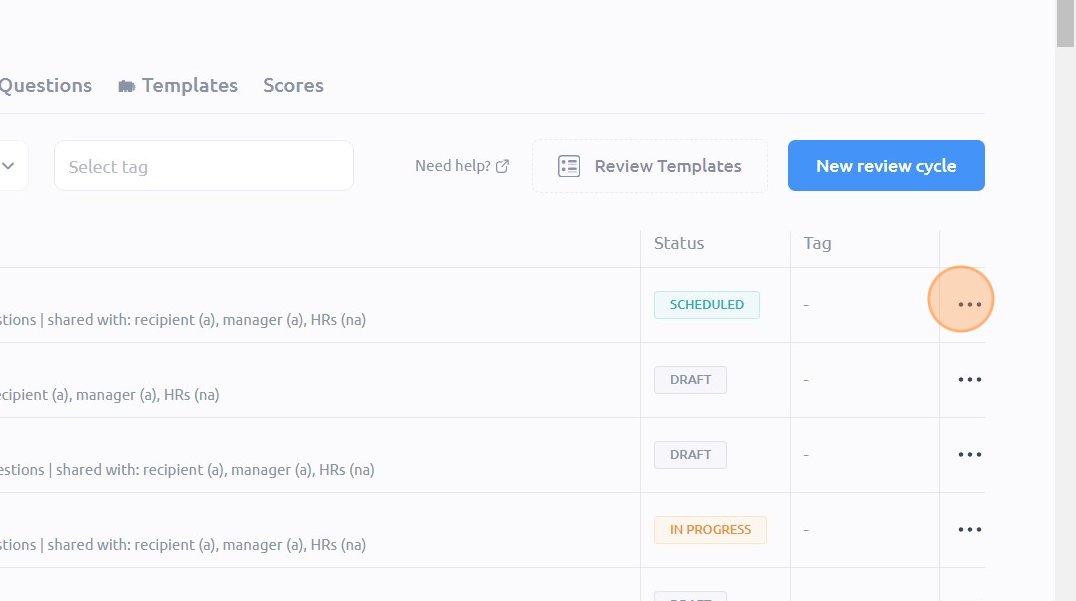
Click this icon to view or edit the details of your review cycle, or to schedule, unschedule, start, finish, copy, or delete your cycle
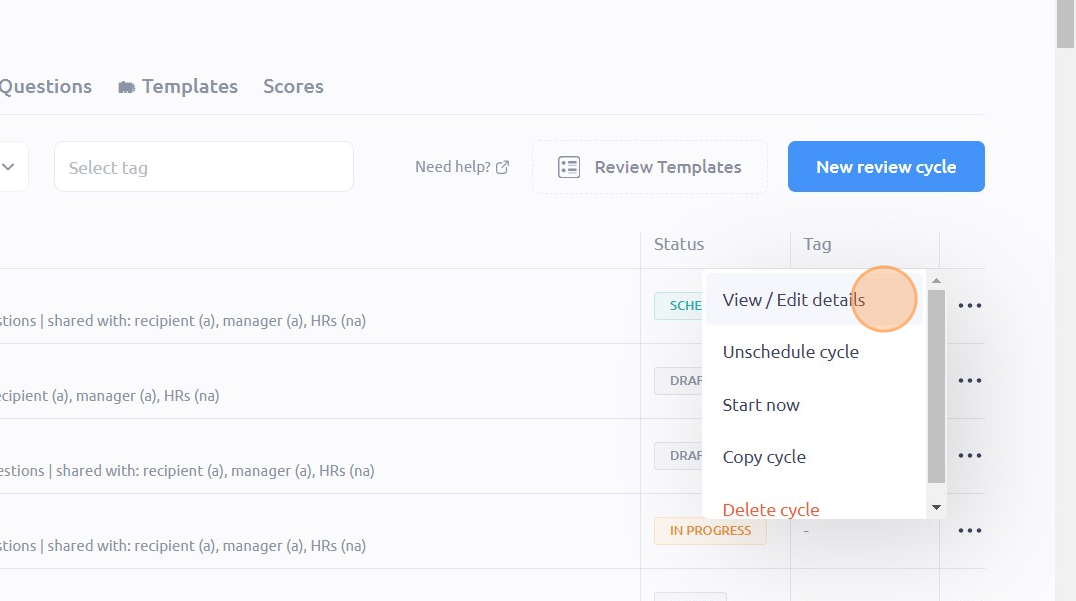
Choose your desired option accordingly
To see it in action, please visit Peoplelogic Learn.