Setting user roles via SCIM
Last updated: November 6, 2024
You can set user roles via your identity provider. Find detailed instructions for your identity provider below.
Okta
Create the role attribute for your users
Begin by creating a role attribute for each user in Okta whom you want to sync to Aleph. The role attribute should be assigned one of the following values: Admin, Editor, or Viewer. If no attribute is set, the default role will be Viewer.
Configure the attribute mapping
After assigning an Aleph role to each Okta user, configure the mapping in the Aleph app:
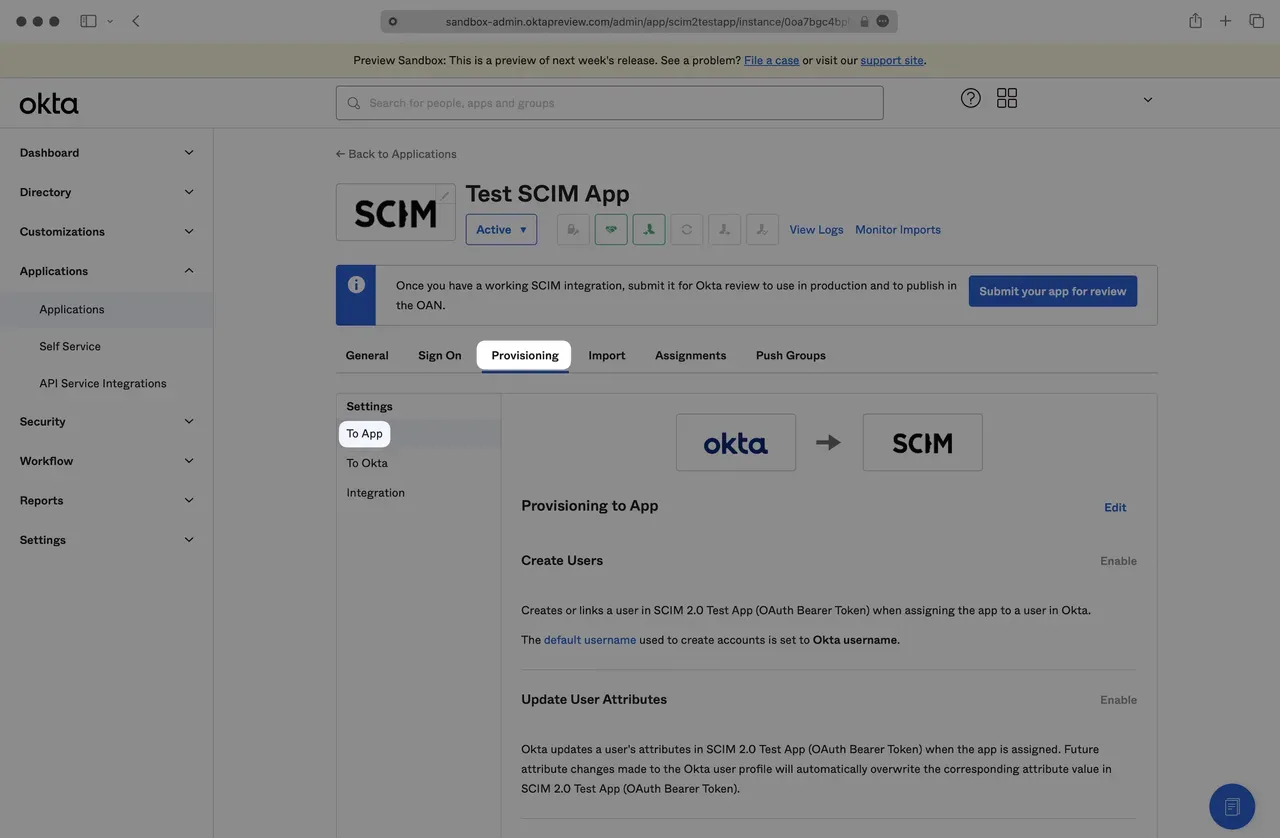
Click on "Provisioning" and then select "To App."
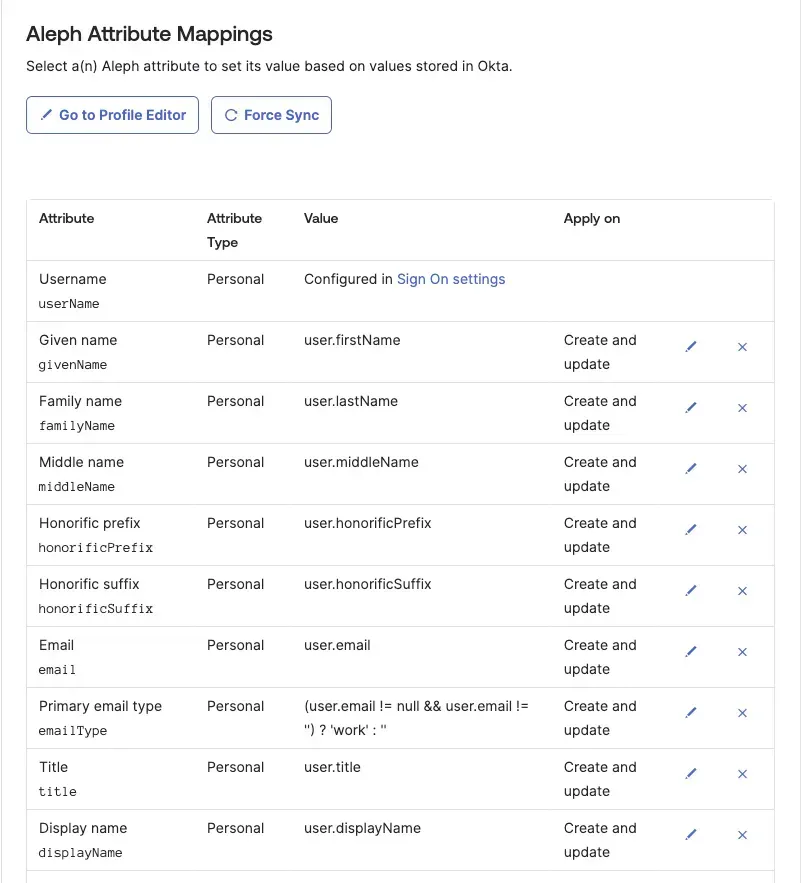
Scroll down to the "Attribute Mappings" section and click on "Go to Profile Editor."
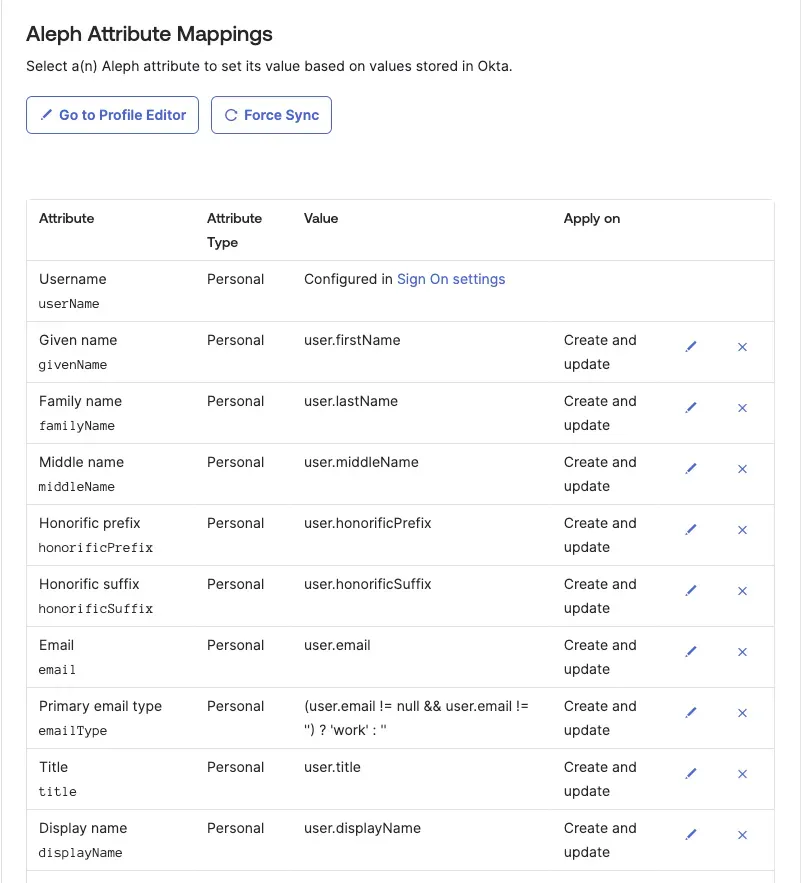
Click on "Mappings" and then choose "Okta User to Aleph."
Set up the mapping between your Okta user role attribute and the Aleph
roleattribute. The mapping should resemble the following:
Click "Save Mappings" and return to the Aleph app in Okta.
Under "Provisioning" > "To App" > "Attribute Mapping," click "Force Sync." This action will prompt Okta to automatically sync role changes to Aleph for both new and existing users in the directory.