Provisioning groups in OneLogin
Last updated: November 6, 2024
Groups in OneLogin work differently than in most applications. In particular, a user in OneLogin can belong to only one group, but this is not the case in Aleph where a user can belong to more than one group.
There are many ways to provision groups in OneLogin. Below are two ways in which you can do it:
Using app parameters
Using OneLogin roles
Option 1: Using app parameters
Parameters allow you to map your OneLogin attributes to their corresponding fields in the Aleph application. In this approach, we'll create a parameter called "groups" that is configurable by an admin when they assign the app to a new user.
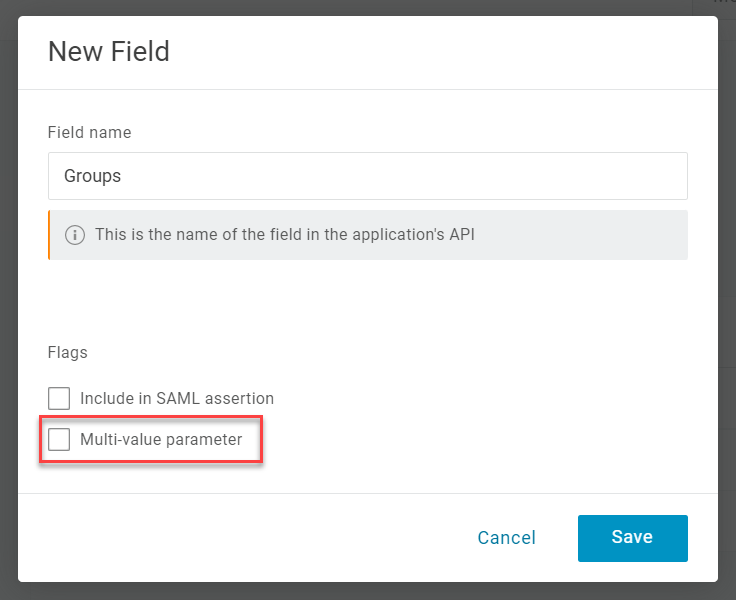
Go the Aleph app configuration page in OneLogin. Under "Parameters" create a new parameter called "groups"
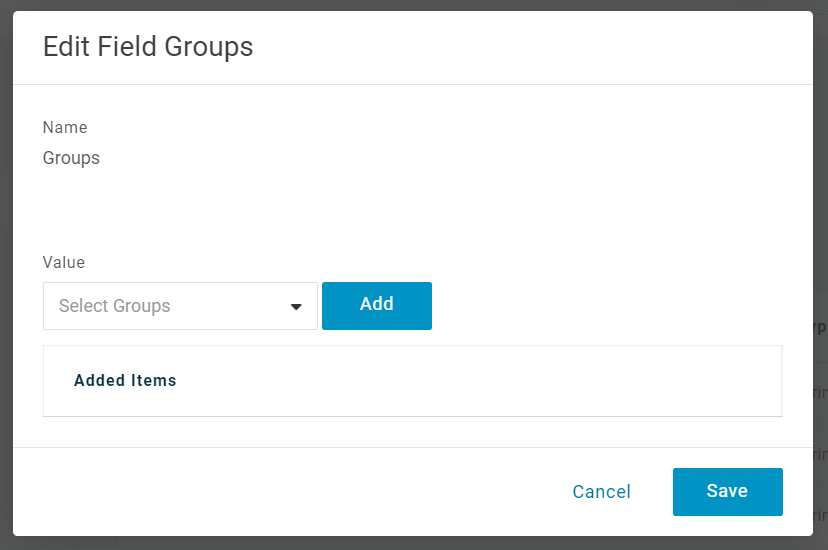
Add any Aleph group you want to have to the list. You can then choose groups for users when you assign them the Aleph app.
Option 2: Using roles
This method use OneLogin "Roles" (not to be confused with Aleph "roles")
In the top navigation, Select “Users” and then “Roles” from the dropdown. Select “New Role”.
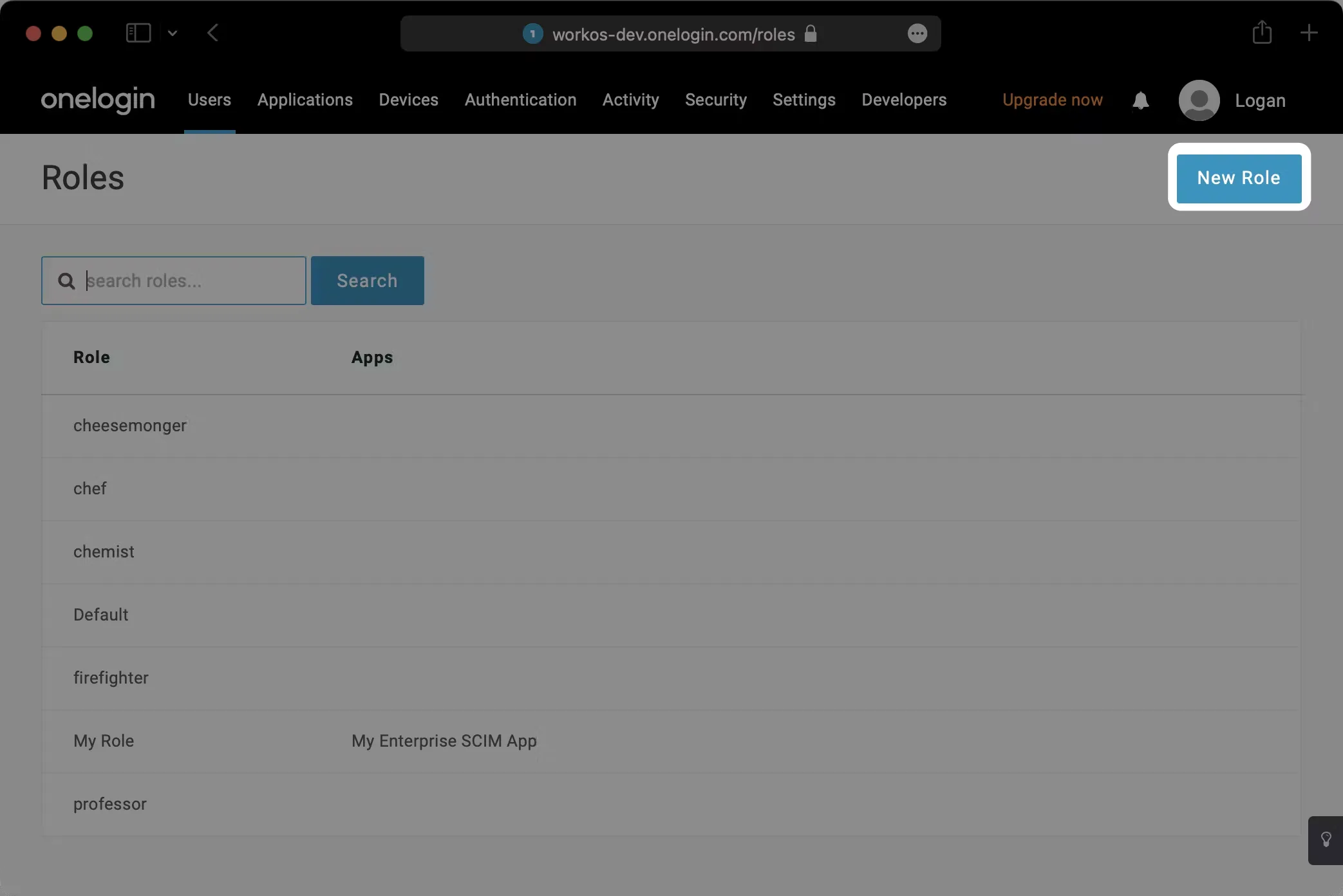
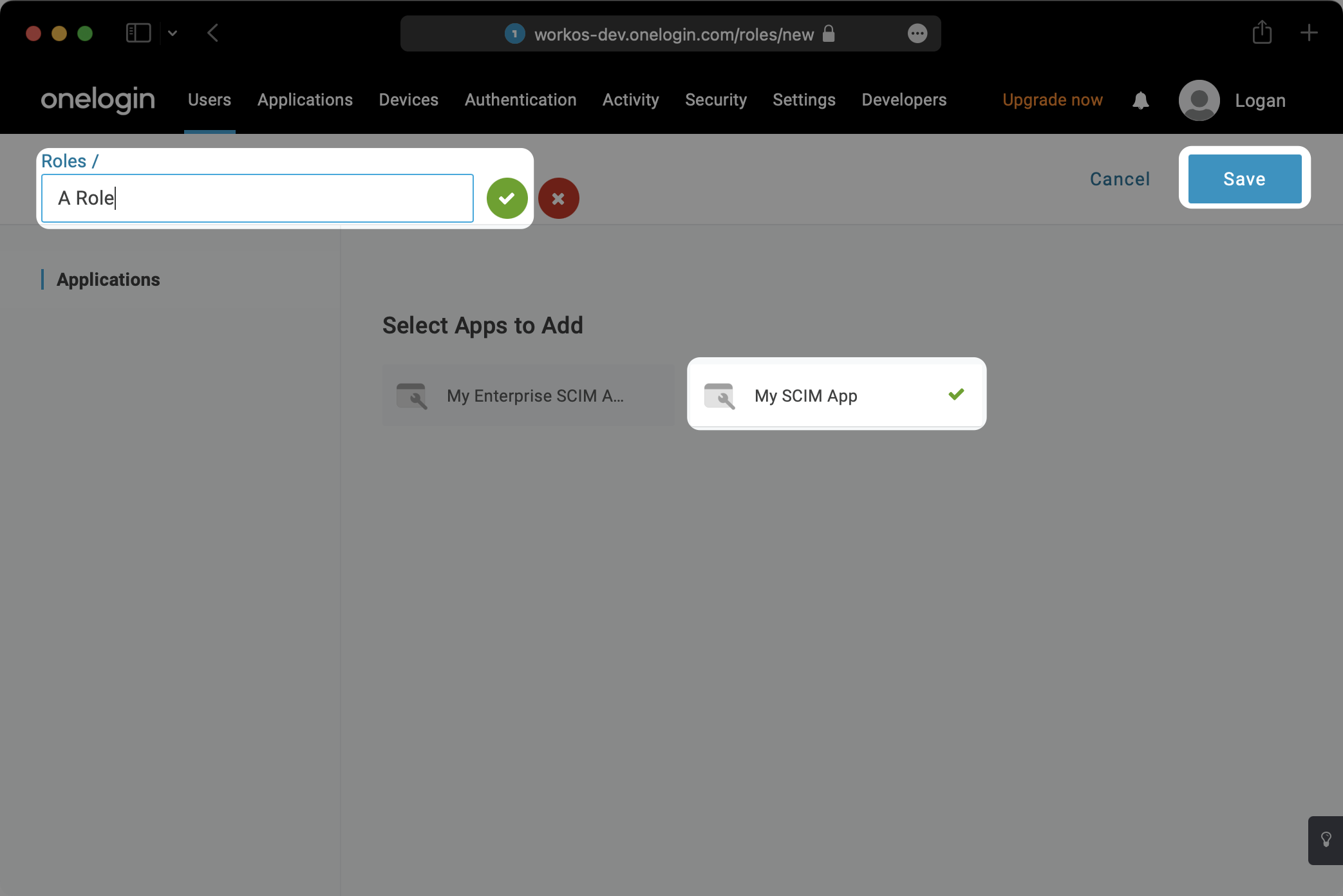
Give the Role a name (this will be the name of the group), select the Aleph app, and hit “Save”.
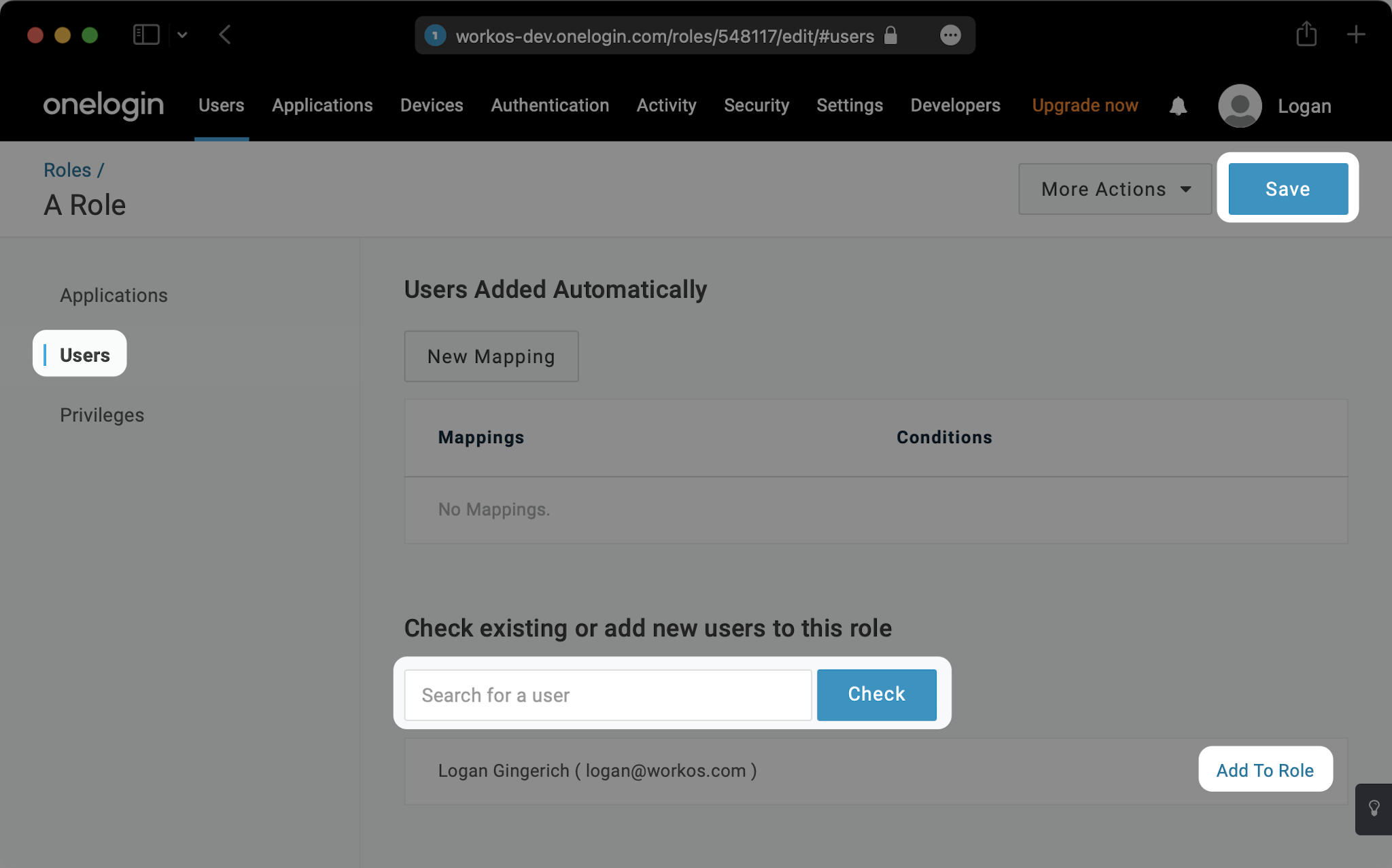
Click the “Users” tab for the role. Search for any users you’d like to assign to that role and hit “Add To Role”. Then hit “Save”.
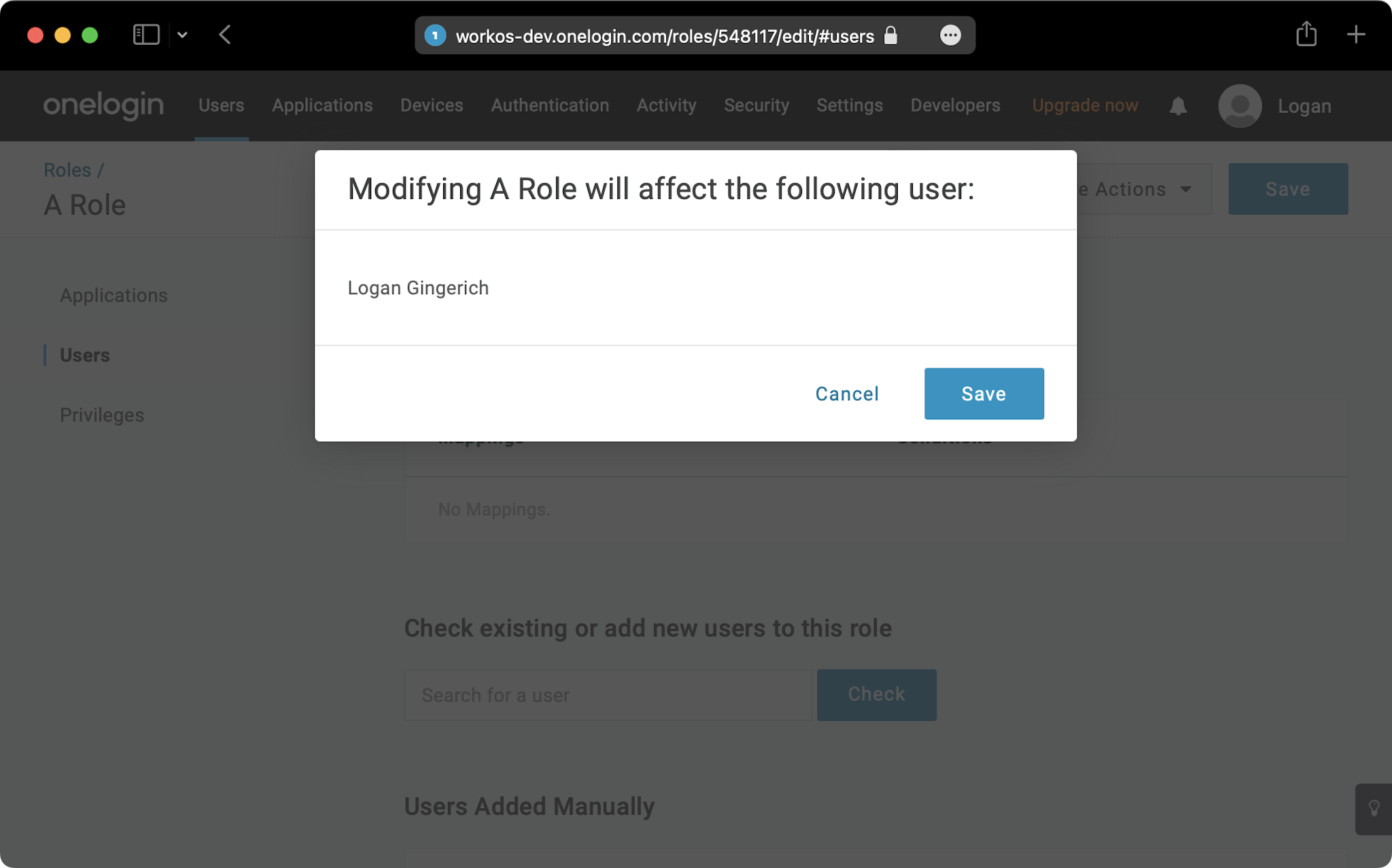
Click “Save” in the next modal to confirm.
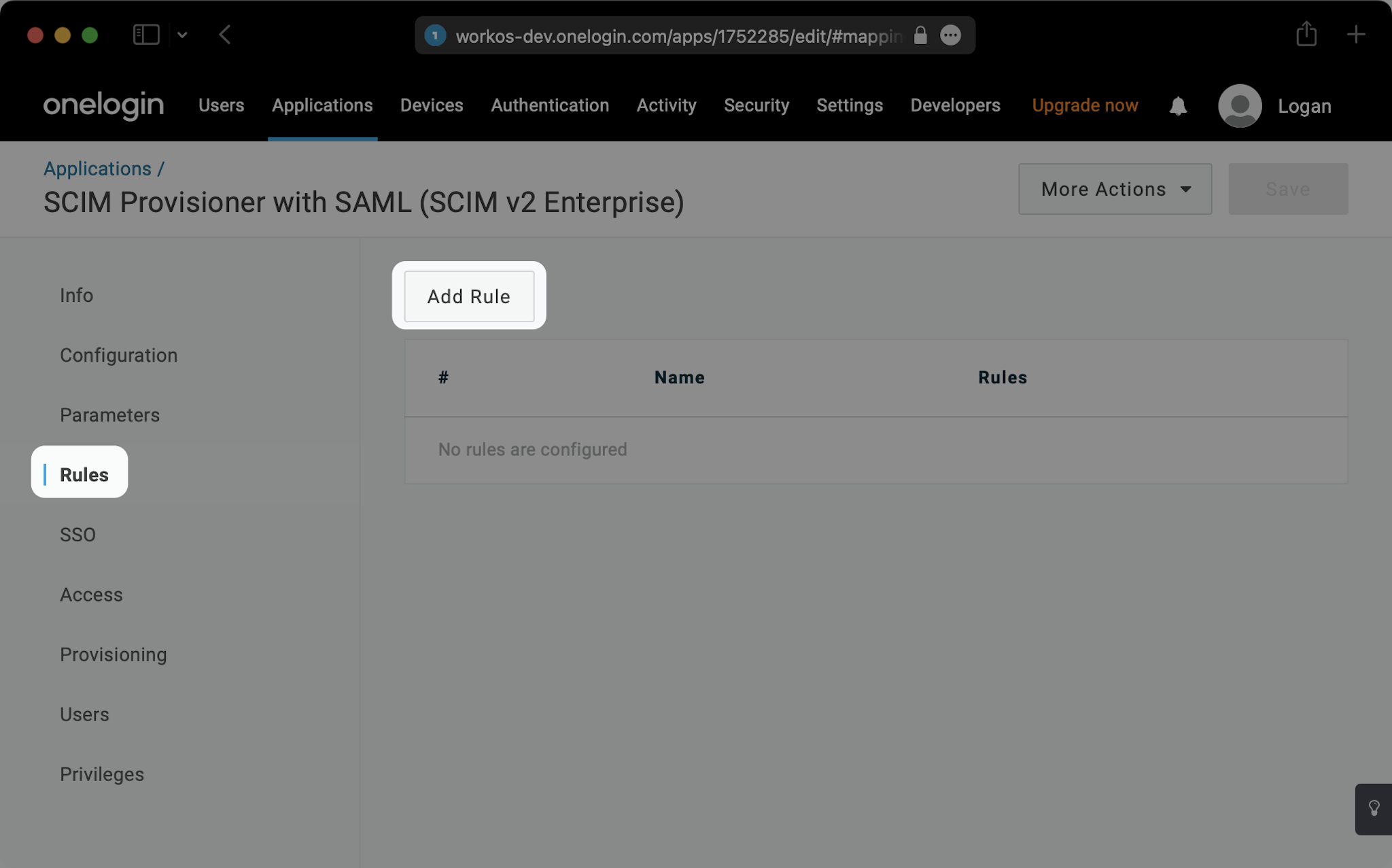
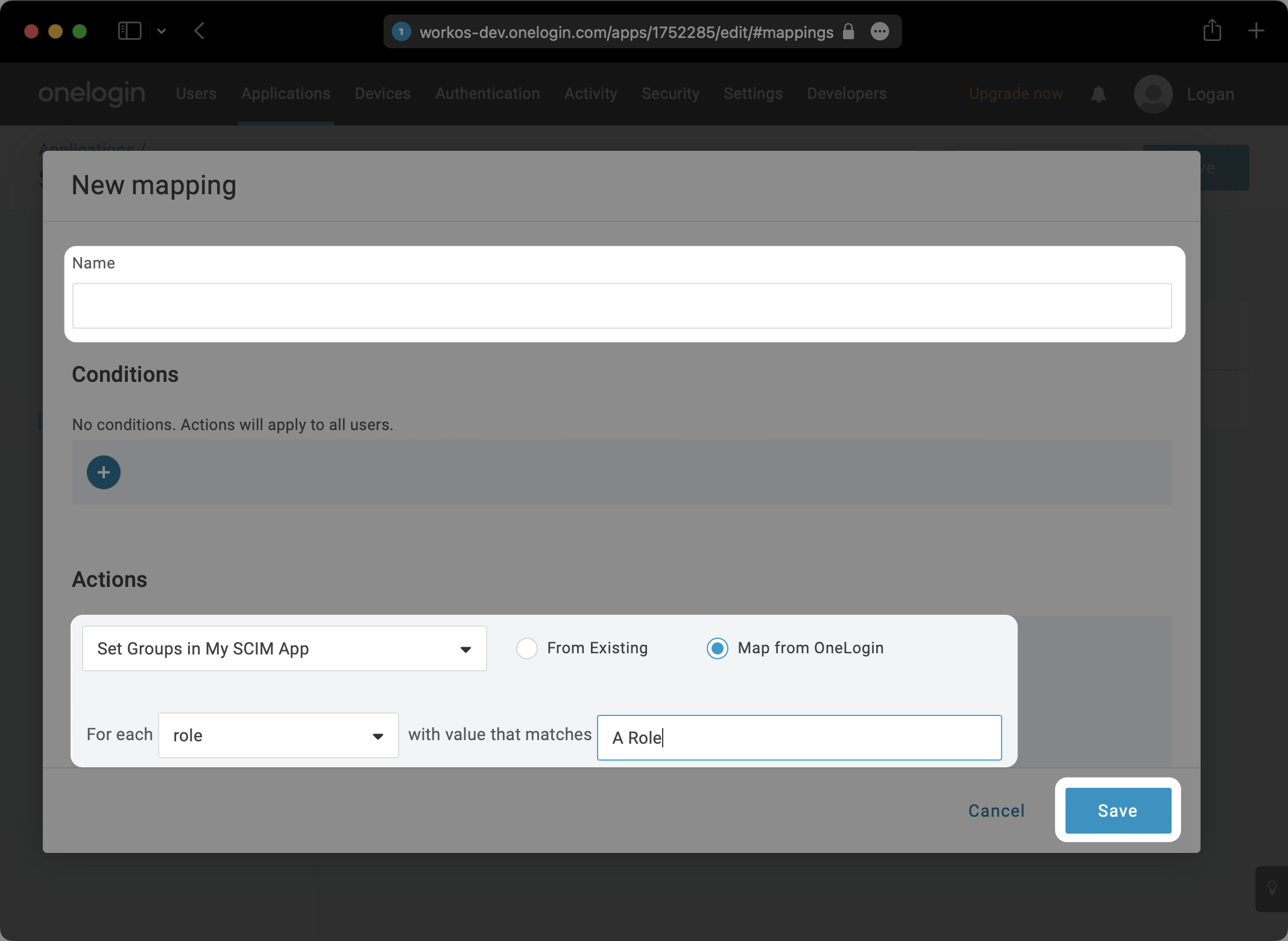
Navigate back to your Aleph app and click on the “Rules” tab on the left. Then, hit “Add Rule”.
Give your Rule a name. Under “Actions”, select “Set Groups in Aleph”. Then, set it to “For each role with value that matches your-role-name”. Hit “Save”.
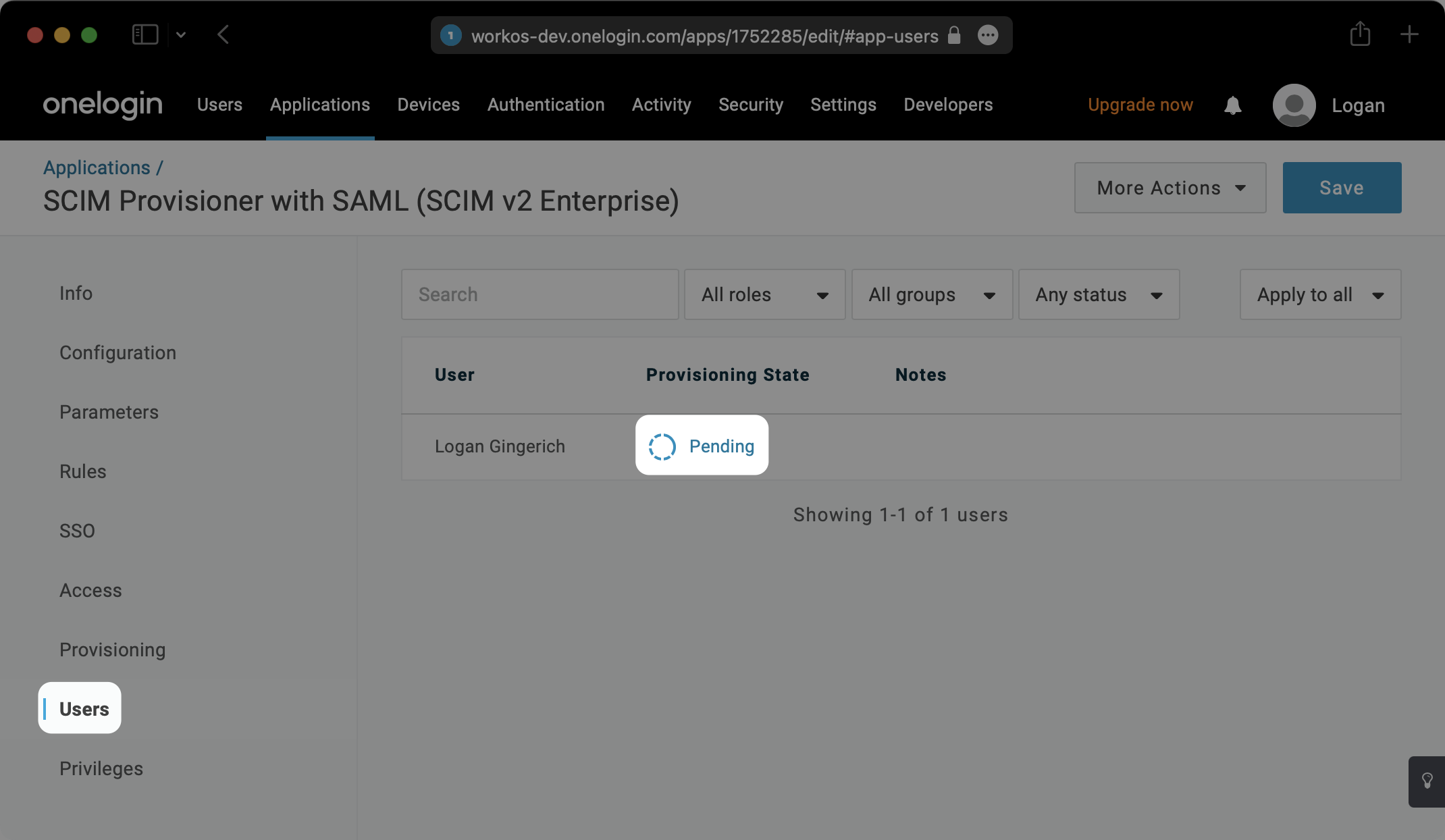
Within your Aleph app under the “Users” tab, you may then need to click on any “Pending” notifications to confirm the update for users.