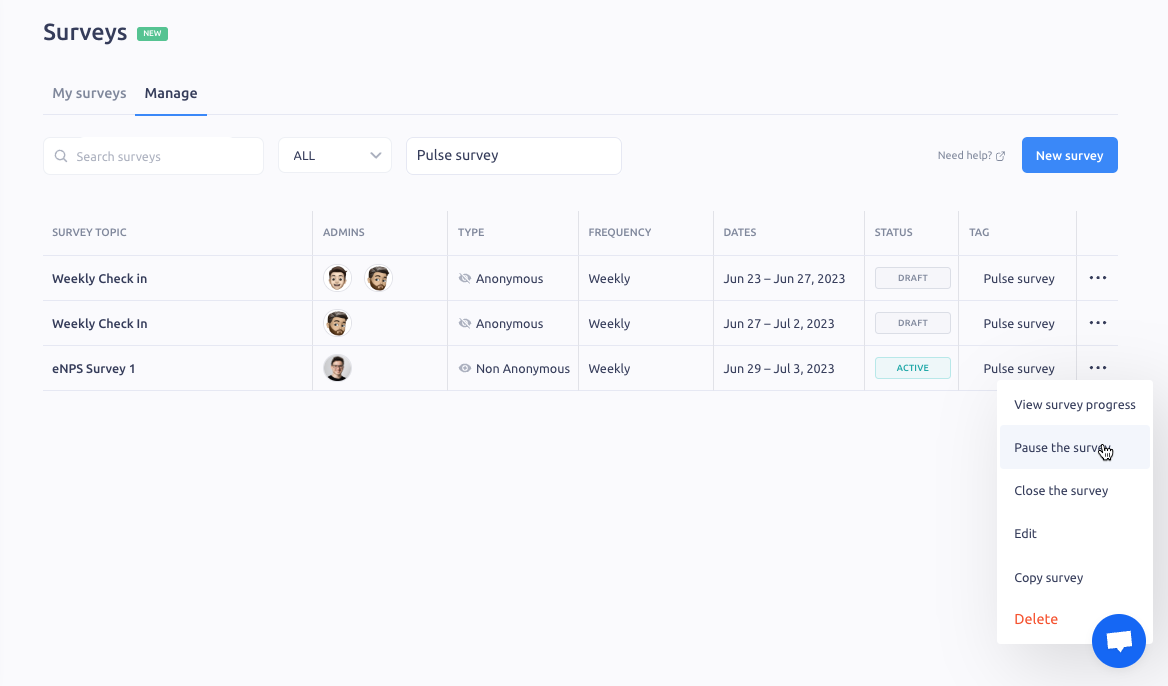
Navigating surveys menu in IMPACT
Last updated: September 20, 2024
You can access and manage employee surveys using the “Surveys” menu in IMPACT. Here's a quick guide to help you explore different tabs.
1. "My Surveys"
Here, you'll find surveys where you're a participant, allowing you to check what's ongoing, past, or drafted. The active surveys show a "Write response" button or "Continue writing" button if you have started but didn't finish.
2. "Manage"
Restricted to HR admins and Survey Admins. Manage all the surveys and access their settings. Use filters and tags to search and sort surveys as required and create a new survey.
By pressing three-dot button on the survey, you can access various actions.
✅ Explore the survey progress.
✅ "Make Active" or "Start" your draft surveys
✅ Pause or Close the active surveys.
✅ Edit or delete (👆Note: This action cannot be undone).
✅ Copy your survey.