Troubleshooting
Last updated: November 6, 2024
Authentication
Sign in issues in Google Sheets
When trying to load the Aleph add-in within Google Sheets, you may encounter the following error:

This is a known authentication error in all Google add-ins. When you are signed in to multiple Google accounts at the same time, Google tries to log you in with the "default" one (which could be your personal one), instead of the one you're using at the time.
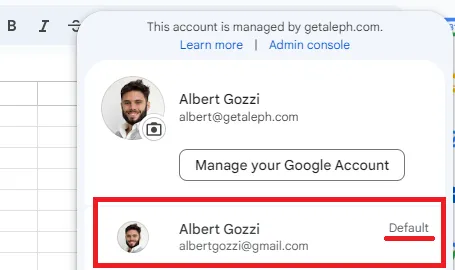
You can solve this issue by:
Making your Aleph account the default one, by
Signing out from all accounts
Signing in first with your account connected to Aleph
Keeping separate browser sessions, where you are only connected in one account
Aleph formula
'xldudf' in Aleph formula in Excel
After opening an Excel workbook with Aleph formulas, you might notice cells with the following error:

This is typically an authentication issue related to Excel and not to Aleph itself, and is easy to solve. The steps are:
Sign out from your Excel account (Excel itself, not the add-in) by clicking on your name in the top-right corner and selecting "Sign Out"
Close all open Excel files
Open the file that presented the error again
Sign in to Excel clicking on the same section in the top-right corner of the file
Open the Aleph add-in and sign in there
If the problem persists, please contact support and we'll happily look into it with you.
Explore
Explore fails with "Loading Error"
When refreshing the data from an Explore sheet, you may notice the following message:
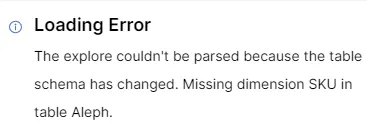
This means that the structure of the table has changed since the Explore sheet was created. To solve this, go to the Integrations section and in the table you are using, click on the ellipsis and select "refresh schema".
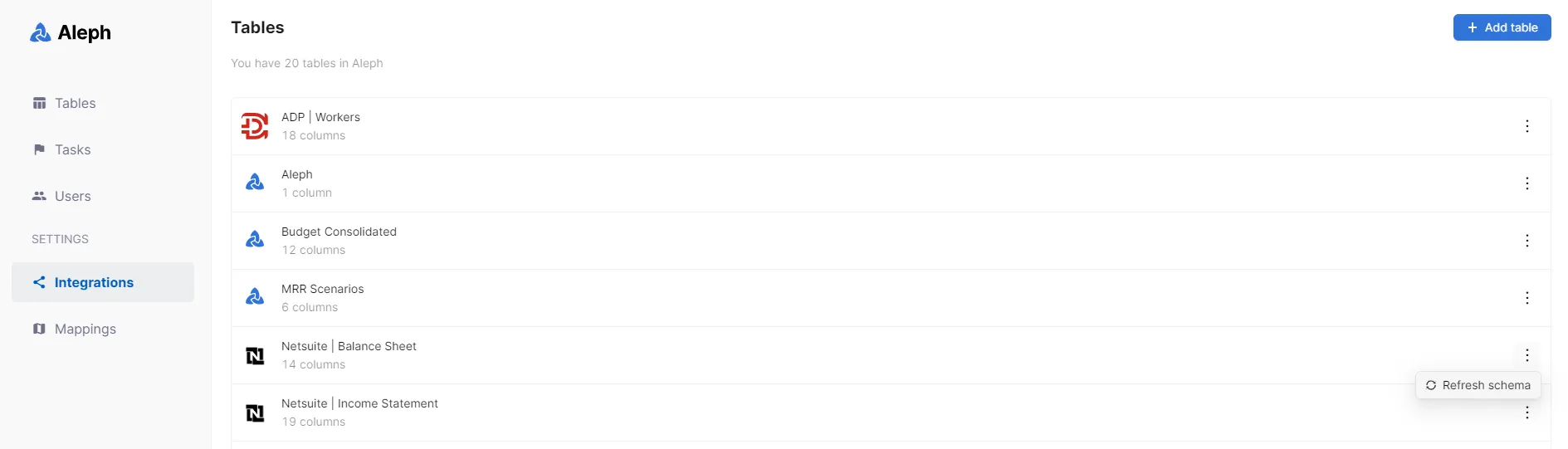
After doing this, refresh the Add-In in the spreadsheet and then you will be able to keep working on your Explore sheet.
Too many rows
When pulling an Explore that contains too many rows you may find this error message:
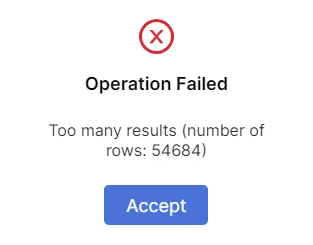
This means that the table you are trying to pull from Aleph is very large (the limit is 30,000 rows). To solve this, you may:
Apply any filter (e.g. year, month)
Remove any dimension from the rows (you may see further detail by using the drilldown)
Pull data
Missing dimensions
When trying to bring data from Aleph, you may find this error message:
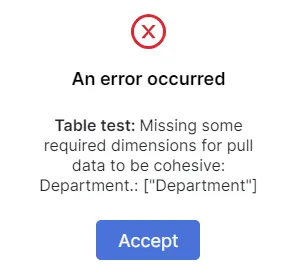
This means that there is one dimension (in this case, Department) that was selected as "Required for Pull" in the Aleph App when building the table, and it is not being selected in the "Connect" when trying to pull data.
The solution for this is either selecting this dimension when pulling data or going to the table in the Aleph App and turning off "Required for Pull".

Push Data
Values not listed in the database structure
If you push data and see the following error message, it means that you haven't included a determined value in the database structure:
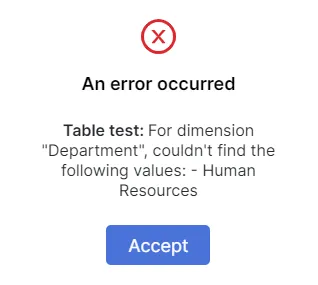
In this case, the user is trying to push data to a Department called "Human Resources". However, in the database structure, there is no "Human Resources" department, though there is an "HR":
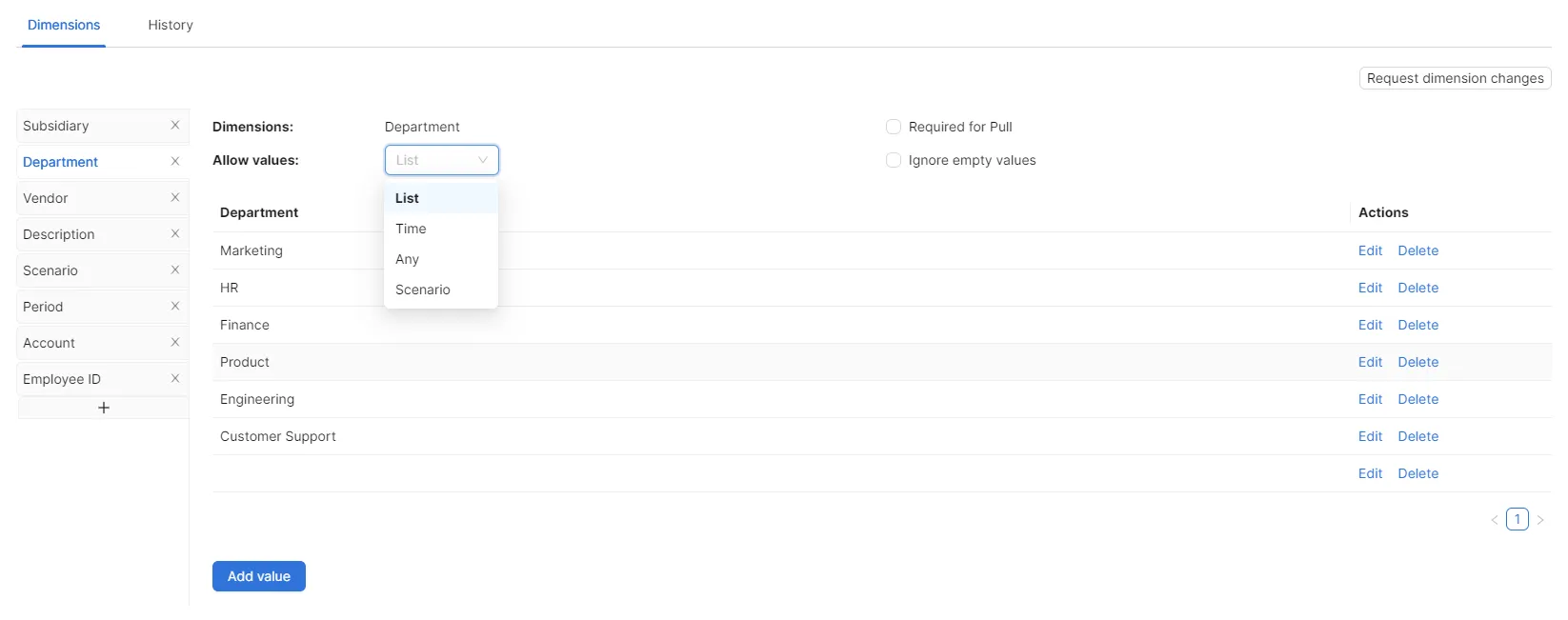
To solve this, you may either change in your spreadsheet "Human Resources" by "HR" or adjust the database structure in the Aleph App to list "HR".
Authentication fails with other add-ons
There might be cases where if you have more than one add-on installed in Excel, the authentication process might fail. To fix it:
Open Excel
File > Options
Trust Center > Trust Center Settings > Trusted Add In Catalogs
Check the box of "Next time Office starts, clear all previously-started web add-ins cache"
Close Excel
Open Excel again, and re-install Aleph (and the other add-ons)
