Onboarding
Last updated: August 14, 2024
🦆 Who can create a workspace on elba?
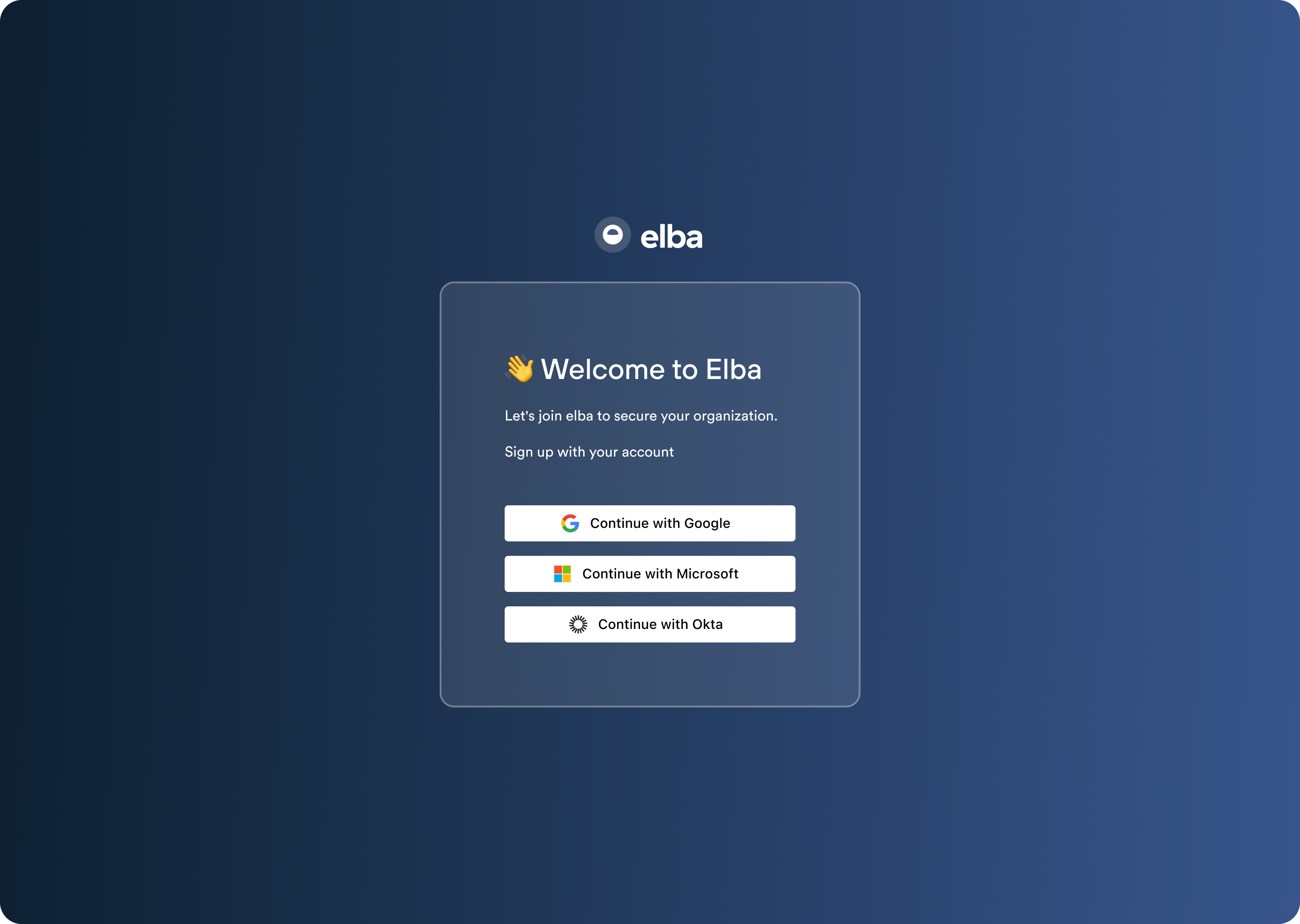
Congrats! You’ve been invited to join elba and will soon be able to start your journey to secure your teams. But before we get there, there’s only one thing to know: to create the workspace, you’ll need to have an admin role in your organization:
Google Workspace - Super Admin
Microsoft 365 - Global Administrator or Application Administrator
Okta - SUPER_ADMIN and/or APP_ADMIN
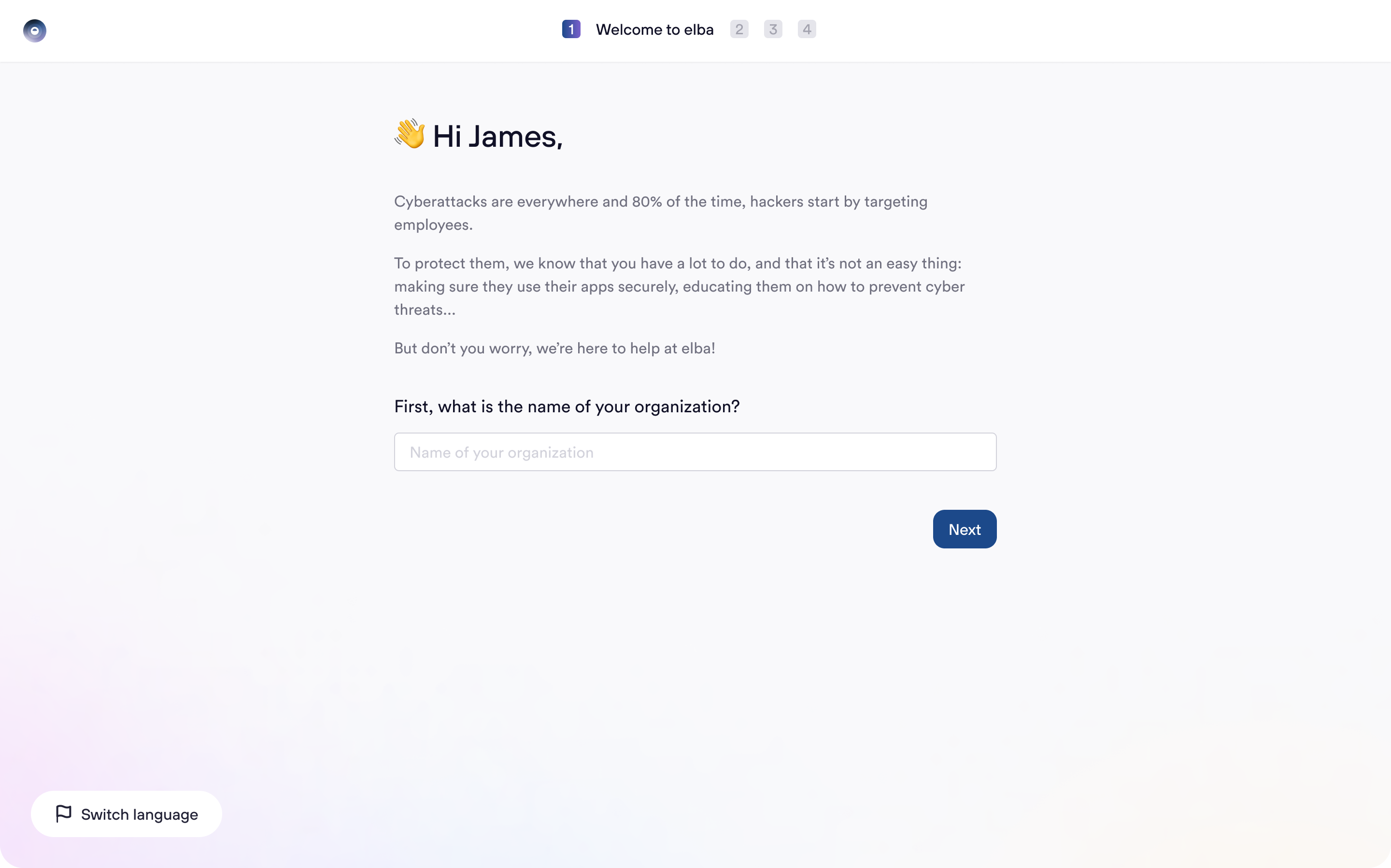
🏄 Setting up your workspace
Ok now, here we are. You can start setting up your workspace. First thing to do is to add the name of your organization - but don’t you worry you’ll still be able to edit it afterwards.
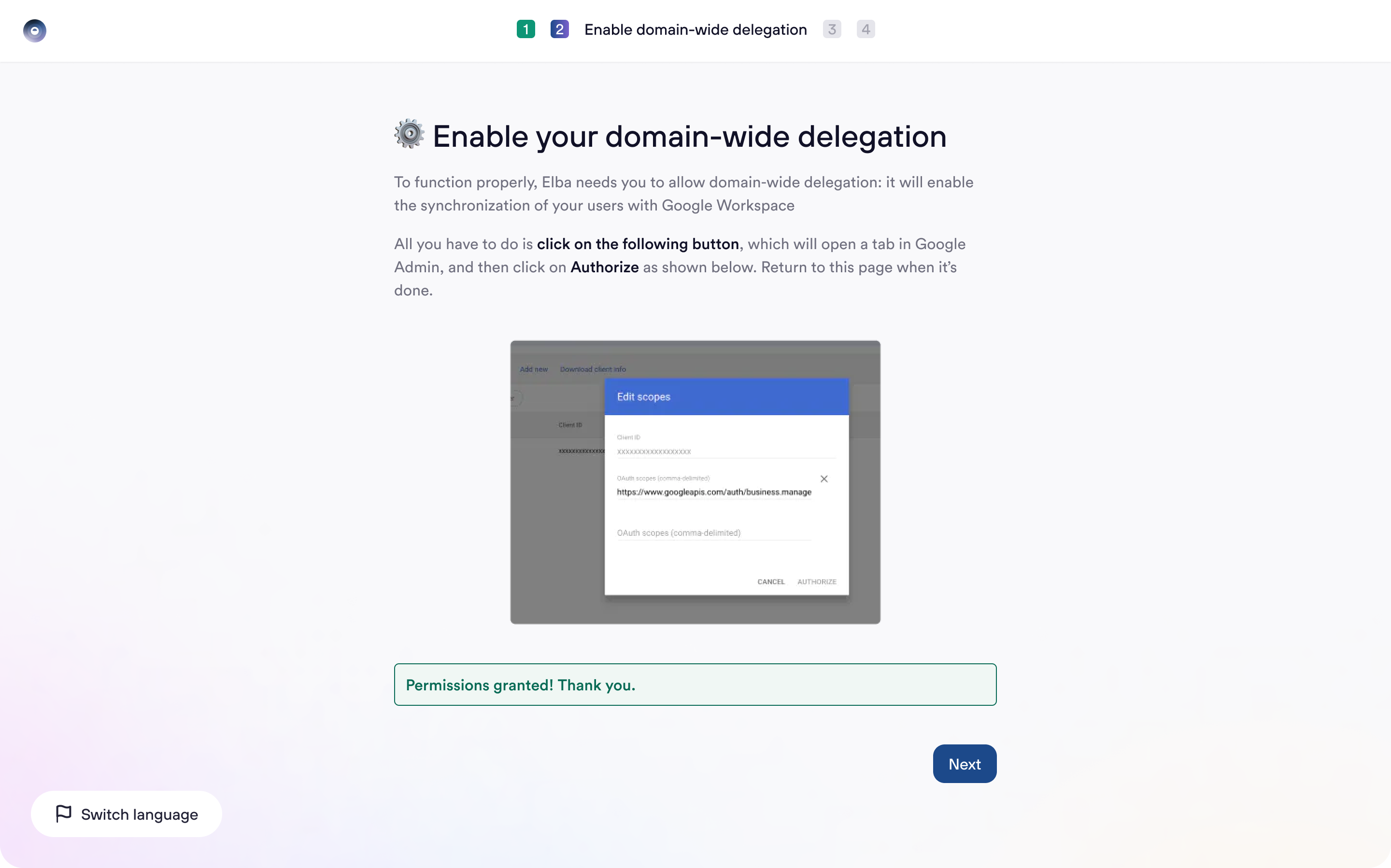
⚙ Allowing elba to retrieve your users
Second step is to grant specific scopes to ensure elba can retrieve the list of all users in your organization. This will allow elba to keep an updated version of this list, to ease your user management process.
👨👩👧👧 Synchronizing users
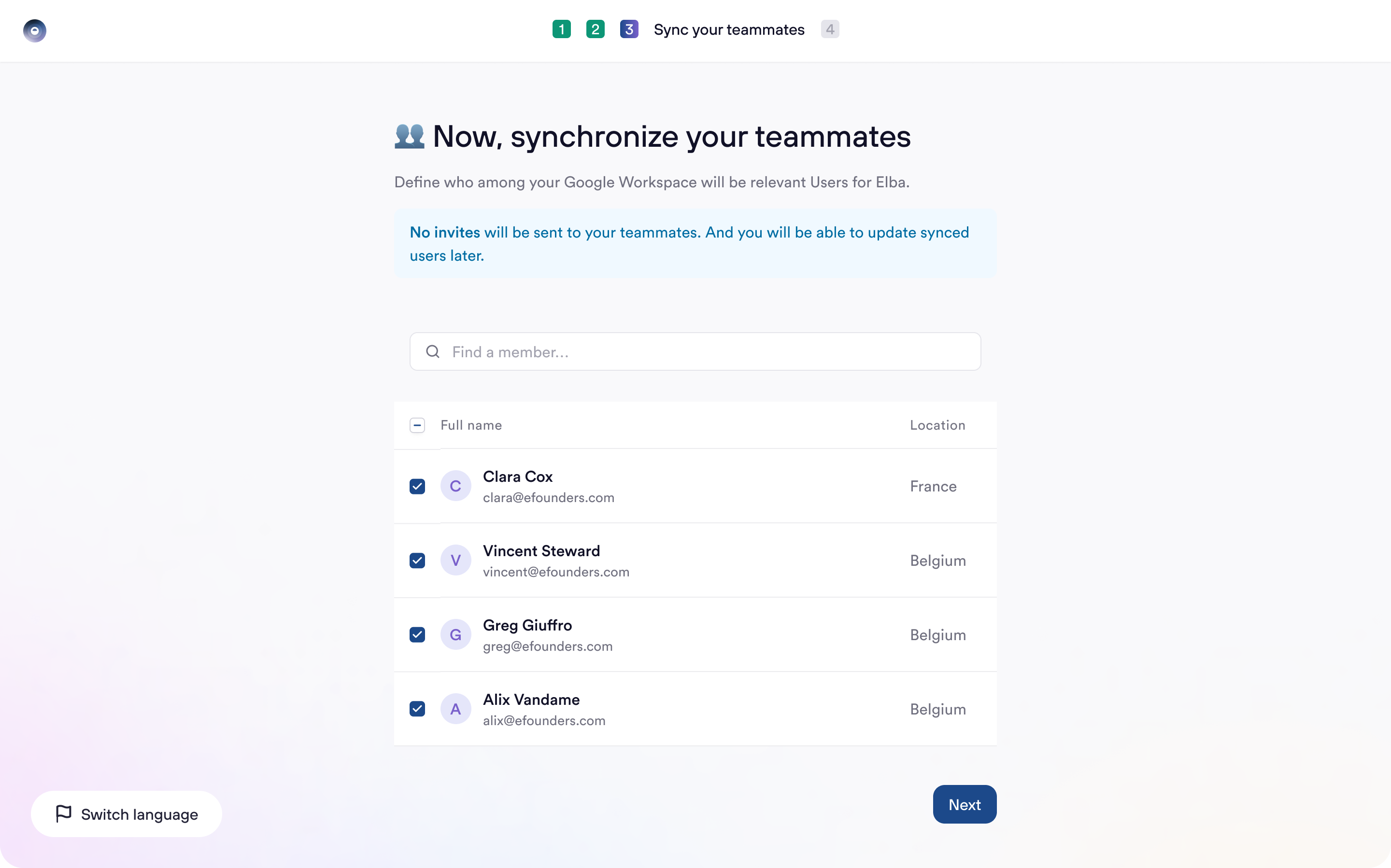
Great, now that you have retrieved the list of your Identity Provider users, you are now able to synchronize them. Note that all groups from your IdP can be retrieved directly on elba, so that you can synchronize them in bulk.
Once a module is activated on elba (for instance, the Training module), synchronized users will be invited to join the platform; non synchronized users won’t be invited.
You should note that synchronizing users at this step won’t trigger any invite, since no module has been activated yet. Don’t you worry, you’ll be warned when you’re about to trigger invite to your teams.
You can skip this step for now, and will be able to synchronize users afterwards.
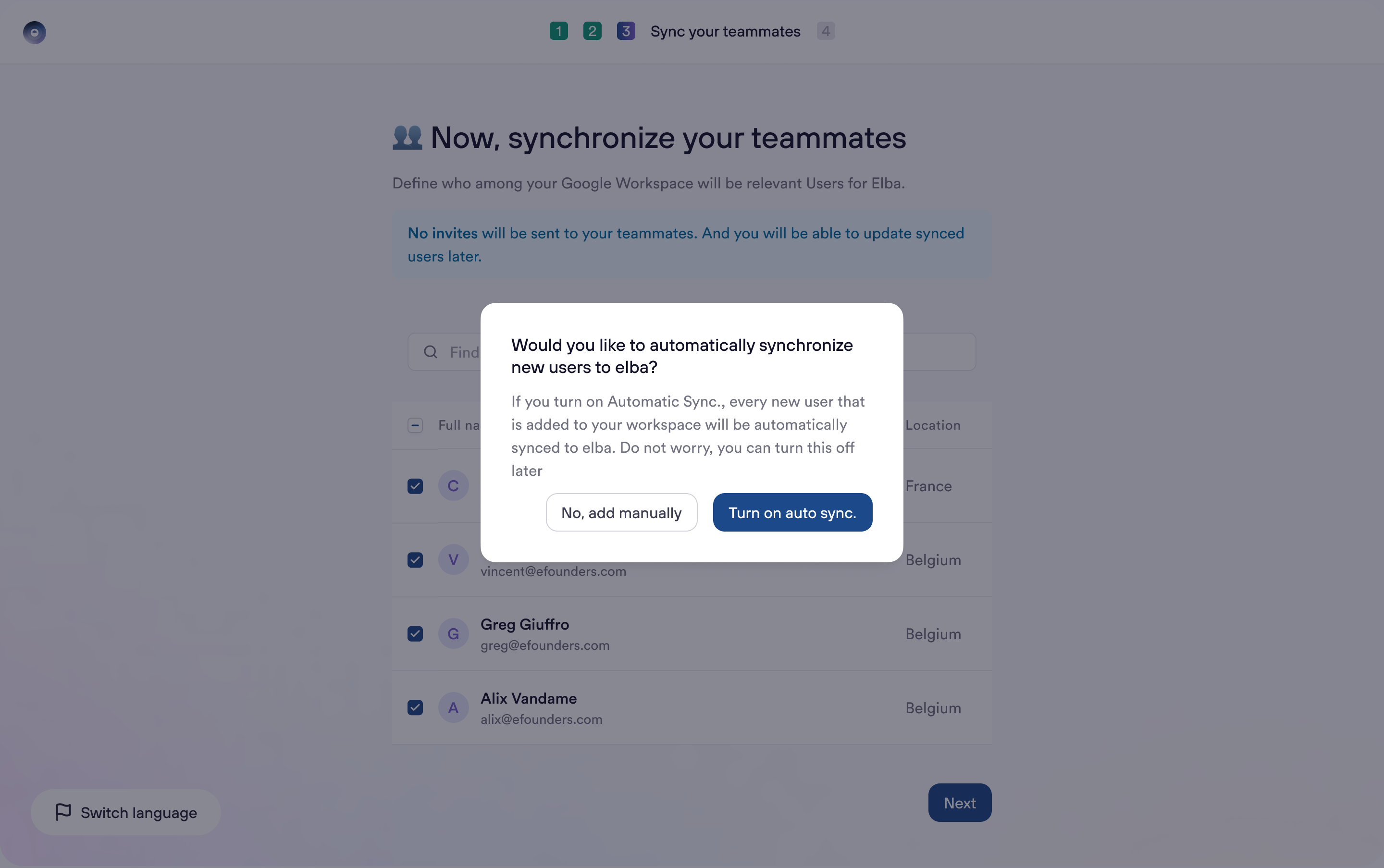
Elba offers an auto-synchronization mode. This means that when a new user is added to your Identity provider organization, it will automatically be invited to elba if you have activated at least one module.
If you don’t want to activate it now, don’t you worry, you’ll be able to do it afterwards.
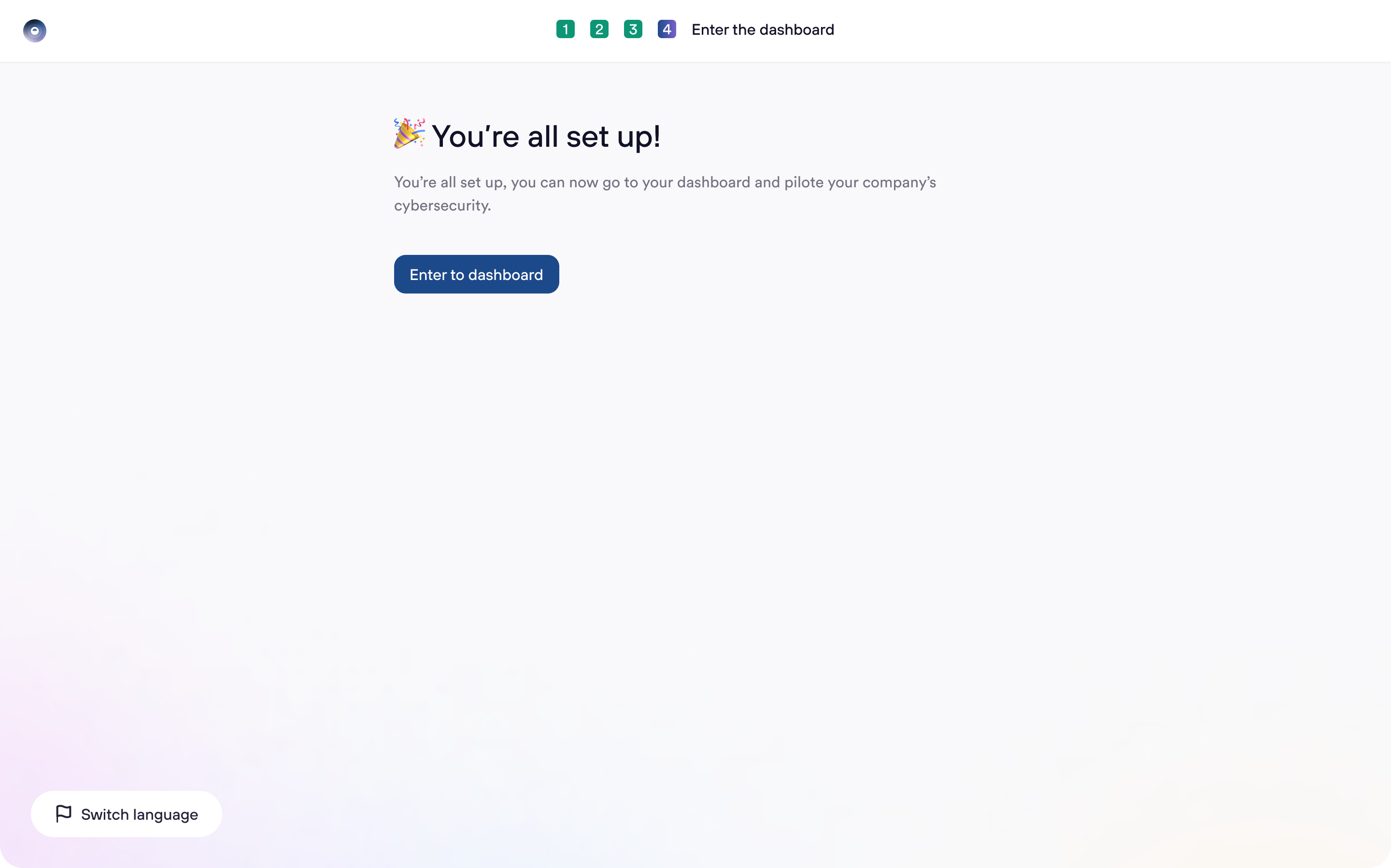
🎉 Entering elba
That’s a wrap! You’re now all set up to start discovering elba to secure your teams.