I need to get my stock of electronic parts to Cofactr—what do I do?
Last updated: September 12, 2024
Shipping parts to Cofactr to enter into your Cofactr inventory
Cofactr's Shipping Address
Cofactr Inc.
Attn: Receiving
630 Flushing Ave, Floor 5
Brooklyn, NY 11206
Phone: 332-373-2227
Email: success@cofactr.com
Providing Tracking Info to Cofactr
Option 1 (Preferred)
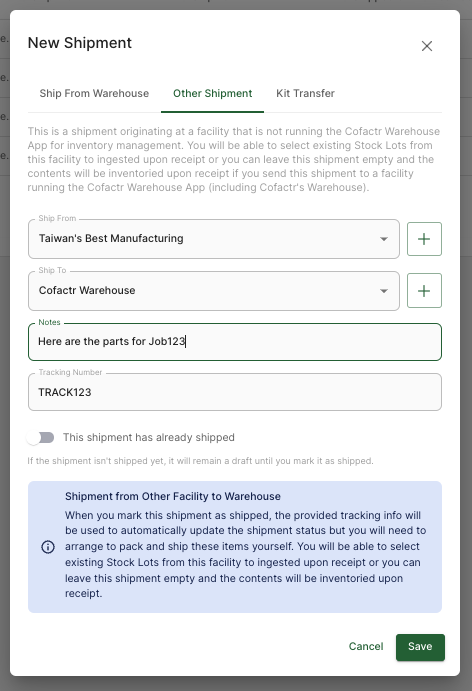
Select the + New Shipment button
Unless you are shipping from a location that uses the Cofactr Warehouse App, select Other Shipment
Leave Ship From blank, or select your existing facility
Select Cofactr Warehouse for Ship To
Optionally, enter any notes that you would like to be able to reference later.
Enter your tracking number
Turn on the "This shipment has already shipped toggle"
Click Save
Option 2 (Old School)
Send an email to success@cofactr.com with your tracking number.
Option 3 (Shipping Parts You Already Have in Cofactr)
If you have manually created stock lots in Cofactr, we recommend telling us that those stock lots are in your shipment, otherwise, you will likely end up with duplicate records in Cofactr.
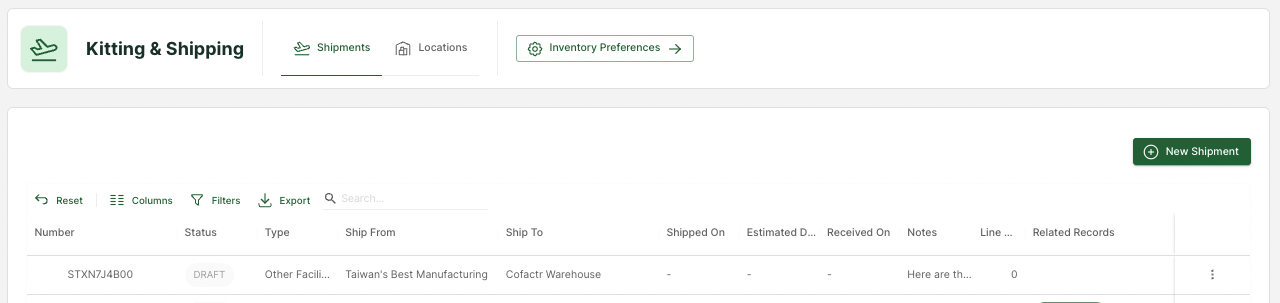
Select the + New Shipment button
Unless you are shipping from a location that uses the Cofactr Warehouse App, select Other Shipment
Leave Ship From blank, or select your existing facility
Select Cofactr Warehouse for Ship To
Optionally, enter any notes that you would like to be able to reference later.
Enter your tracking number
Do NOT turn on the "This shipment has already shipped toggle"
Click Save to create a Draft shipment
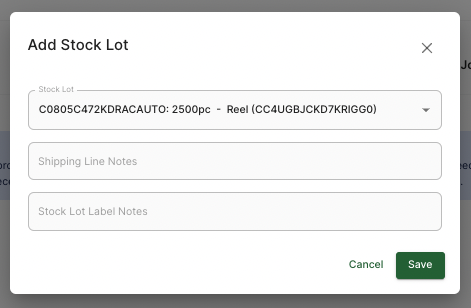
You can add stock lots to a draft shipment in two ways:
Open the shipment and click Add Stock Lot
Navigate to the Stock Lots view in the Stock App, select the checkboxes next to one or more stock lots, and click the Add to Shipment icon (it looks like an airplane taking off) in the upper right-hand corner of the Stock Lots table.
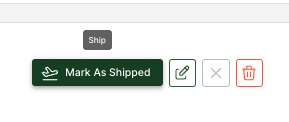
When you are done adding stock lots to your shipment, navigate back to the draft shipment and select Mark as Shipped
What Happens Next
The Cofactr platform will automatically track your incoming shipment and update the Estimated Delivery Date
When the parts arrive at Cofactr, they will be inventoried based on their labels and/or packing slip and counted using an X-Ray component counter or other automated method. For typical shipments, this process will take up to one business day. For very large shipments, this might take an extra few days, depending on our facility's workload.
You can view all the parts received in that Shipment at any time within the Kitting & Shipping App in Cofactr
Written by Matthew Haber